Upload a Revision
Navigate to Tech Library → AMP in the sidebar.
The AMP revisions list loads at /tech-library/amp, showing
all uploaded revisions with their status, model, task count, and upload date.
The table columns are:
| Column | Meaning |
|---|---|
| Revision No | The revision identifier (e.g. Rev 12, Issue 3). |
| Model | The aircraft model this AMP applies to. |
| Effective Date | When this revision becomes effective. |
| Tasks | Number of tasks extracted from the PDF. |
| Status | UPLOADED, PARSED, PENDING_APPROVAL, APPROVED, or REJECTED. |
| Filename | Original PDF filename. |
| Uploaded | Upload date. |
Click any row to view revision details. Use the search bar to filter by revision number or model name.
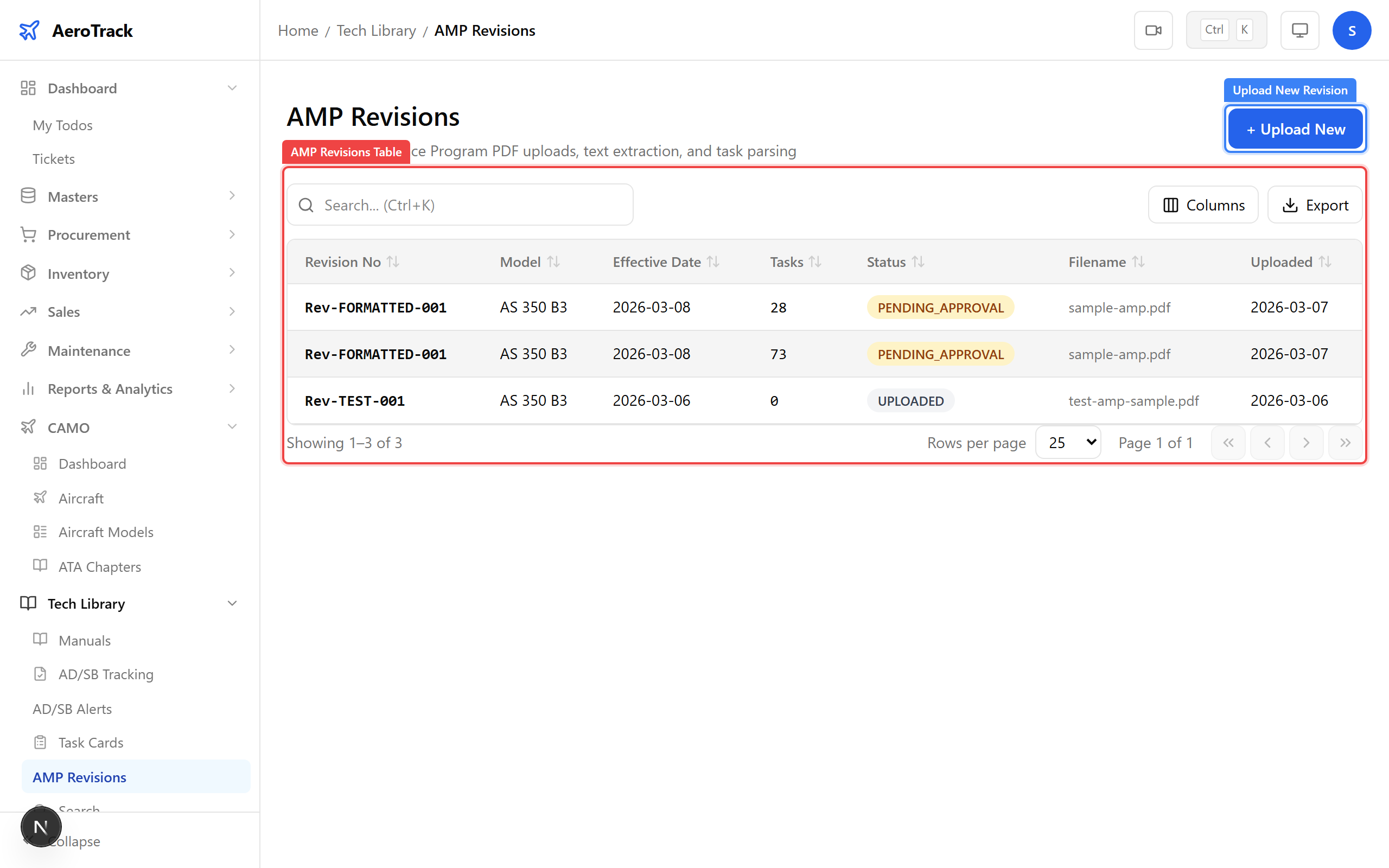
Click the Upload New Revision button at the top-right of
the AMP list page. The upload form opens at
/tech-library/amp/upload.
Complete the Revision Info section:
| Field | Required | Notes |
|---|---|---|
| Aircraft Model * | Yes | Dropdown of all aircraft models. Displays Name (Manufacturer). |
| Revision No * | Yes | Free text, 1–30 characters. E.g. Rev 12, Issue 3. |
| Effective Date | No | The date this revision becomes active. |
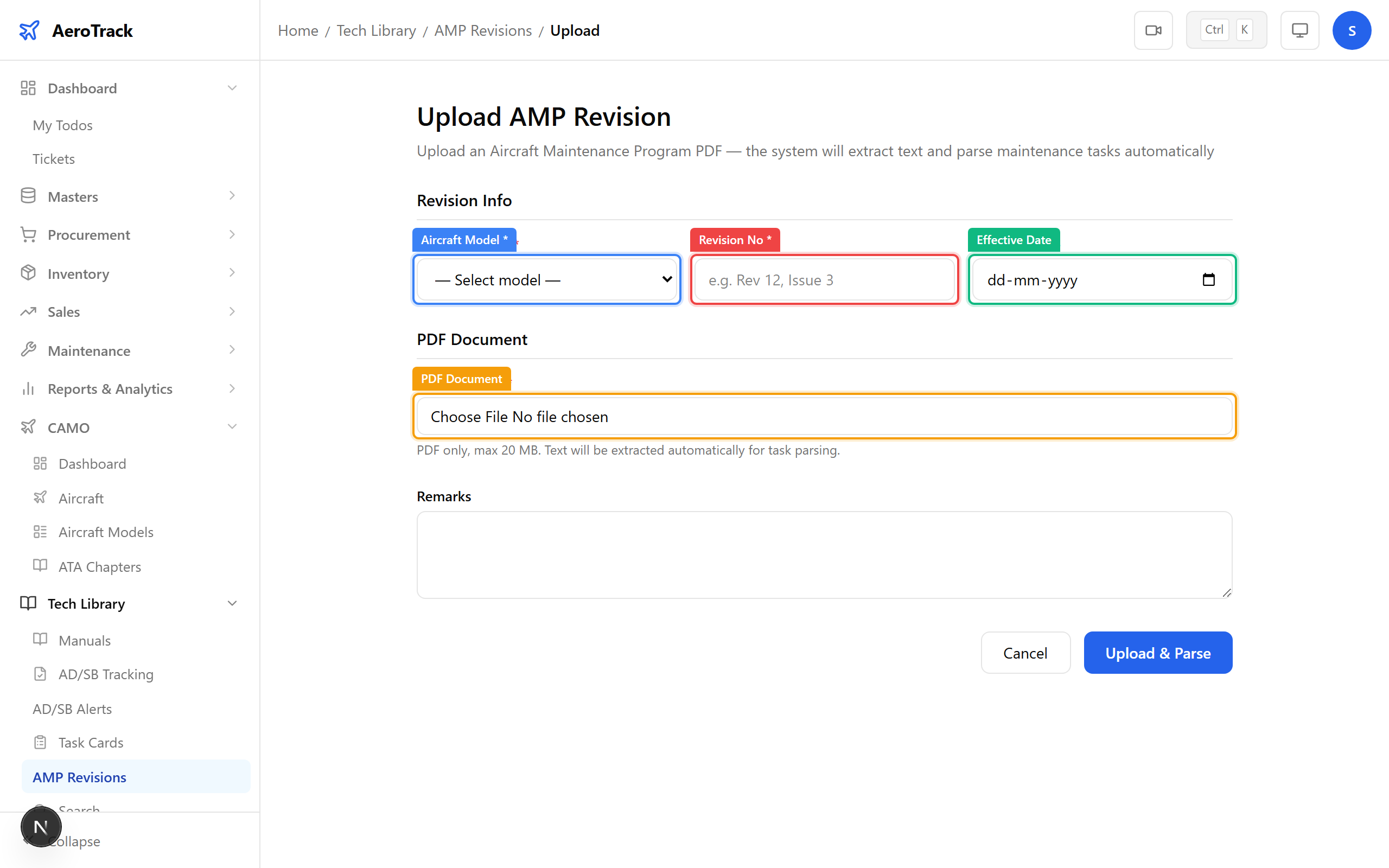
In the PDF Document section, click the file input and select your AMP document.
| Constraint | Value |
|---|---|
| File type | PDF only (.pdf) |
| Max size | 20 MB |
Once selected, the filename and file size appear below the input. If the file is not a PDF or exceeds 20 MB, an inline error appears.
Optionally add Remarks in the textarea below (max 500 characters) to describe what changed in this revision.
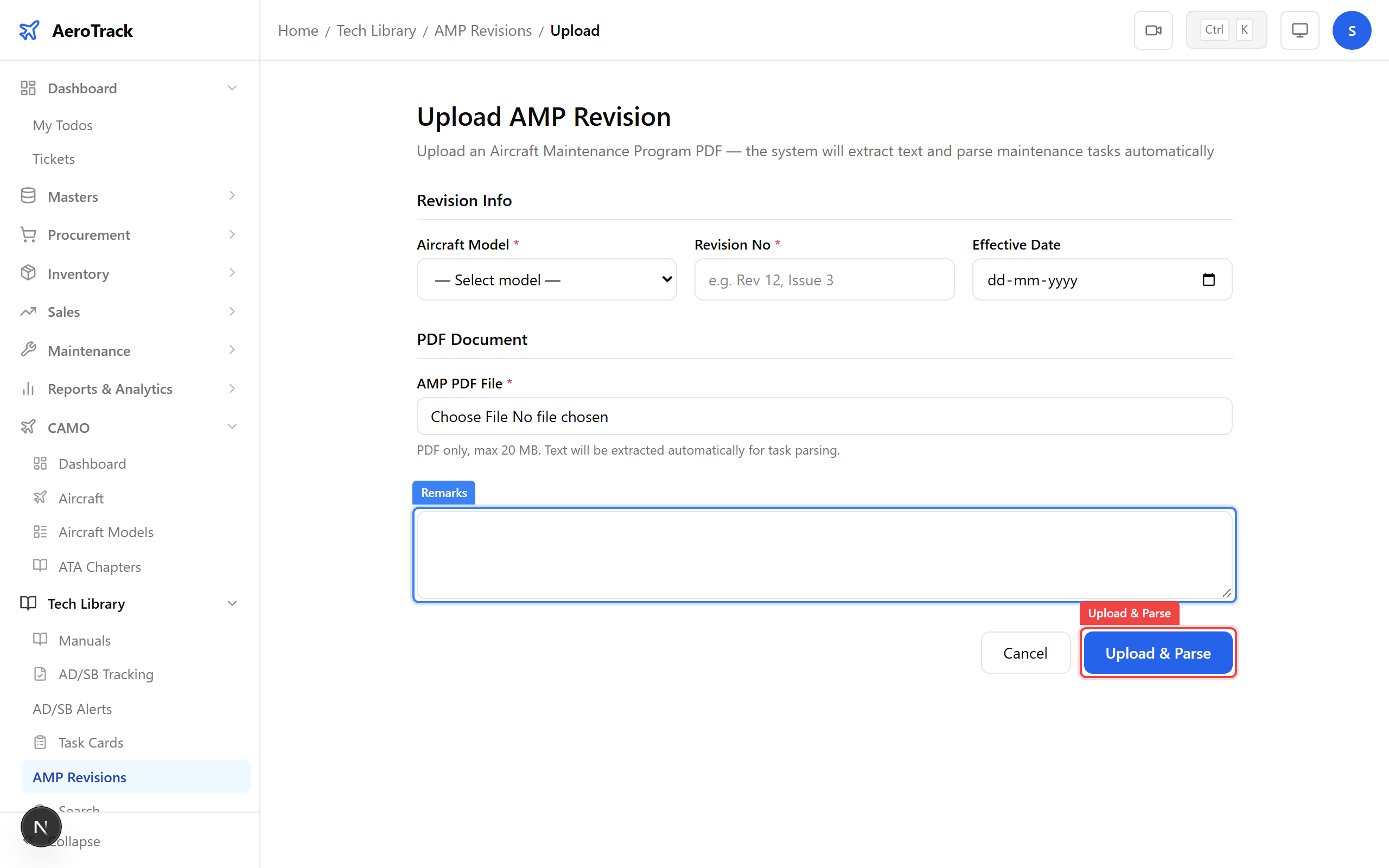
Click Upload & Parse. The system:
- Uploads the PDF to the server.
- Creates an AMP revision record with status UPLOADED.
- Extracts text from the PDF.
- Parses the text to identify maintenance tasks (task number, ATA chapter, description, intervals).
- Transitions the status to PARSED (if extraction succeeds).
A success toast appears: “AMP revision uploaded and parsed”. You are automatically redirected to the revision detail page.
After Upload
The revision detail page (/tech-library/amp/{id}) shows:
| Section | Content |
|---|---|
| Info Card | Revision No, Model, Effective Date, Status badge, Tasks Extracted count, PDF link (“View PDF”), Upload date, Remarks. |
| Diff Panel | Appears when status is PARSED or PENDING_APPROVAL. Compares extracted tasks against existing task cards. See Review & Diff. |
| Extracted Tasks | Table of all parsed tasks: Task No, ATA Ch, Description, Hours, Cycles, Days, Type. |
| Raw Extracted Text | Collapsible section showing the full text extracted from the PDF. |
Check the Extracted Tasks table to verify the parser identified the correct tasks. If no tasks appear, the PDF may not contain parseable task data.
An AMP revision progresses through these statuses:
| Transition | Trigger |
|---|---|
| UPLOADED → PARSED | Automatic — when PDF text is extracted and tasks are parsed. |
| PARSED → PENDING_APPROVAL | Automatic — when the diff panel is first generated (any user views the detail page). |
| PENDING_APPROVAL → APPROVED | Admin clicks Approve. See Approve / Reject. |
| PENDING_APPROVAL → REJECTED | Admin clicks Reject Revision. |