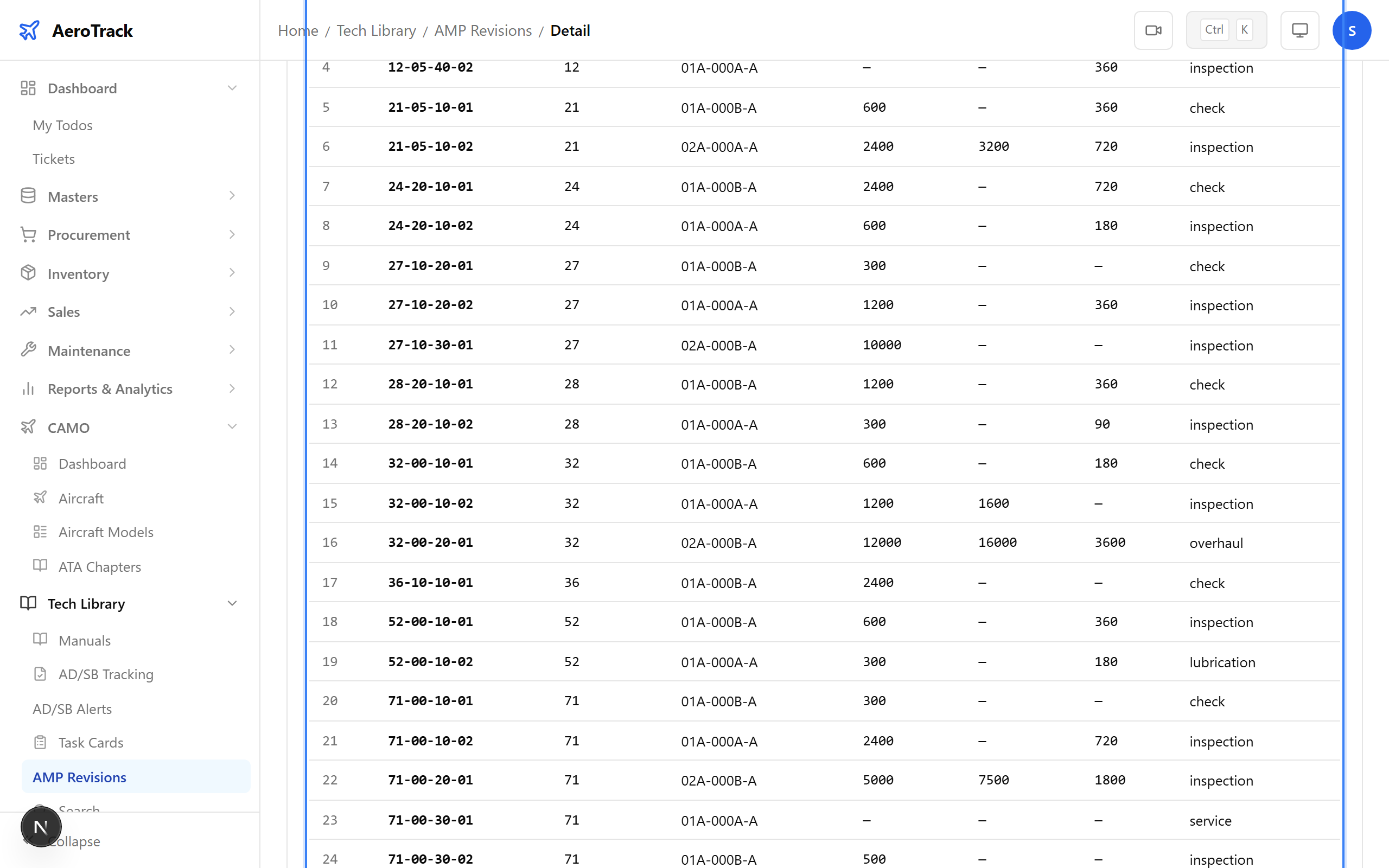
Open a Revision
Go to Tech Library → AMP. In the revisions list, find a revision with status PARSED or PENDING_APPROVAL and click the row.
The detail page opens at /tech-library/amp/{id}. The diff
panel is visible only for revisions in PARSED or PENDING_APPROVAL status.
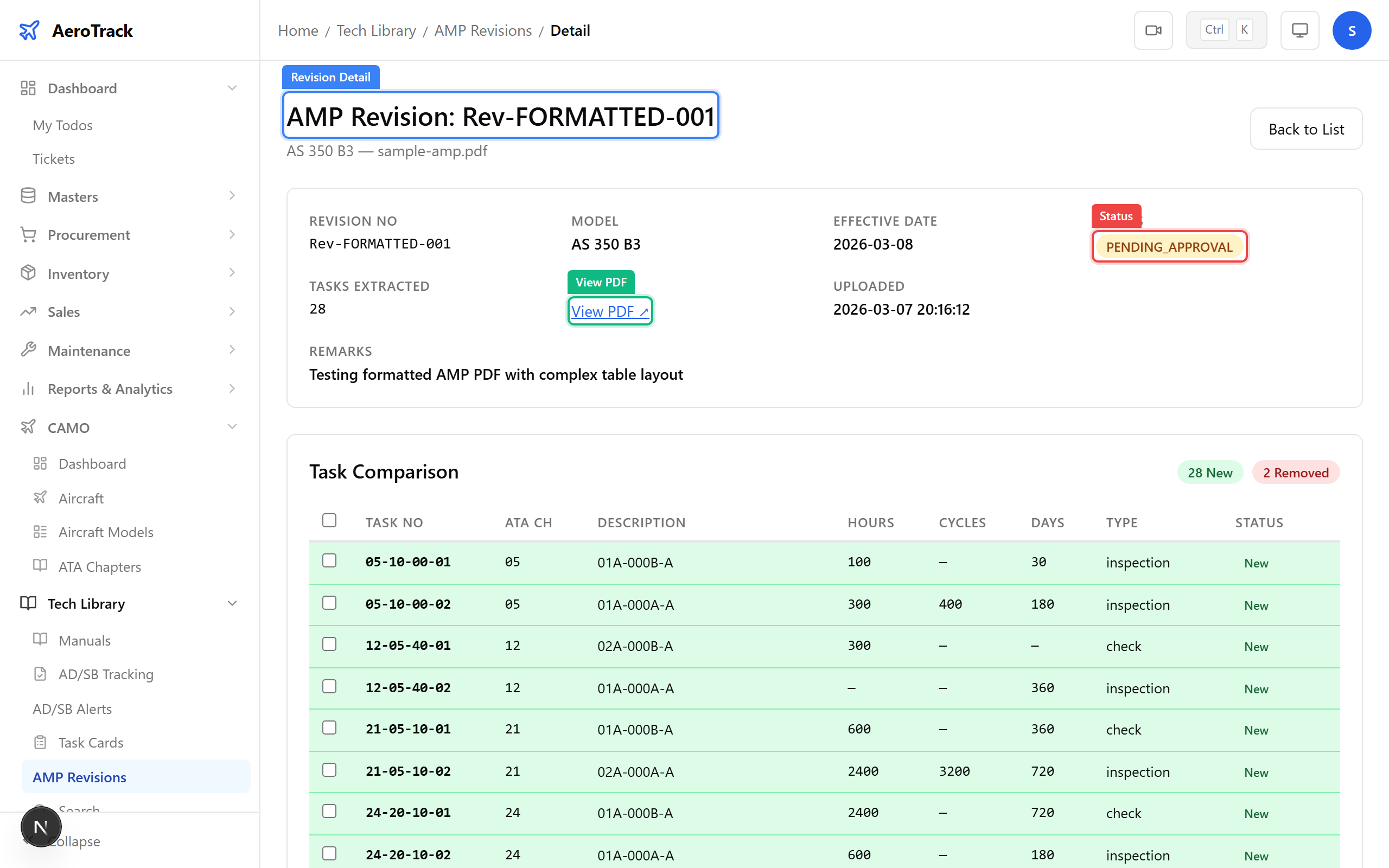
The info card at the top displays key metadata:
| Field | Description |
|---|---|
| Revision No | The revision identifier. |
| Model | Aircraft model this AMP applies to. |
| Effective Date | When the revision takes effect. |
| Status | Current status badge (colour-coded). |
| Tasks Extracted | Number of tasks the parser found in the PDF. |
| PDF File | “View PDF” link — opens the uploaded document in a new tab. |
| Uploaded | Date and time the revision was uploaded. |
| Remarks | Optional notes from the uploader. |
Understand the Diff Panel
At the top-right of the diff panel, four summary badges show the number of tasks in each category:
- New — tasks in the AMP that do not exist in the current task card database.
- Changed — tasks that exist in both, but with differences in interval, description, or type.
- Removed — tasks in the database that are no longer in this AMP revision.
- Unchanged — tasks that match exactly between the AMP and the database.
Use these counts for a quick assessment of how many changes the new revision introduces.
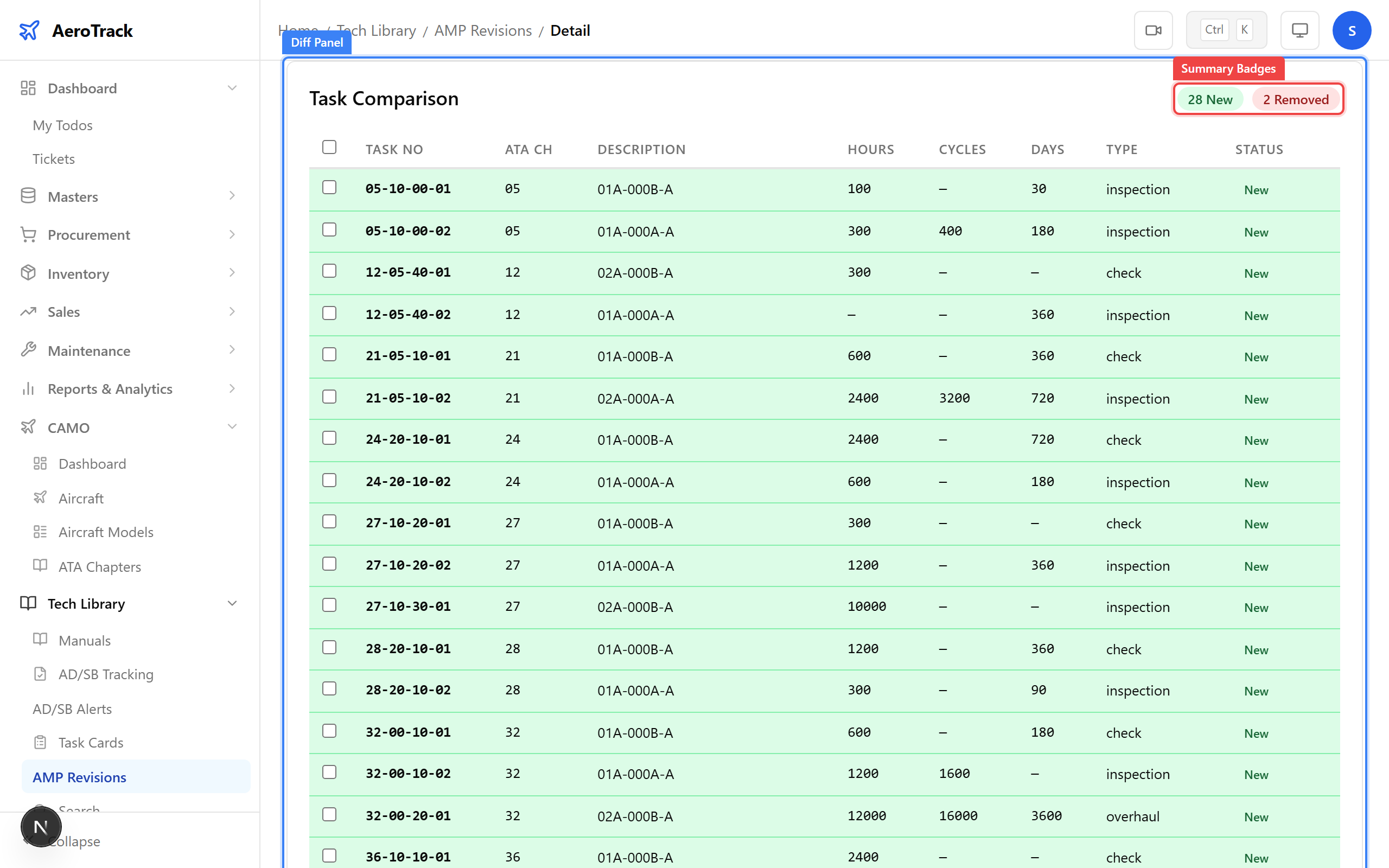
The diff table lists every task with these columns:
| Column | Content |
|---|---|
| Task No | The task identifier from the AMP (monospace, bold). |
| ATA Ch | ATA chapter number (monospace). |
| Description | Task description. Changed tasks show the old value with |
| Hours | Interval in flight hours. Changed values show old with |
| Cycles | Interval in landing cycles. |
| Days | Interval in calendar days. |
| Type | Task type (e.g. routine, non-routine). |
| Status | Colour-coded badge: New (green), Changed (amber), Removed (red), Unchanged (transparent). |
Each row is colour-tinted to match its status — green background for new, amber for changed, red for removed, and transparent for unchanged.
Each diff item falls into one of four categories:
| Type | What It Means | On Approval |
|---|---|---|
| New | Task exists in the uploaded AMP but not in the task card database. | A new task card is created with the AMP’s values. |
| Changed | Task exists in both, but intervals, description, or type differ. | The existing task card is updated with the AMP’s new values. |
| Removed | Task exists in the database but is missing from this AMP revision. | The existing task card is deactivated (soft-deleted). |
| Unchanged | Task matches exactly — no action needed. | No change. |
Below the diff panel, two additional sections help verify parsing quality:
| Section | Content |
|---|---|
| Extracted Tasks | A full table of every task parsed from the PDF: Task No, ATA Ch, Description, Hours, Cycles, Days, Type. Use this to spot-check the parser output. |
| Raw Extracted Text | Collapsible section showing the verbatim text extracted from the PDF. Click the summary to expand. Useful for debugging when tasks are not parsed correctly. |
If the extracted tasks table is empty, the PDF may contain scanned images instead of selectable text. Re-upload a text-based PDF for accurate parsing.