Create a New Aircraft
In the sidebar, expand the CAMO group and click Aircraft. The aircraft list page loads showing all registered aircraft with their status, hours, cycles, and CoA expiry.
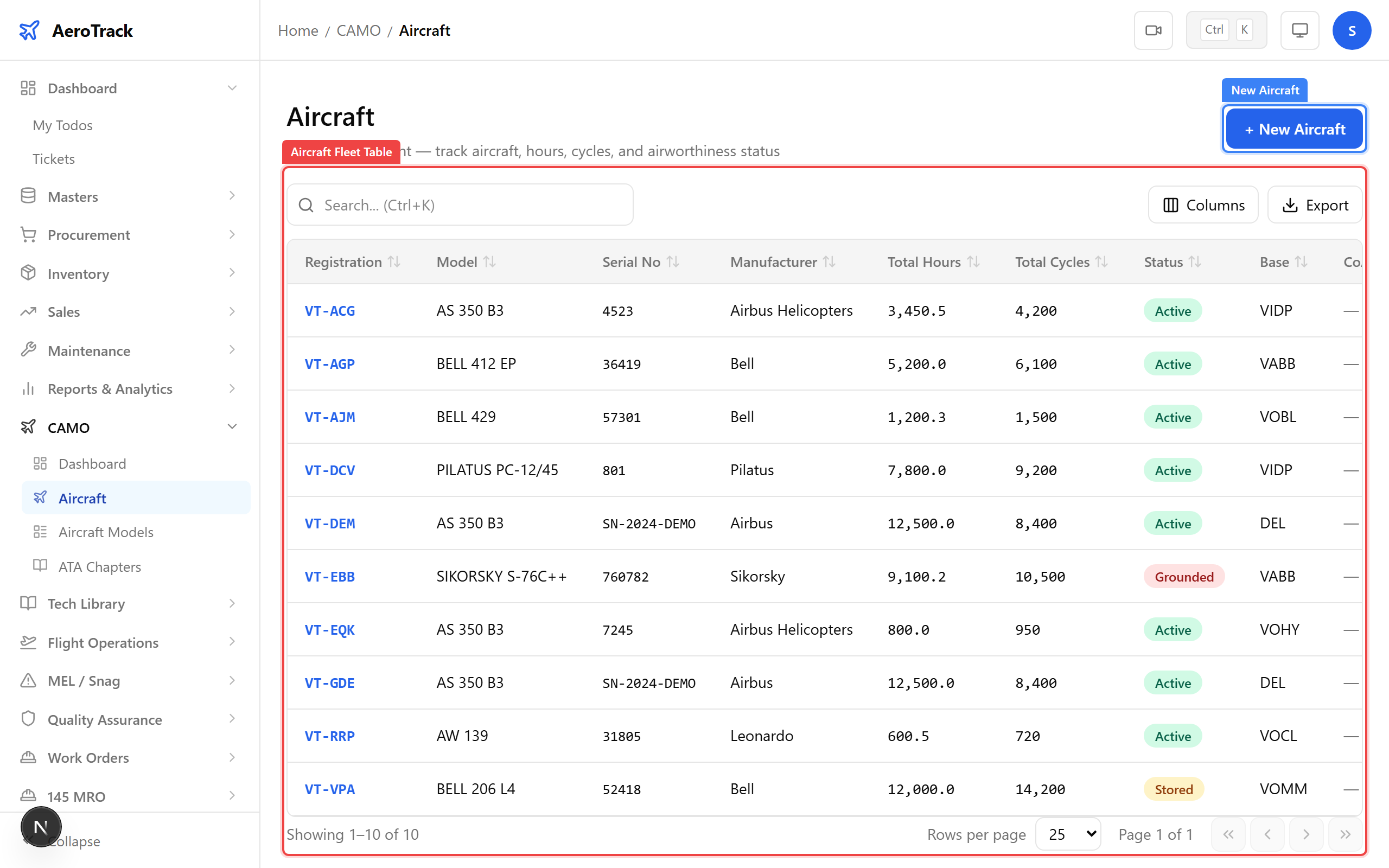
Click the New Aircraft button at the top-right of the list.
The form page opens at /camo/aircraft/new.
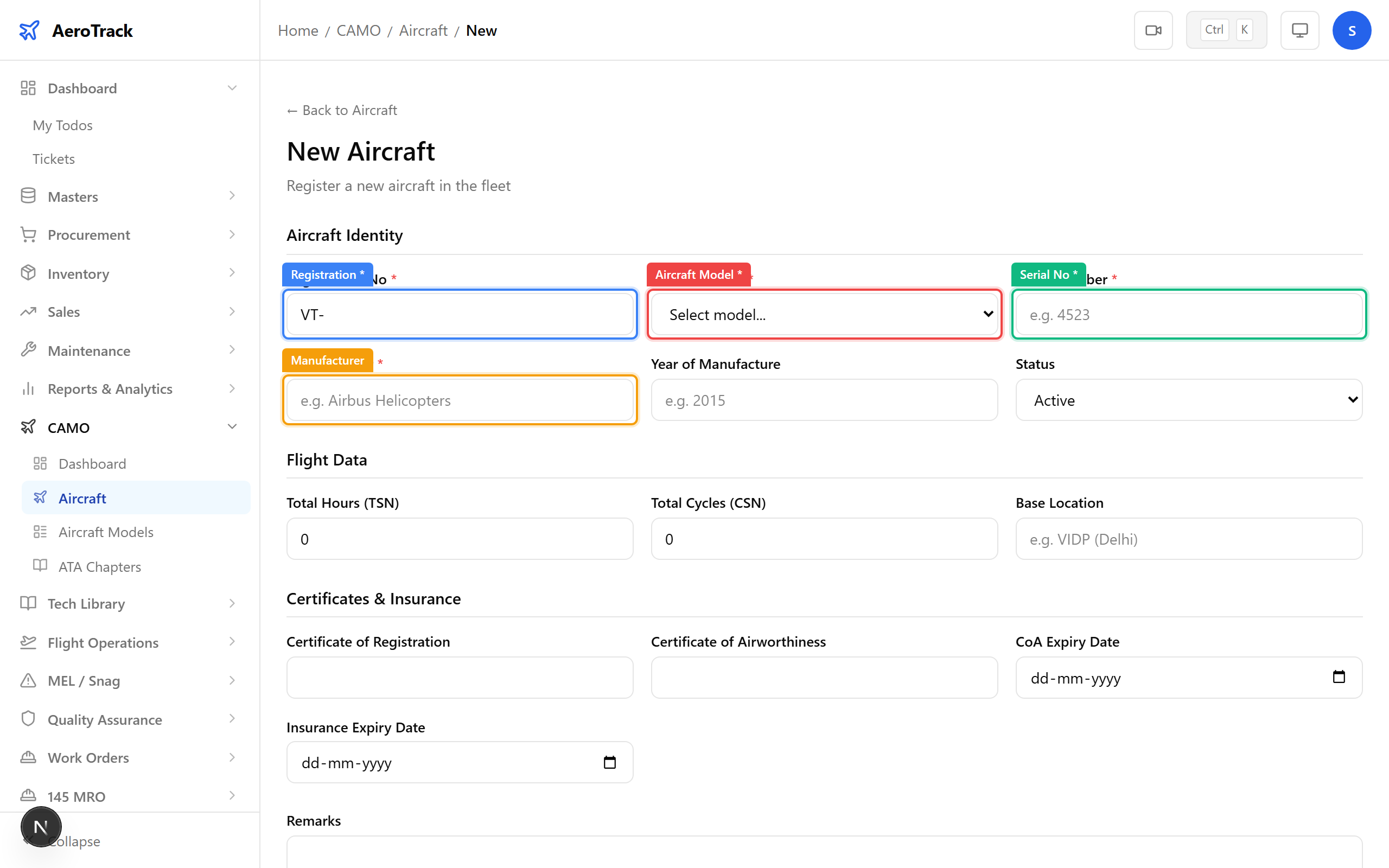
Complete the Aircraft Identity section. Fields marked * are required.
| Field | Required | Notes |
|---|---|---|
| Registration * | Yes | Indian format, e.g. VT-ACG. Cannot be changed after creation. |
| Aircraft Model * | Yes | Select from the dropdown. Models are managed under CAMO → Aircraft Models. |
| Serial No * | Yes | Manufacturer's serial number. |
| Manufacturer | No | Free text, e.g. "Airbus", "Boeing". |
| Year of Manufacture | No | Numeric year between 1950 and 2030. |
| Status | Yes | Defaults to Active. Options: Active, Grounded, Stored, Retired. |
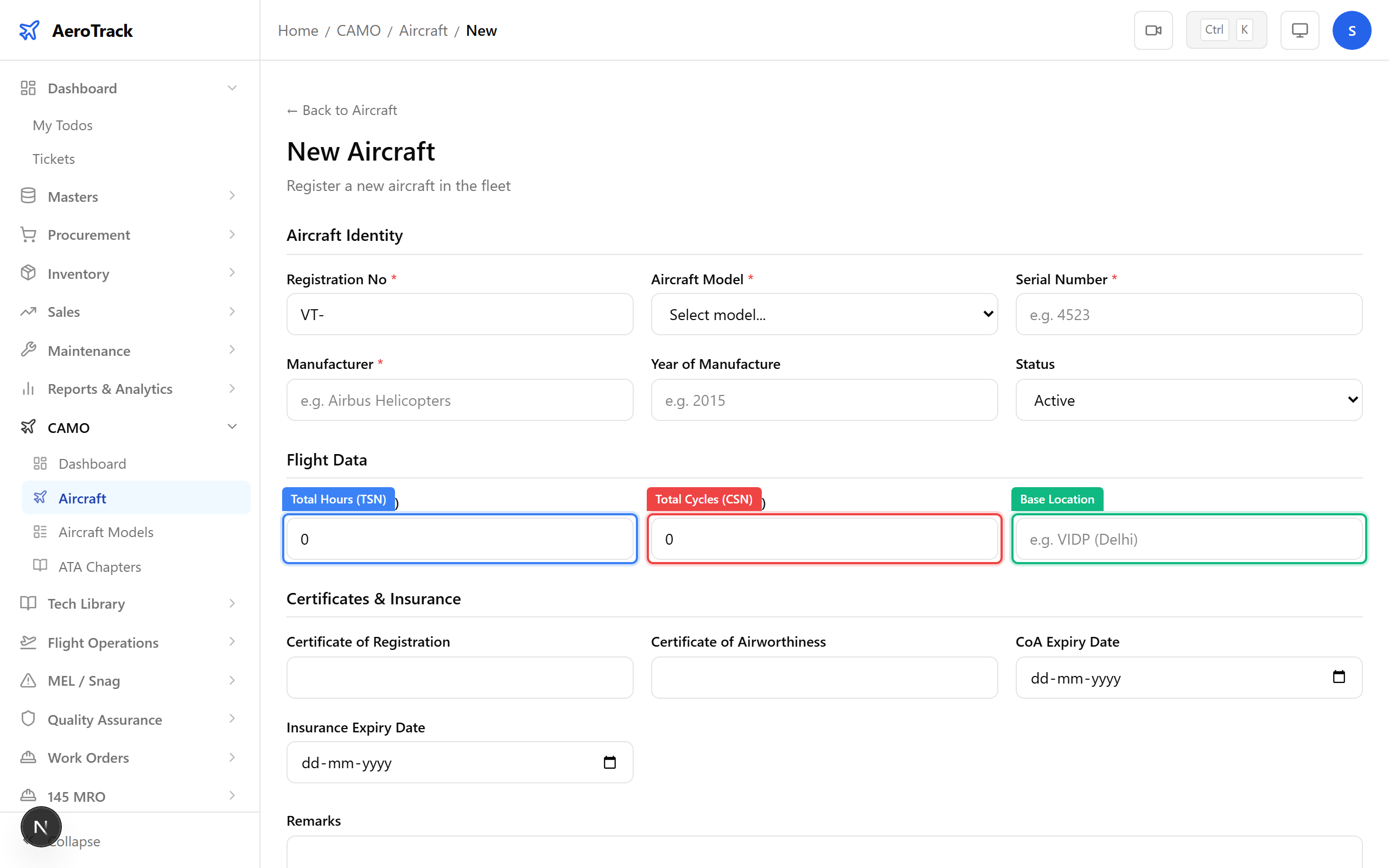
Scroll to the Flight Data section.
| Field | Default | Notes |
|---|---|---|
| Total Hours (TSN) | 0 | Time Since New in airframe hours. |
| Total Cycles (CSN) | 0 | Cycles Since New (one take-off + landing = 1 cycle). |
| Base Location | — | e.g. VIDP (Delhi). |
Fill in the Certificates & Insurance section.
| Field | Notes |
|---|---|
| Certificate of Registration (C of R) | DGCA-issued registration certificate number. |
| Certificate of Airworthiness (C of A) | DGCA-issued airworthiness certificate number. |
| CoA Expiry Date | Date picker. The aircraft list highlights expired CoA dates in red. |
| Insurance Expiry Date | Date picker. |
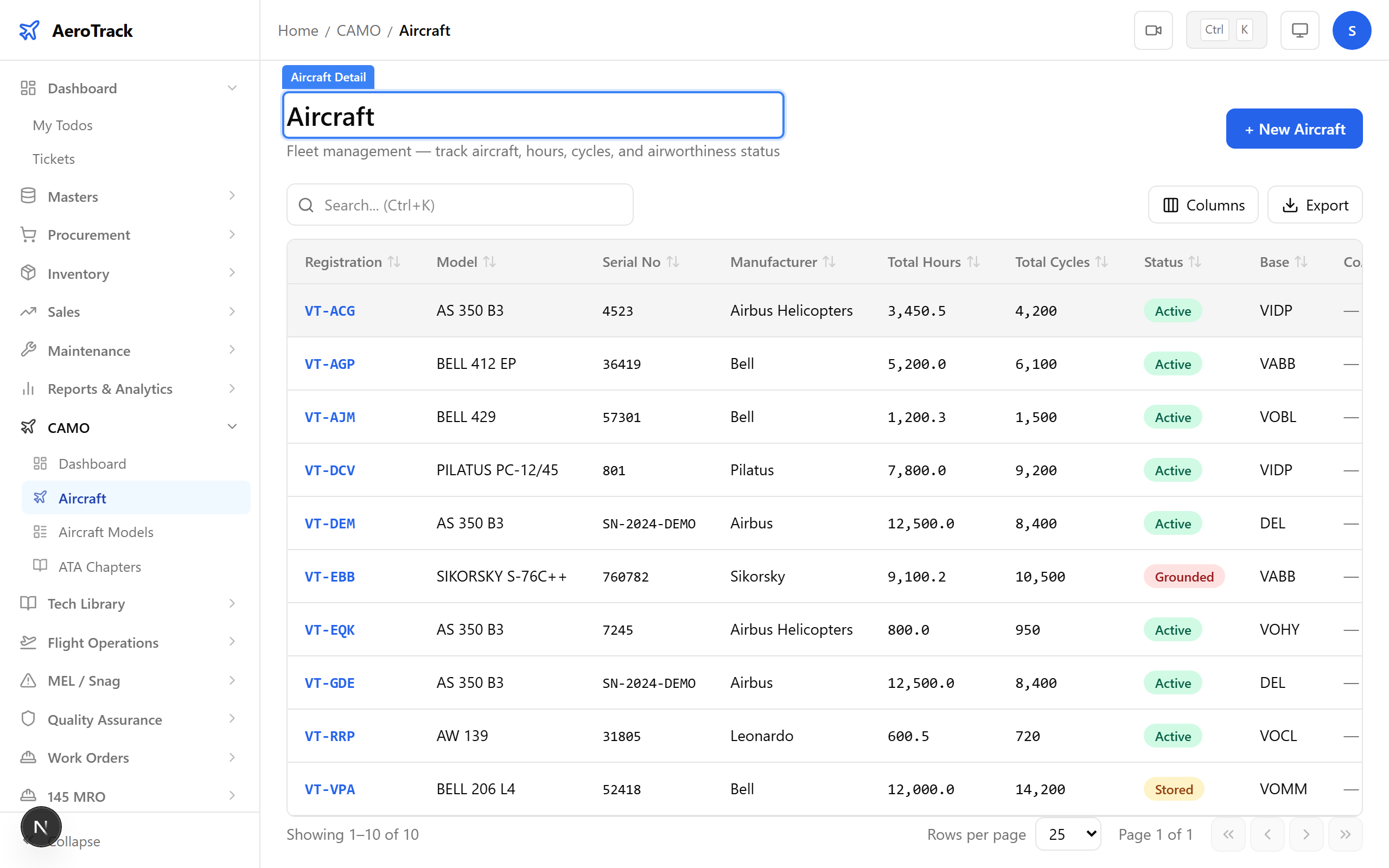
Optionally add Remarks (max 500 characters), then click Create Aircraft. A success toast appears and you are redirected to the aircraft list. The new aircraft now appears in the table.
Manage Components
From the aircraft list, click the Components button on the row for your aircraft, or from the aircraft detail page click Components in the header. This opens a page listing all installed components (engines, propellers, APU, landing gear, avionics, etc.).
Click Add Component to open the inline form.
| Field | Required | Notes |
|---|---|---|
| Type | Yes | engine, propeller, APU, landing-gear, avionics, airframe, other |
| Name | Yes | Component description. |
| Part No | Yes | Manufacturer part number. |
| Serial No | Yes | Component serial number. |
| Position | No | e.g. "Engine #1", "Left MLG". |
| TSN Hours / Cycles | No | Time and Cycles Since New. |
| TSO Hours / Cycles | No | Time and Cycles Since Overhaul. |
Click Save. The component appears in the table with a type badge colour-coded by category (red = engine, blue = propeller, etc.). To remove a component, click the Remove button — a confirmation dialog appears before the soft-delete.
Edit & Deactivate
From the aircraft list, click Edit on the row. The same form opens pre-filled with the current values. Change what you need and click Update Aircraft. Note: the registration number field is disabled and cannot be modified.
From the aircraft list, click the Deactivate button on the row. A confirmation dialog asks you to confirm. Once deactivated, the aircraft is soft-deleted and no longer appears in active lists (it can still be viewed in reports and registers).