Add Materials
Open any work order detail page (internal or third-party). Scroll down past the Jobs section to find the Materials section.
The materials section lists all parts and consumables recorded against this work order. If no materials have been added yet, the section shows an empty state with the + Add Material button.
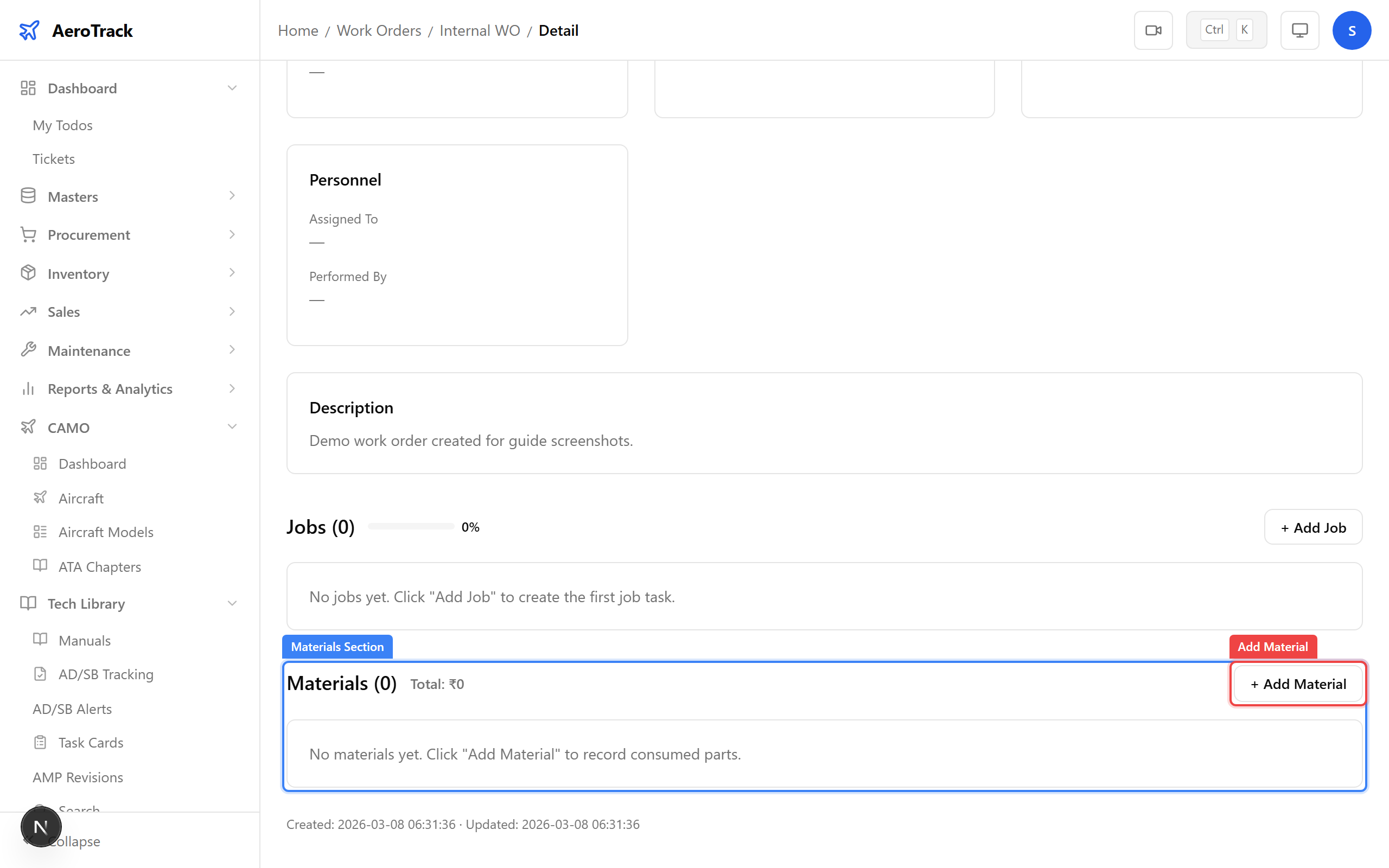
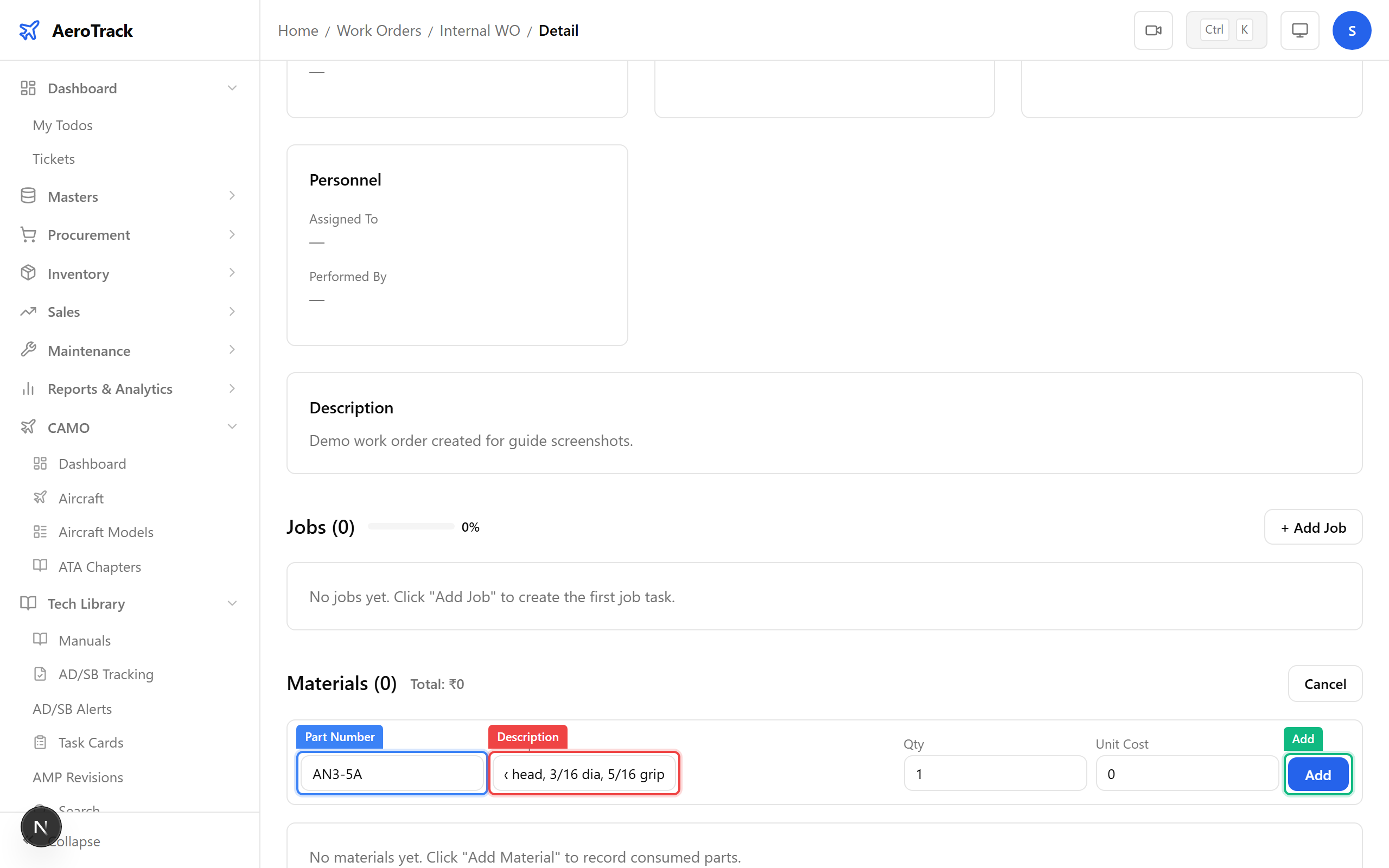
Click + Add Material to reveal the inline form. Enter the material details:
| Field | Required | Notes |
|---|---|---|
| Part Number * | Yes | Manufacturer part number or stock code of the part/consumable. |
| Description * | Yes | Short description of the material (e.g. “O-ring seal, main fuel filter”). |
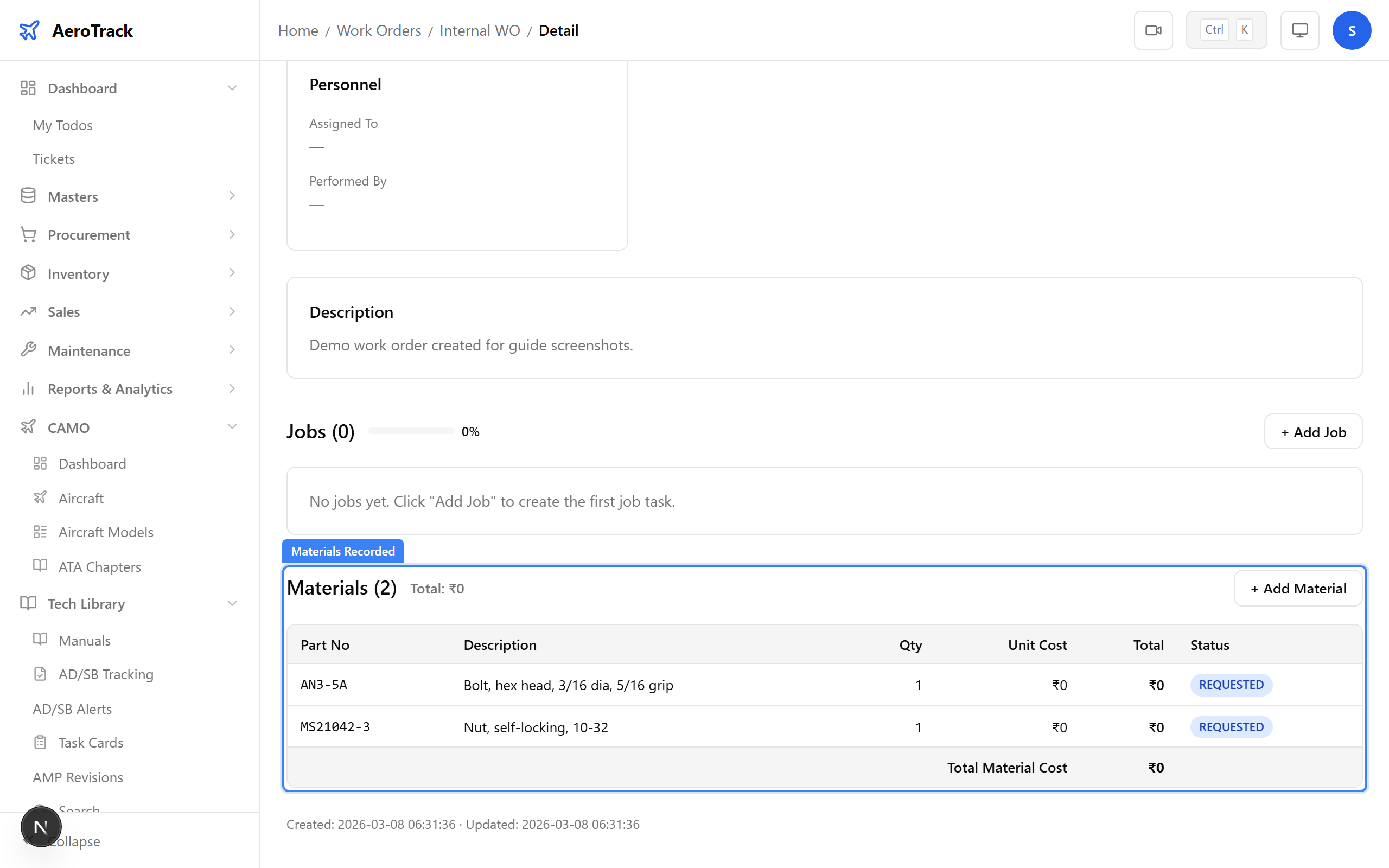
Click Add to save the material line. The item appears in the materials list immediately.
The materials list shows all recorded items with:
| Column | Meaning |
|---|---|
| # | Sequential line number. |
| Part No | The part number entered. |
| Description | Material description. |
| Actions | Delete button to remove the line item. |
Track & Report
When closing a work order (see Close a Work Order), the closure dialog shows all recorded materials as part of the closure summary. This allows the reviewer to verify that all consumed parts are accounted for.
Click the Download PDF button on the work order detail page to generate a formatted PDF that includes:
- Work order header (number, aircraft, dates, priority).
- Jobs table with status and sign-off information.
- Materials table with all recorded parts.
- Closure notes and sign-off section.
Material usage across work orders is aggregated in CAMO Reports:
| Report | Location | What It Shows |
|---|---|---|
| WO Cost Analysis | CAMO Reports → Work Orders | Estimated costs and material counts per work order. |
| Maintenance Log | CAMO Reports → Components | Complete maintenance history including materials used. |
| Service History | CAMO Reports → Components | Per-component service records with linked WO materials. |