Report Overview
Navigate to CAMO Reports → Inspection Due
or go directly to /camo/reports/inspection-due. This
is the primary compliance view showing all inspections with their
due status relative to a configurable horizon.
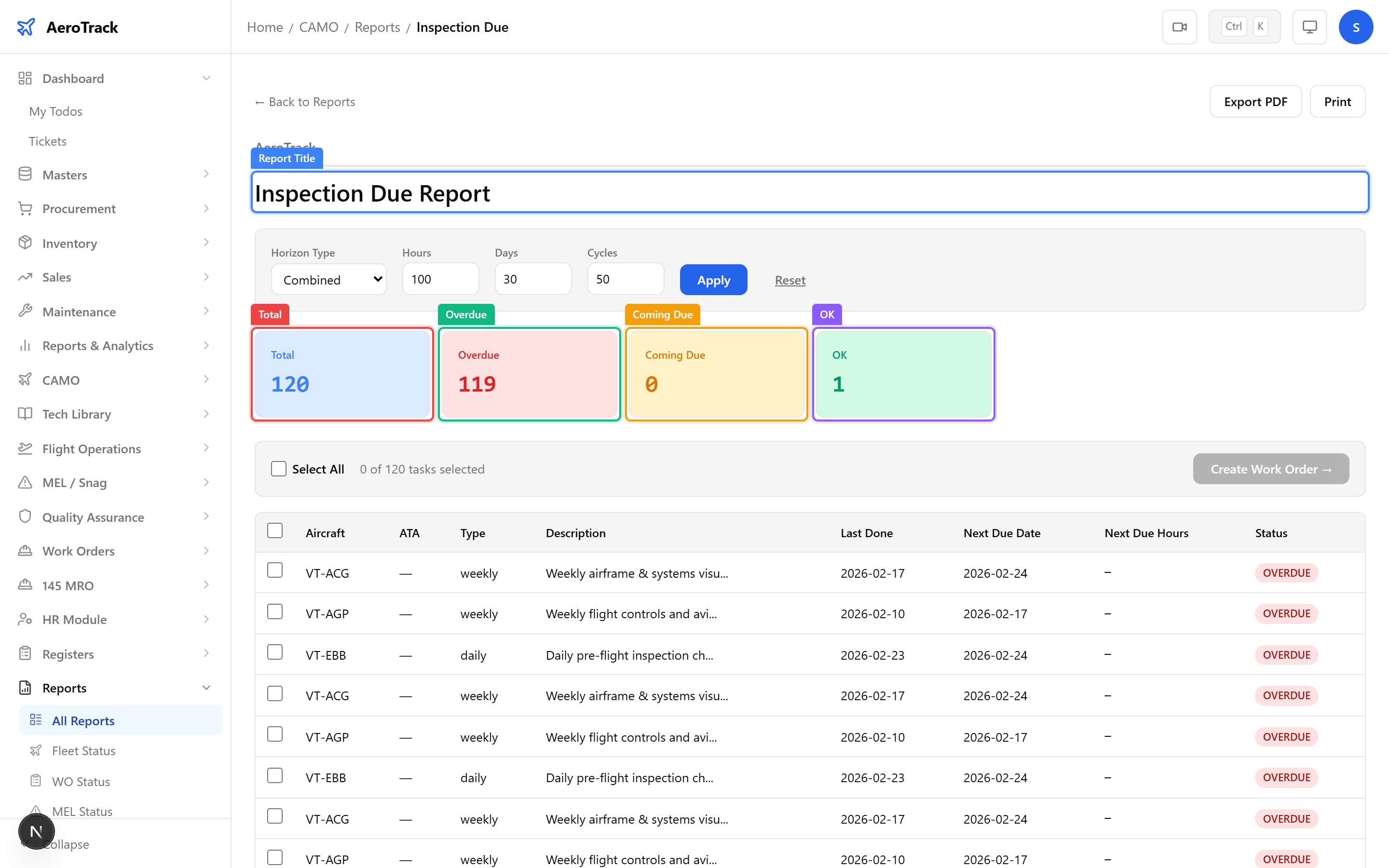
At the top of the report, four KPI cards summarise the fleet’s inspection compliance at a glance:
| Card | Meaning |
|---|---|
| Total | Total number of active inspections across all aircraft. |
| Overdue | Inspections that have exceeded their due threshold — immediate action required. |
| Coming Due | Inspections within the configured horizon — plan maintenance soon. |
| OK | Inspections that are well within their limits. |
Configure the Horizon
The Horizon Selector lets you define how far ahead the system looks when classifying inspections as “Coming Due”. Adjust the thresholds for each tracking dimension:
| Field | Default | Description |
|---|---|---|
| Horizon Type | All | Filter by hours-only, cycles-only, days-only, or all. |
| Hours | 100 | Flight hours remaining before the inspection is “Coming Due”. |
| Days | 30 | Calendar days remaining. |
| Cycles | 50 | Flight cycles remaining. |
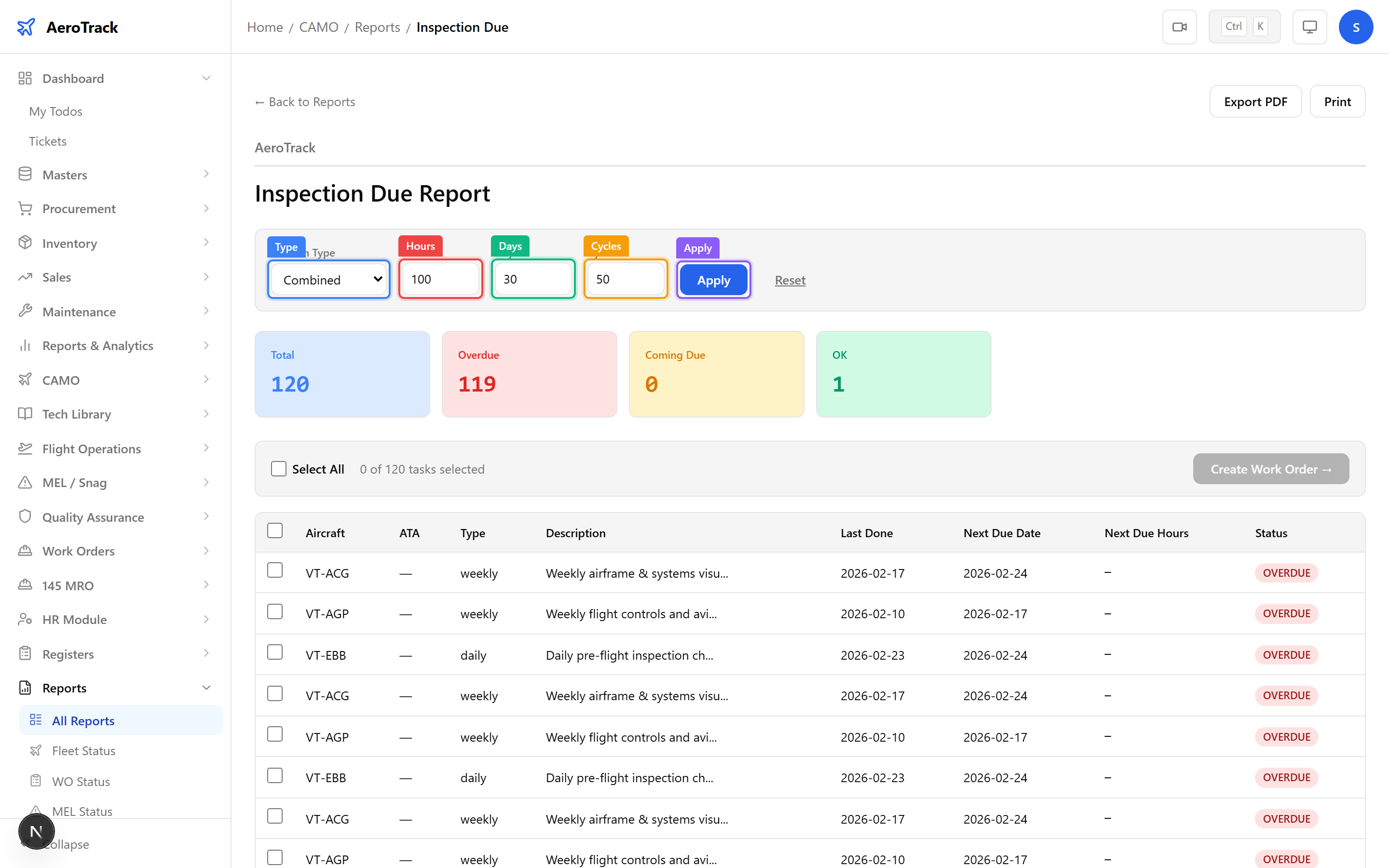
Click Apply to recalculate all KPI cards and table rows using your custom horizon values. The table instantly refreshes to show the updated due classifications.
Click Reset to return to the default horizon values (100 hours, 50 cycles, 30 days).
Table & Actions
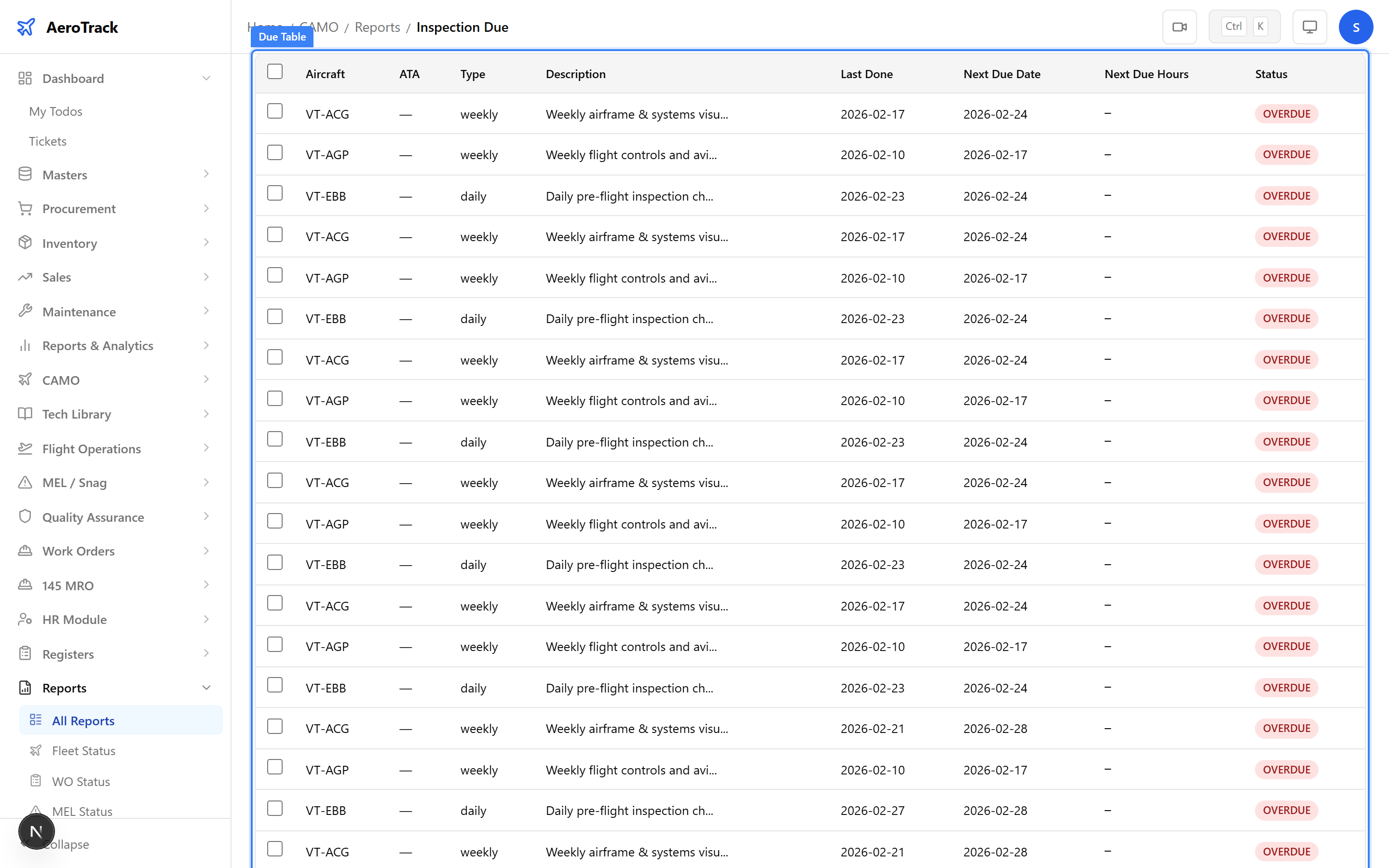
The table lists every active inspection with its aircraft, type, interval, last-done values, next-due values, remaining margin, and colour-coded due status (OK / Coming Due / Overdue).
Click any column header to sort. The table supports pagination for large fleets.
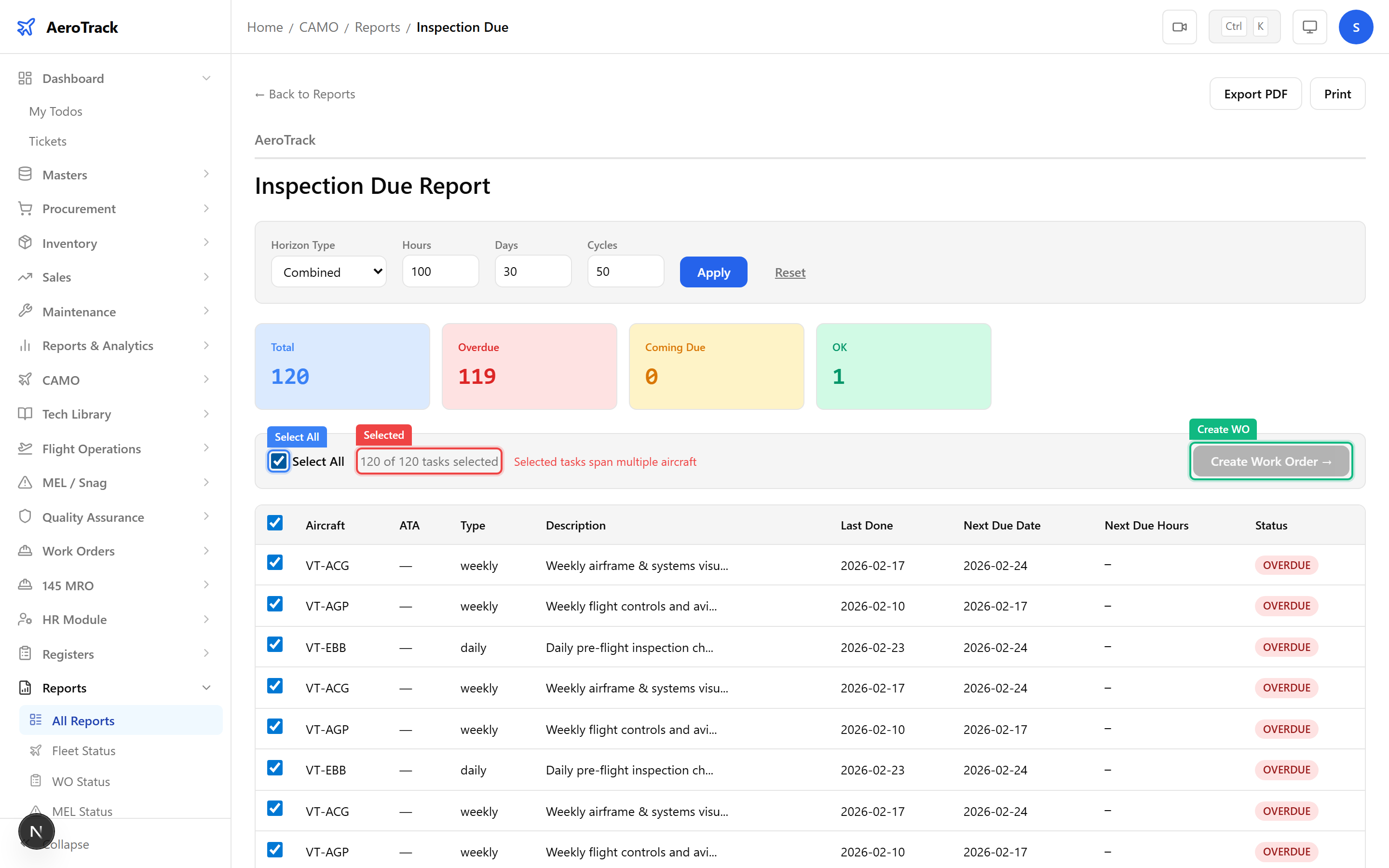
Use the checkboxes to select one or more inspections. A selection bar appears showing the count of selected items and a Create Work Order button.
Click Create Work Order to raise a new internal work order pre-populated with the selected inspection tasks. This is the fastest way to convert overdue items into actionable maintenance.
The report toolbar provides two export options:
| Action | Description |
|---|---|
| Downloads a formatted PDF of the current report view for archiving or email distribution. | |
| Opens the browser print dialog with a print-optimised layout. |