Open the Report
Navigate to CAMO Reports → Certificate Register
or go directly to /camo/reports/certificate-register.
This formatted report lists every certificate on file across the
fleet — CoA, CoR, radio licences, insurance, noise certificates,
and component release certificates.
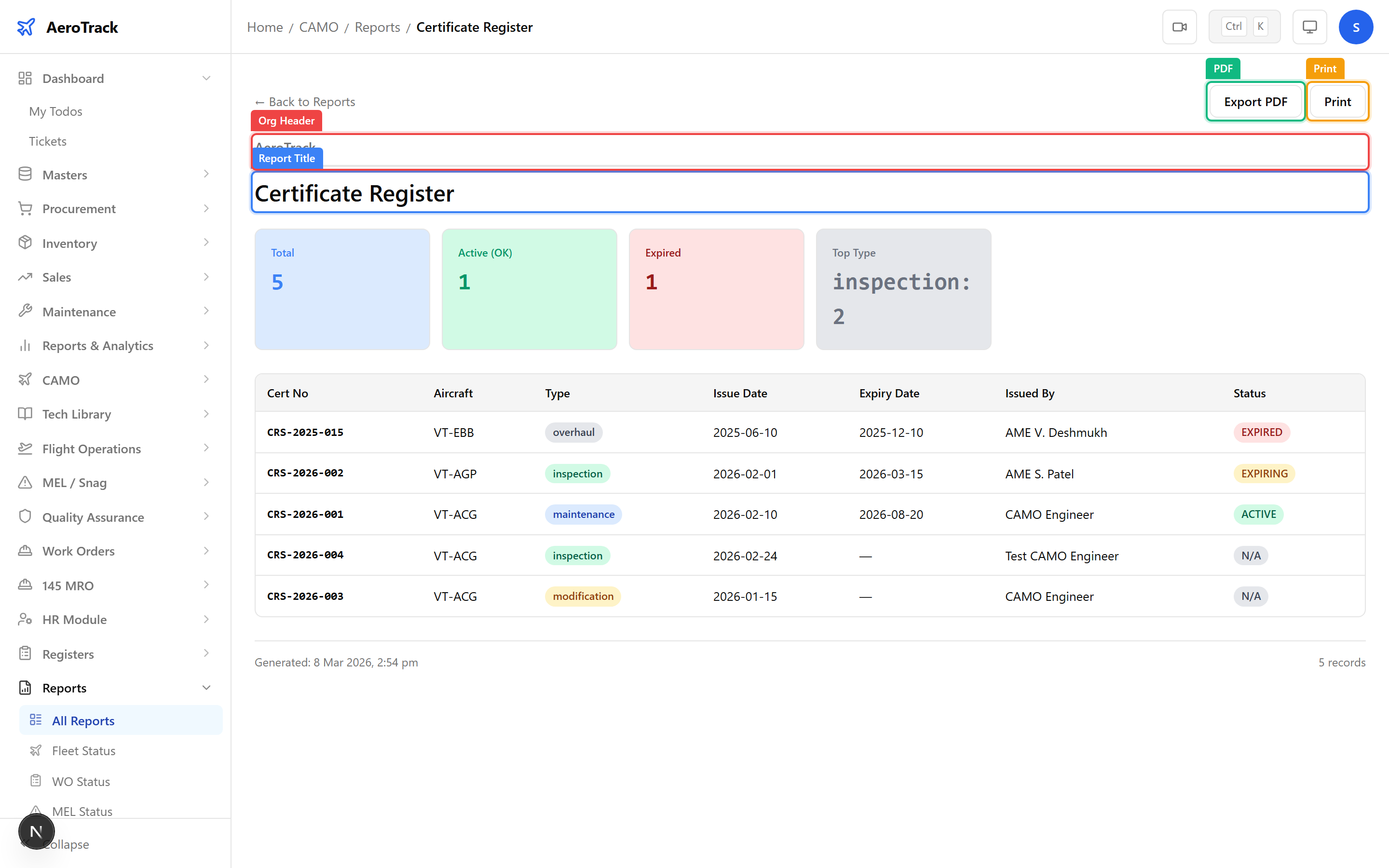
All CAMO Reports share a standard layout:
| Section | Description |
|---|---|
| Organisation Header | Company name, logo, and report generation date. |
| Report Title | The report name (e.g. “Certificate Register”). |
| Data Table | The main content showing certificate records. |
| Footer | Page info, timestamp, and “Generated by AeroTrack” branding. |
The toolbar at the top provides a Back link to return to the reports hub, plus PDF and Print buttons.
Review Certificate Data
The report table displays all certificates with the following columns:
| Column | Description |
|---|---|
| Aircraft | Registration mark (e.g. VT-ABC) the certificate belongs to. |
| Certificate Type | CoA, CoR, Radio Licence, Insurance, Noise Certificate, etc. |
| Certificate Number | Official certificate reference number. |
| Issuing Authority | DGCA, insurer, or other regulatory body. |
| Issue Date | When the certificate was issued. |
| Expiry Date | When the certificate expires — highlighted if expiring soon. |
| Status | Valid, Expiring Soon, or Expired. |
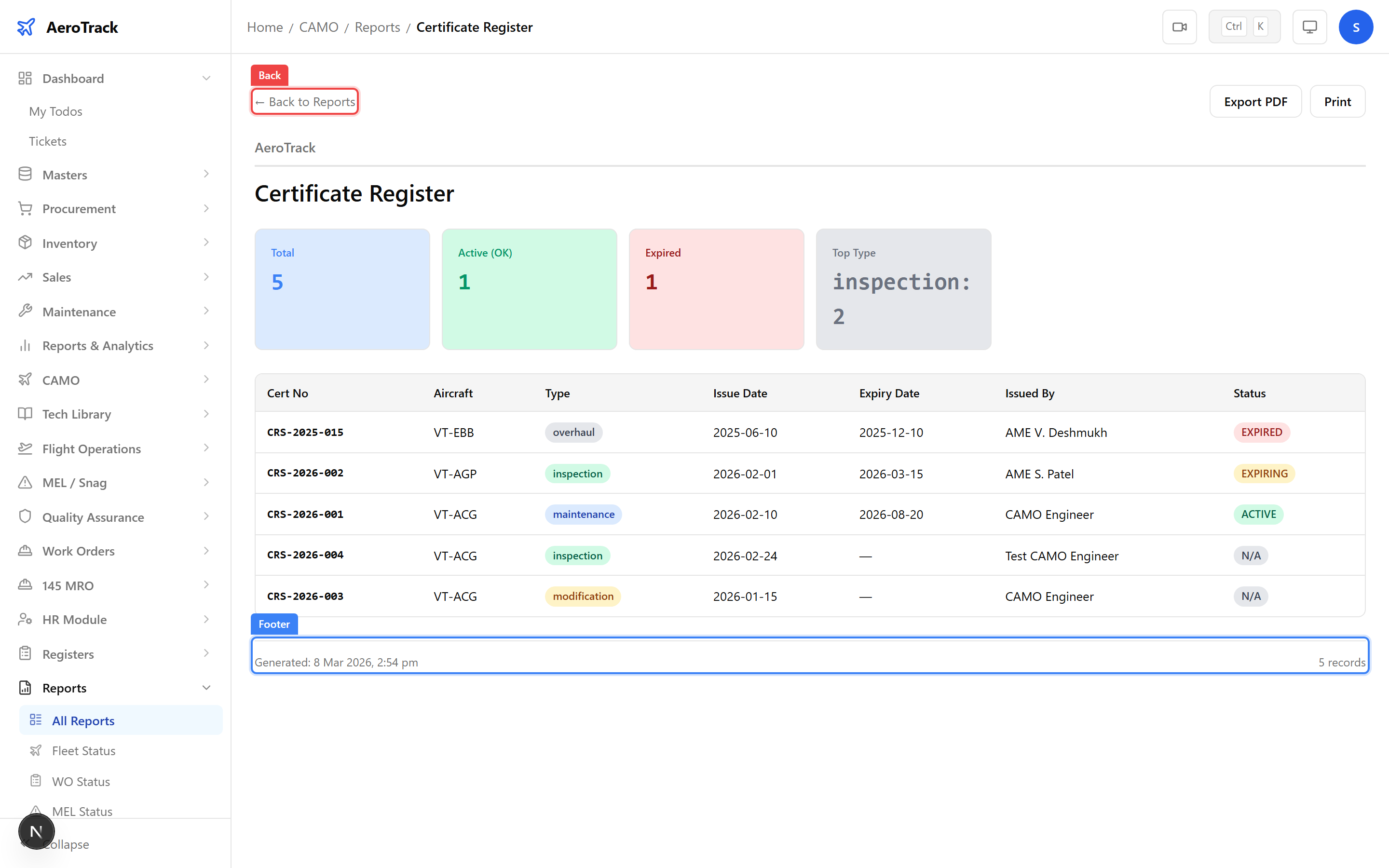
Certificates approaching expiry are highlighted in the status column. Review these regularly to ensure timely renewal:
| Status | Action Required |
|---|---|
| Valid | No action — certificate is current. |
| Expiring Soon | Initiate renewal process with the issuing authority. |
| Expired | Certificate has lapsed — aircraft may not be dispatched until renewed. |
Export & Print
Click the PDF button to generate a downloadable PDF file of the certificate register. The PDF preserves the organisation header, table formatting, and footer.
Alternatively, click Print to open the browser’s print dialog with a print-optimised stylesheet that hides navigation elements and toolbar buttons.