Add Jobs
Open a work order in ACCEPTED, PLANNING, or IN PROGRESS status. Scroll to the Jobs section below the WO info cards.
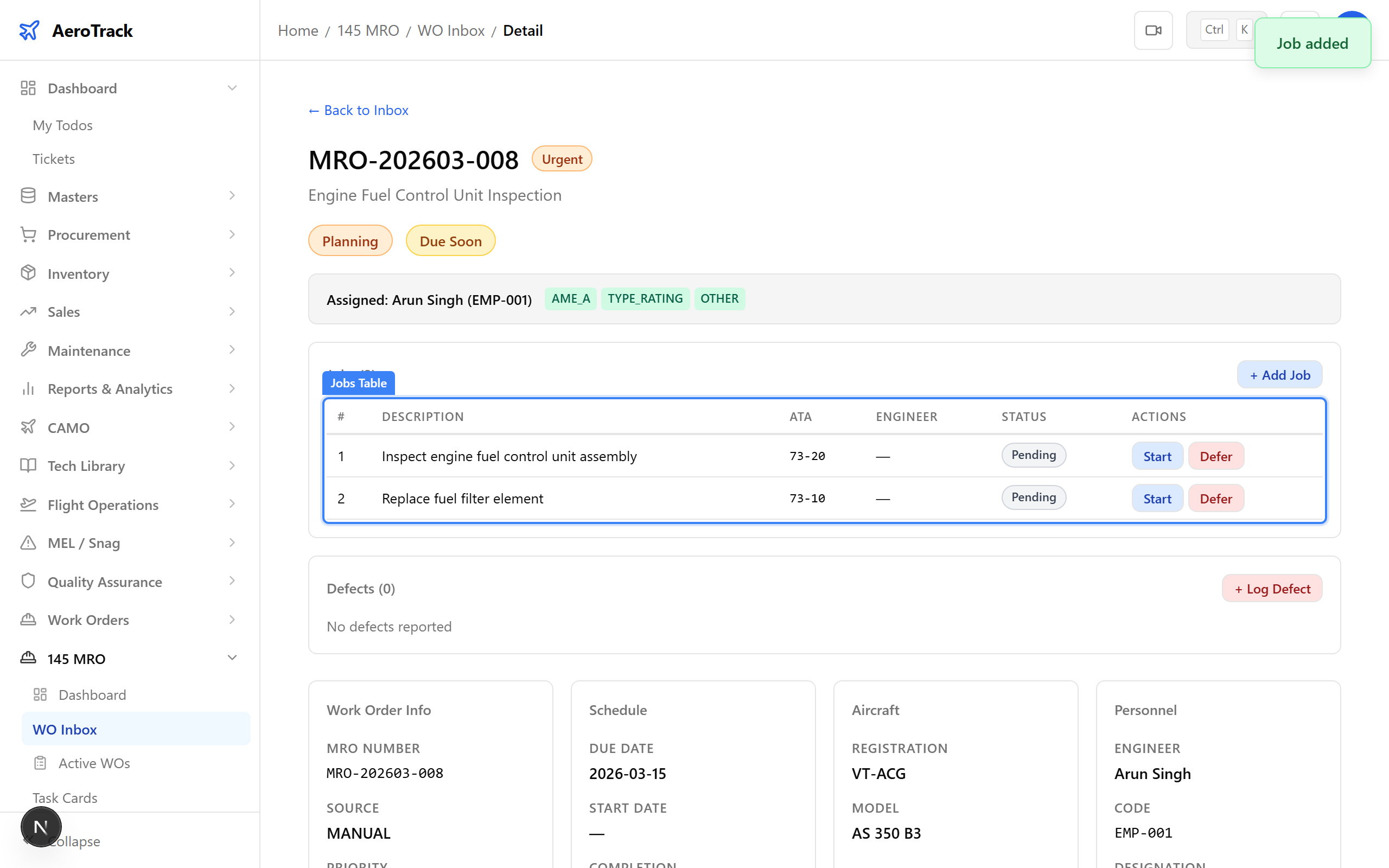
The jobs table shows all tasks added to the work order. Initially it is empty. Click + Add Job to create the first job.
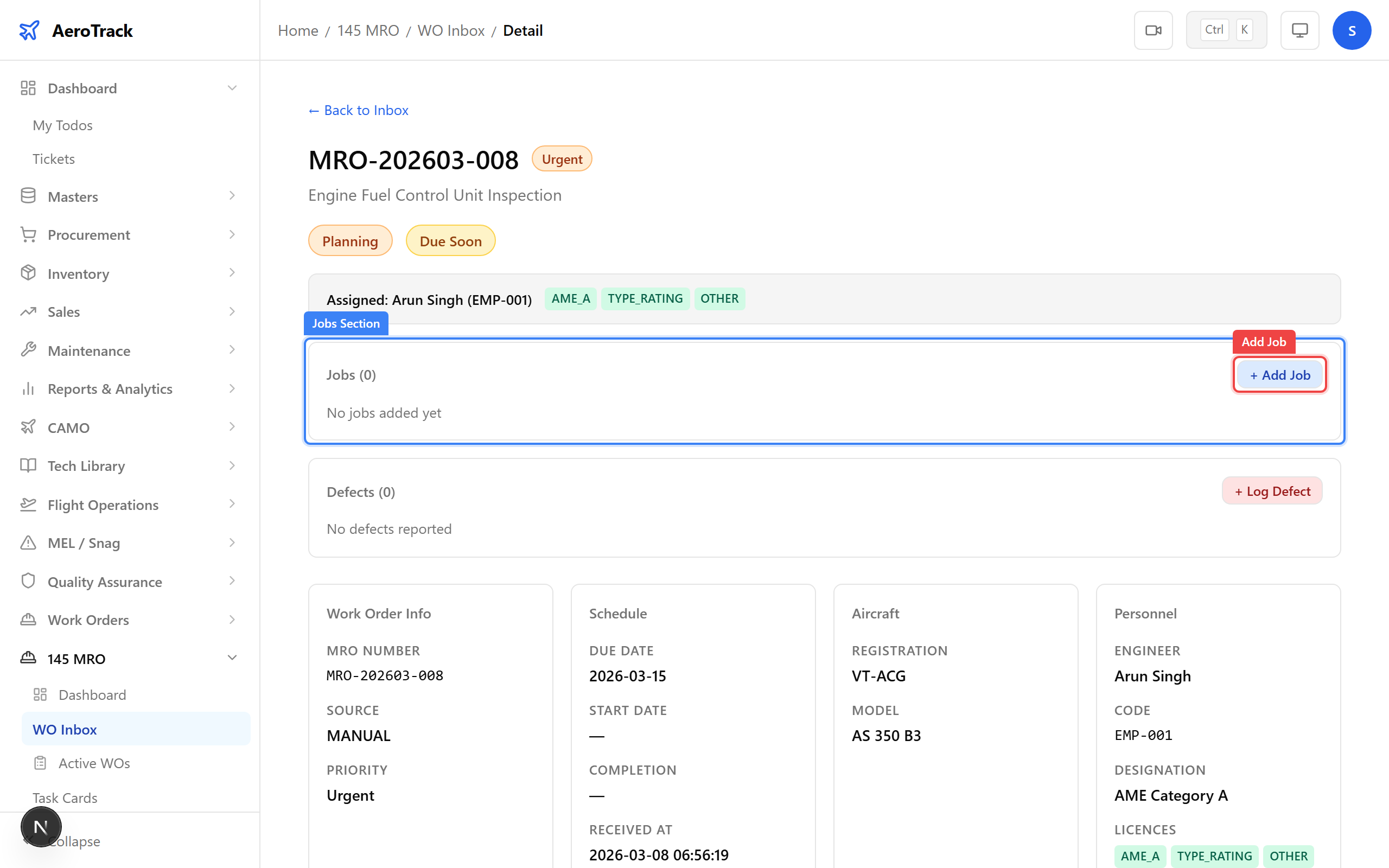
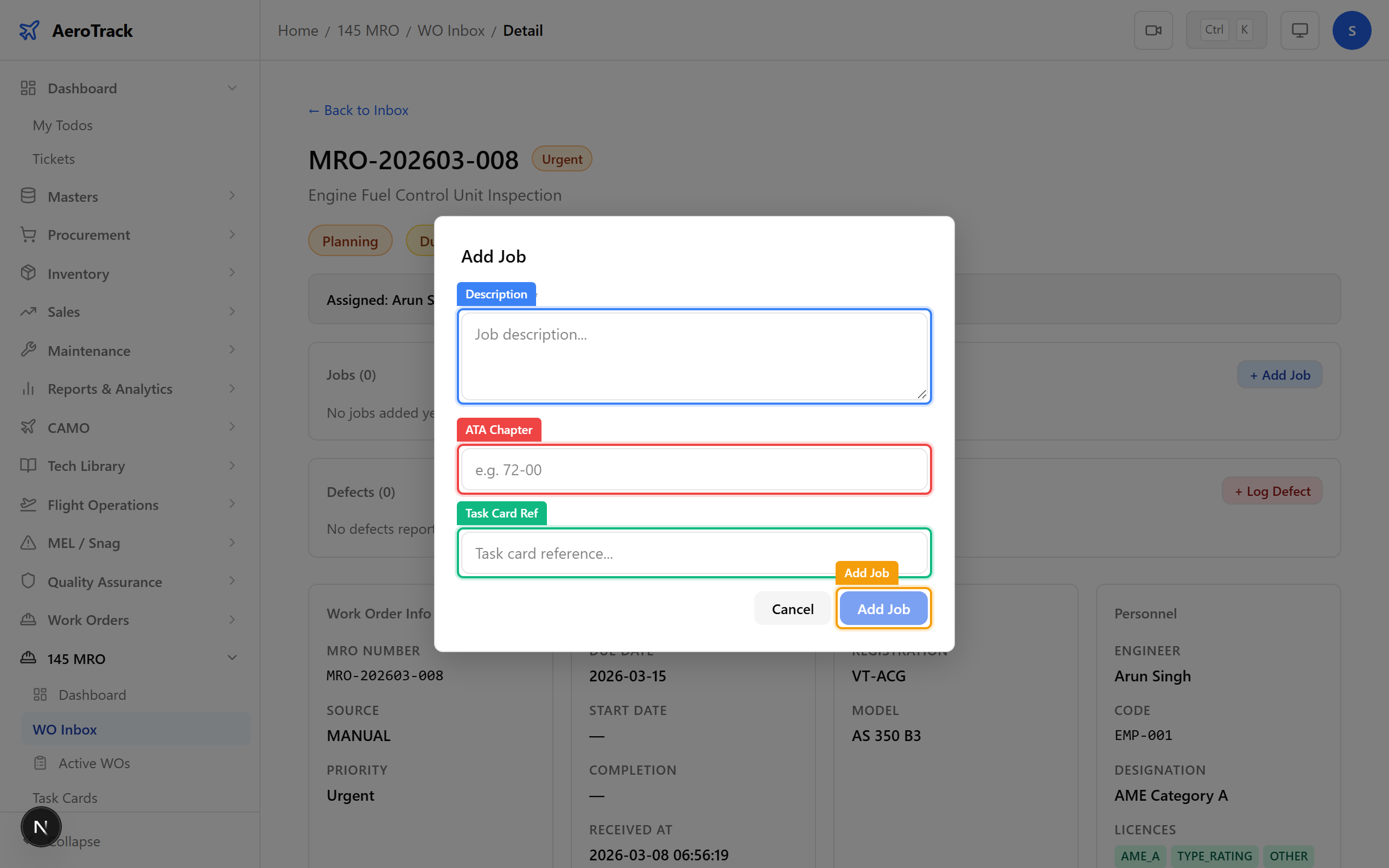
Click + Add Job. A dialog appears with three fields:
| Field | Required | Notes |
|---|---|---|
| Description * | Yes | What work is to be performed (e.g. “Inspect engine fuel control unit”). |
| ATA Chapter | No | Related ATA chapter (e.g. 72-00). |
| Task Card Ref | No | Reference to a task card number, if applicable. |
Click Add Job to confirm. The system auto-generates
a job number (e.g. J-001) and sets the status to
PENDING.
Execute Jobs
In the jobs table, click the Start button on a PENDING job. The status changes to IN PROGRESS.
If the work order is in ACCEPTED or PLANNING status, starting the first job automatically transitions the WO to IN PROGRESS.
When work is finished, click the Complete button on an IN PROGRESS job. The status changes to COMPLETED.
A completed job is ready for sign-off but has not yet been formally certified. The engineer must sign off each job individually with their AME licence reference.
If a job cannot be completed during this work order cycle, click Defer on a PENDING or IN PROGRESS job.
A dialog asks for a deferral reason (minimum 5 characters). After confirmation, the job status changes to DEFERRED.
Sign Off
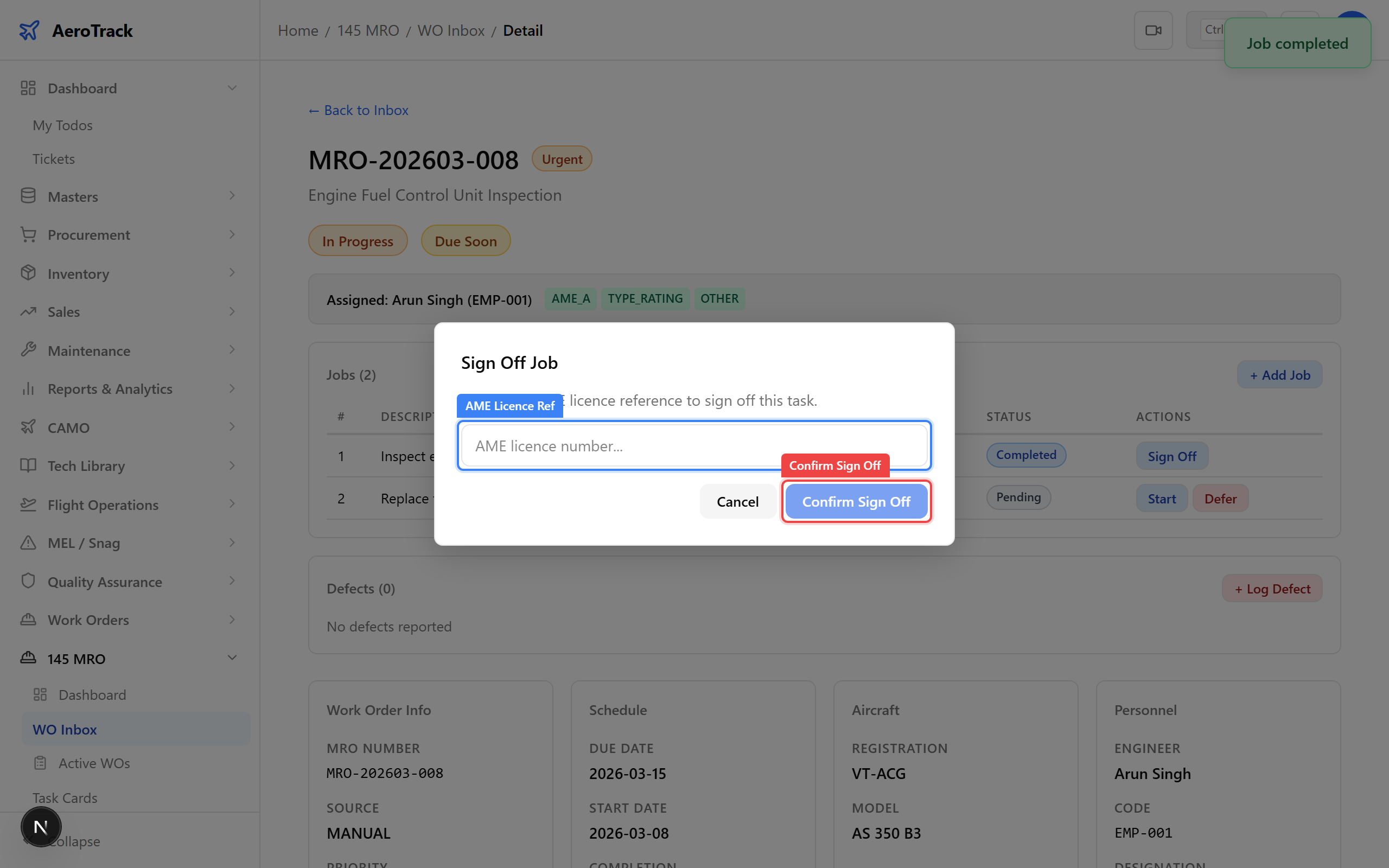
Click the Sign Off button on a COMPLETED job. A dialog appears requesting the AME licence reference number.
| Field | Required | Notes |
|---|---|---|
| AME Licence Ref * | Yes | The certifying engineer’s AME licence number (e.g. AME-B-12345). This is recorded for regulatory traceability. |
Click Confirm Sign Off. The job status changes to SIGNED OFF.
When all non-deferred jobs are signed off and there are no open defects, the work order automatically transitions to SIGN OFF status.
The jobs table uses colour-coded status badges:
| Status | Badge | Next Action |
|---|---|---|
| Pending | Blue | Start or Defer |
| In Progress | Amber | Complete or Defer |
| Completed | Green | Sign Off |
| Signed Off | Dark Green | No further action |
| Deferred | Gray | May be reopened later |
For a consolidated view of all jobs across all work orders, navigate
to 145 MRO → Task Cards. This page at
/mro145/task-cards lists every job with status filters.
Use the Status dropdown to filter by Pending, In Progress, Completed, Signed Off, or Deferred. Job actions (Start, Complete, Sign Off, Defer) are available inline.