Dashboard Overview
Navigate to 145 MRO → Dashboard in the sidebar.
The dashboard loads at /mro145/dashboard showing
real-time KPI cards for MRO work order metrics.
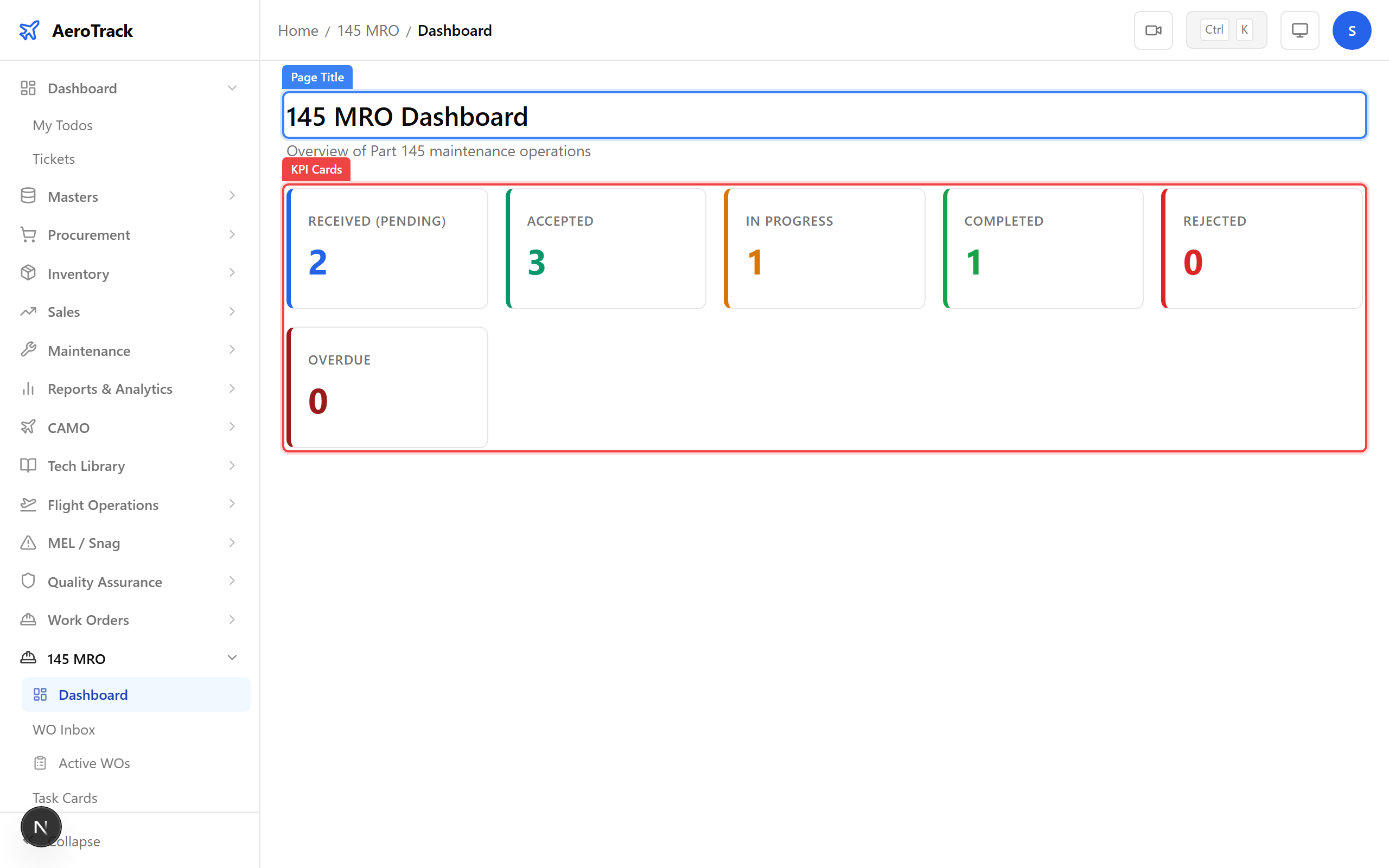
The dashboard displays six KPI cards:
| KPI | Meaning |
|---|---|
| Received | Work orders in RECEIVED status awaiting acceptance. |
| Accepted | Work orders accepted but not yet in progress. |
| In Progress | Work orders currently being worked on. |
| Completed | Work orders completed, pending closure. |
| Rejected | Work orders that were rejected. |
| Overdue | Work orders past their due date — highlighted in red for urgency. |
Click any KPI card to navigate to the relevant filtered list.
Engineer Assignment & Licences
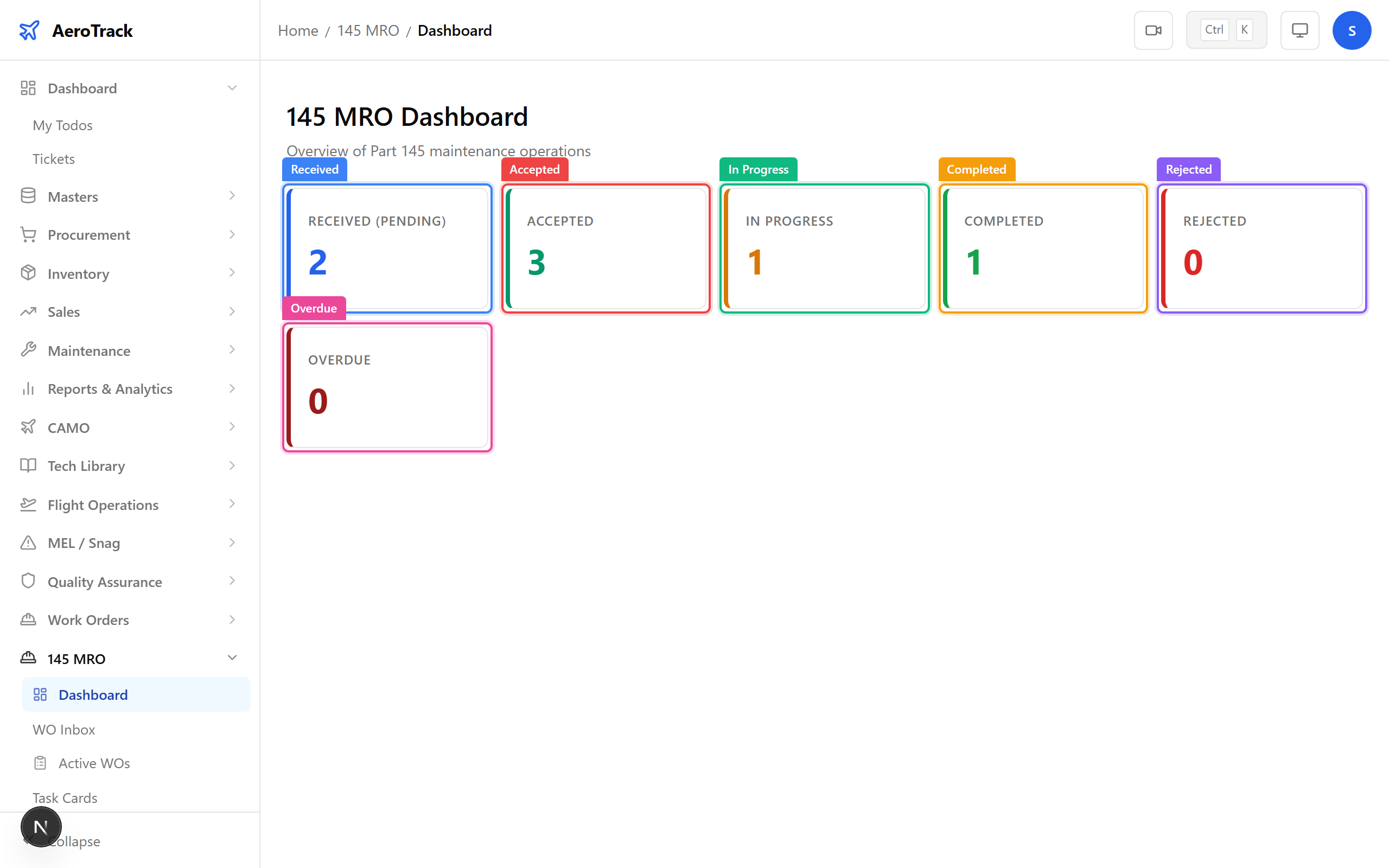
On any work order detail page in RECEIVED status, the Assign Engineer dropdown lists all active employees who hold AME licences.
Each engineer entry shows their name and licence summary. Only engineers with at least one valid (non-expired) AME licence appear in the list.
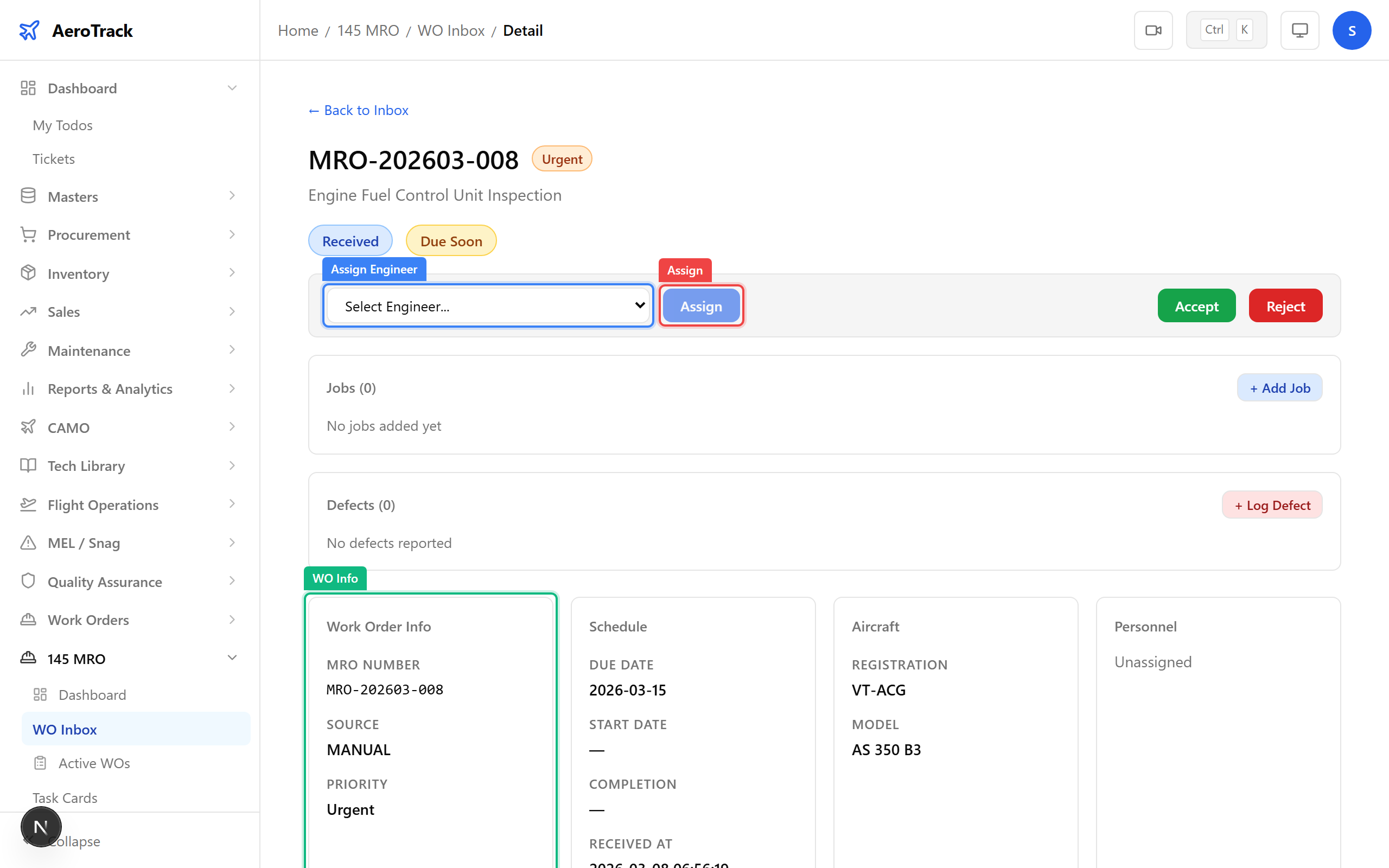
After an engineer is assigned, their AME licence details appear on the work order detail page with colour-coded expiry badges:
| Badge | Colour | Meaning |
|---|---|---|
| OK | Green | Licence valid, more than 90 days until expiry. |
| WARNING | Yellow | Licence expires within 90 days — plan renewal. |
| CRITICAL | Orange | Licence expires within 30 days — renew immediately. |
| EXPIRED | Red | Licence has expired — engineer cannot sign off work. |
| N/A | Gray | No expiry date set for this licence. |
When assigning an engineer whose licence is expiring soon:
- WARNING (90 days): Assignment succeeds but a yellow alert is shown. Consider scheduling a licence renewal.
- CRITICAL (30 days): Assignment succeeds but an orange alert is shown. Immediate renewal recommended.
- EXPIRED: Assignment is blocked. The engineer must renew their licence before being assigned.
Monitor Active Work
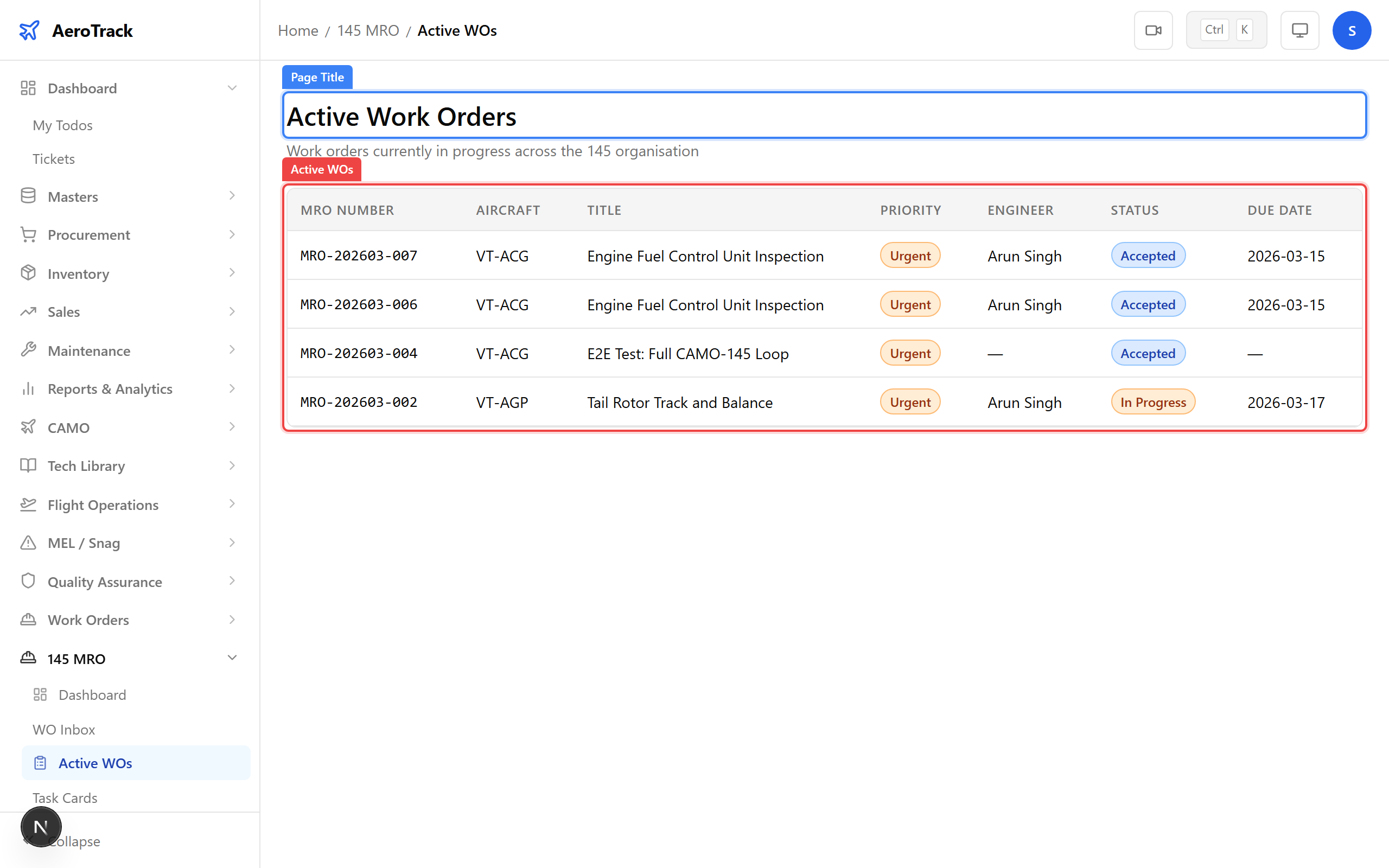
Navigate to 145 MRO → Active WOs. The page
at /mro145/active shows all work orders in active
statuses: ACCEPTED, PLANNING, IN PROGRESS, SIGN OFF, and COMPLETED.
The table includes columns for WO number, aircraft, title, priority, assigned engineer, status, and due date. Click any row to open the detail page.
Each work order with a due date shows a due-status badge:
| Status | Colour | Condition |
|---|---|---|
| OK | Green | More than 7 days until due date. |
| DUE SOON | Yellow | Due within the next 7 days. |
| OVERDUE | Red | Past the due date. |
| N/A | Gray | No due date set, or WO is in terminal status. |
Use the Overdue KPI on the dashboard to quickly identify work orders that need immediate attention.