Browse Units
Navigate to Masters → Units or go directly
to /masters/units. The UoM list shows all defined
units with their code, category, conversion factor, and base unit.
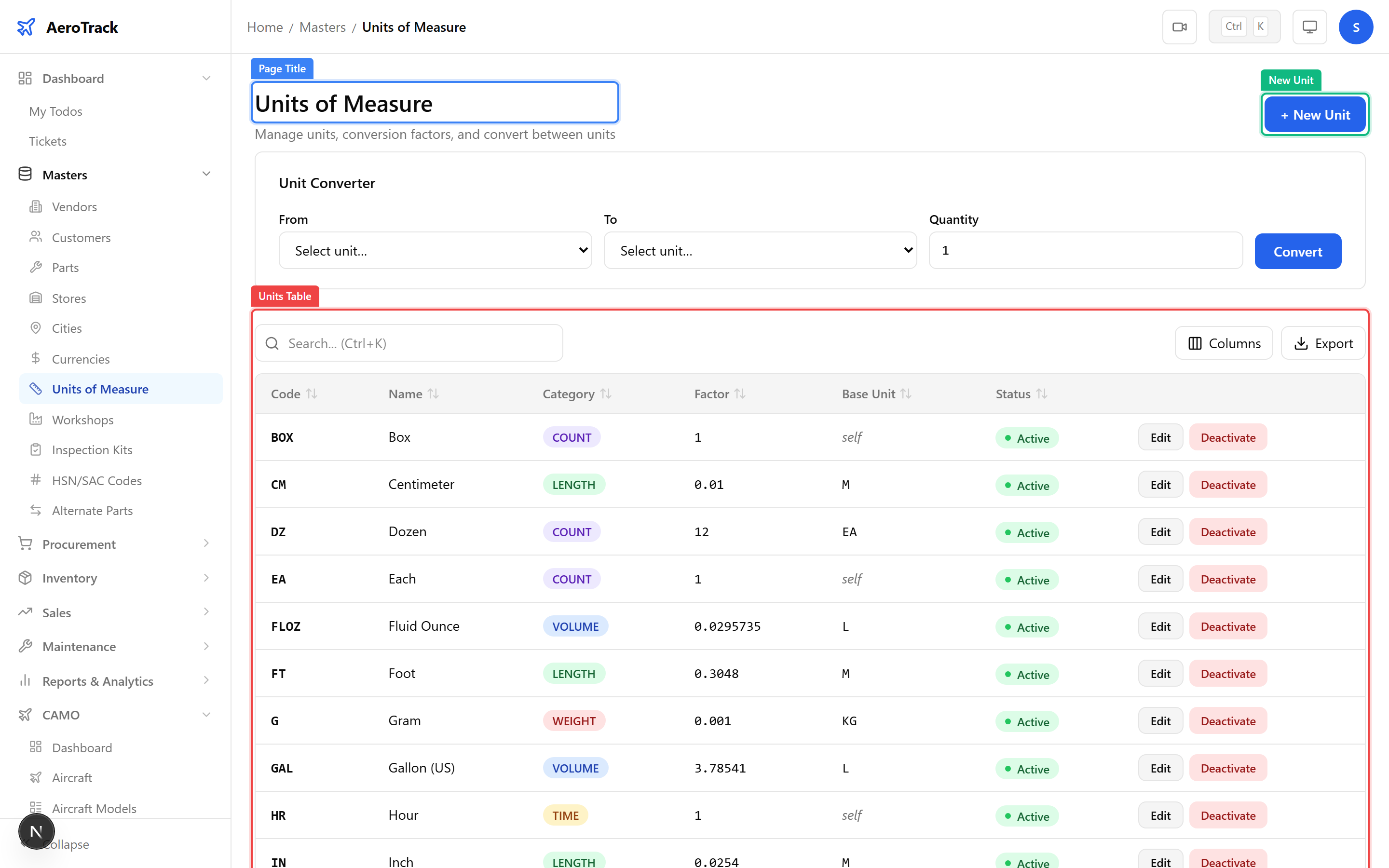
| Column | Description |
|---|---|
| Code | Short identifier (e.g. EA, KG, LTR, MTR). |
| Name | Full unit name (Each, Kilogram, Litre, Metre). |
| Category | Unit category — Count, Weight, Volume, Length, or Area. |
| Factor | Conversion factor relative to the base unit (e.g. 1 KG = 1000 G, so G has factor 0.001). |
| Base Unit | The reference unit in this category against which factors are calculated. |
Create a Unit
Click the + New Unit button at the top of the
UoM list. This opens the unit creation form at
/masters/units/new.
| Field | Required | Description |
|---|---|---|
| Code | Yes | Short code (2-5 characters). Must be unique. Use industry-standard abbreviations. |
| Name | Yes | Full descriptive name of the unit. |
| Category | Yes | Select: Count, Weight, Volume, Length, or Area. |
| Factor | No | Conversion factor relative to the base unit. Leave as 1 for the base unit itself. |
| Base Unit | No | Select the base (reference) unit for this category. If this IS the base unit, leave blank. |
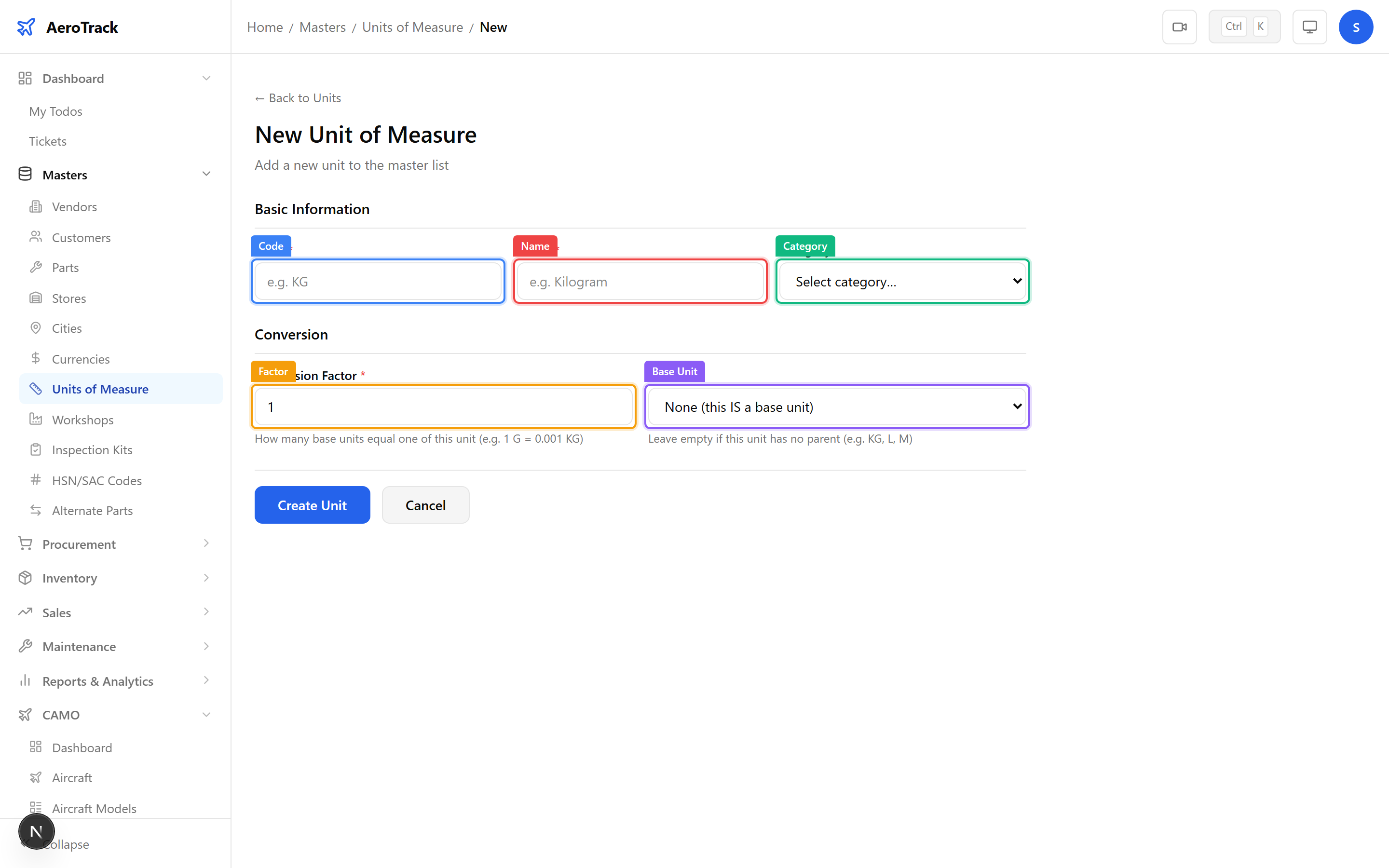
Click Save to create the unit. It will be available in part master forms and procurement line items.
EA (Each) for discrete parts, LTR (Litre) for fluids, KG (Kilogram) for weight, MTR (Metre) for cables/tubing, SET for kits.Unit Converter
The unit converter is available on the UoM list page. Scroll below the unit table to find the Unit Converter panel. It allows you to convert quantities between any two units in the same category.
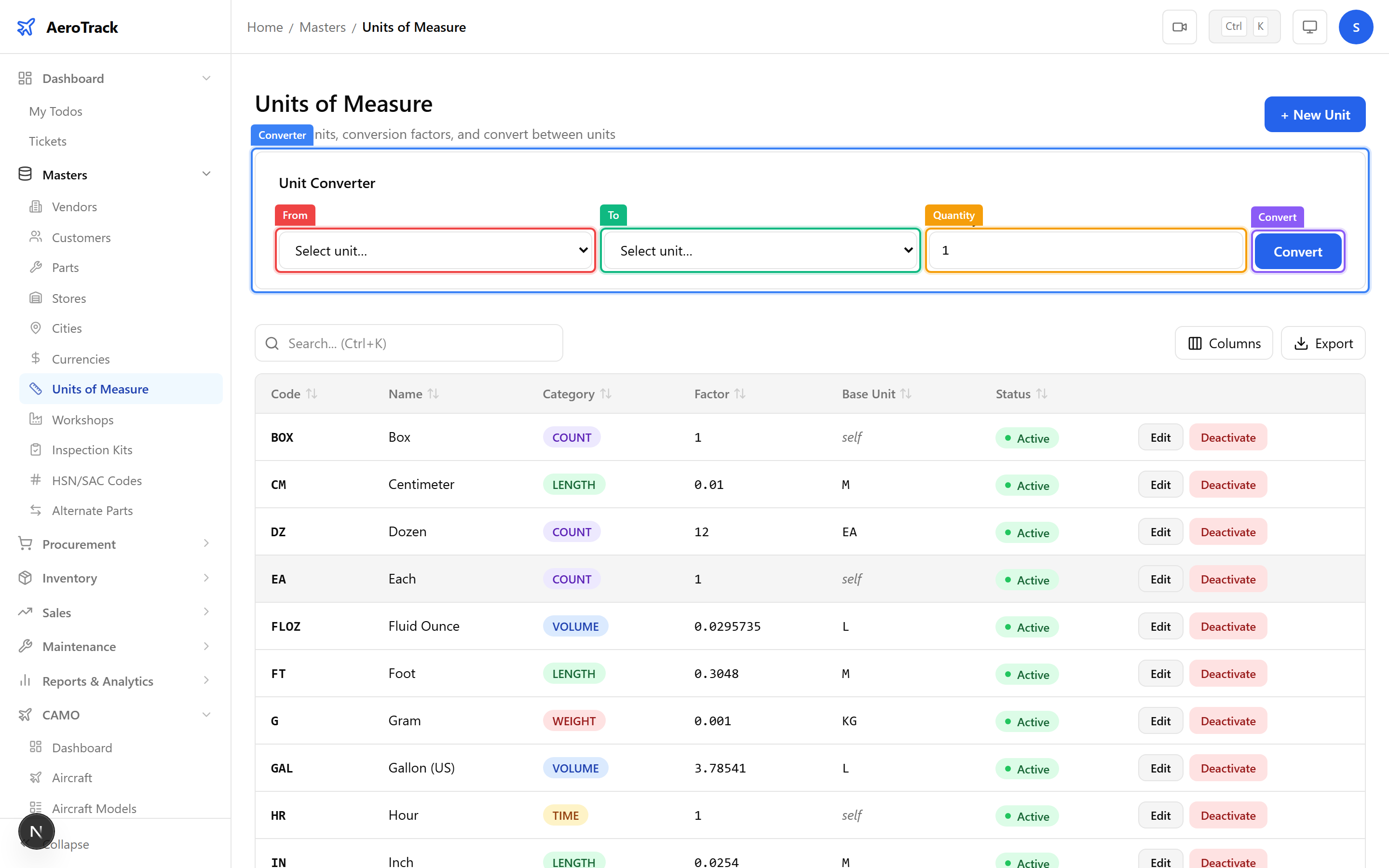
| Field | Description |
|---|---|
| From | Select the source unit (e.g. Kilogram). |
| To | Select the target unit (e.g. Gram). Must be in the same category. |
| Quantity | Enter the value to convert. |
| Convert | Click to calculate. The result appears below the button. |
Manage Units
Click any unit row to open the edit form. All fields are editable.
| Category | Common Units | Typical Base Unit |
|---|---|---|
| Count | EA (Each), SET, PAIR, DOZ (Dozen) | EA |
| Weight | KG, G, LB, OZ | KG |
| Volume | LTR, ML, GAL, QT | LTR |
| Length | MTR, CM, MM, FT, IN | MTR |
| Area | SQM, SQFT, SQIN | SQM |