Browse Snag Reports
Navigate to MEL / Snag → Snags in the sidebar.
The list loads at /mel-snag/snags showing all reported
defects ordered by reported date (newest first).
Each row shows the snag number, aircraft, title, classification (major/minor), AOG status, and investigation status.
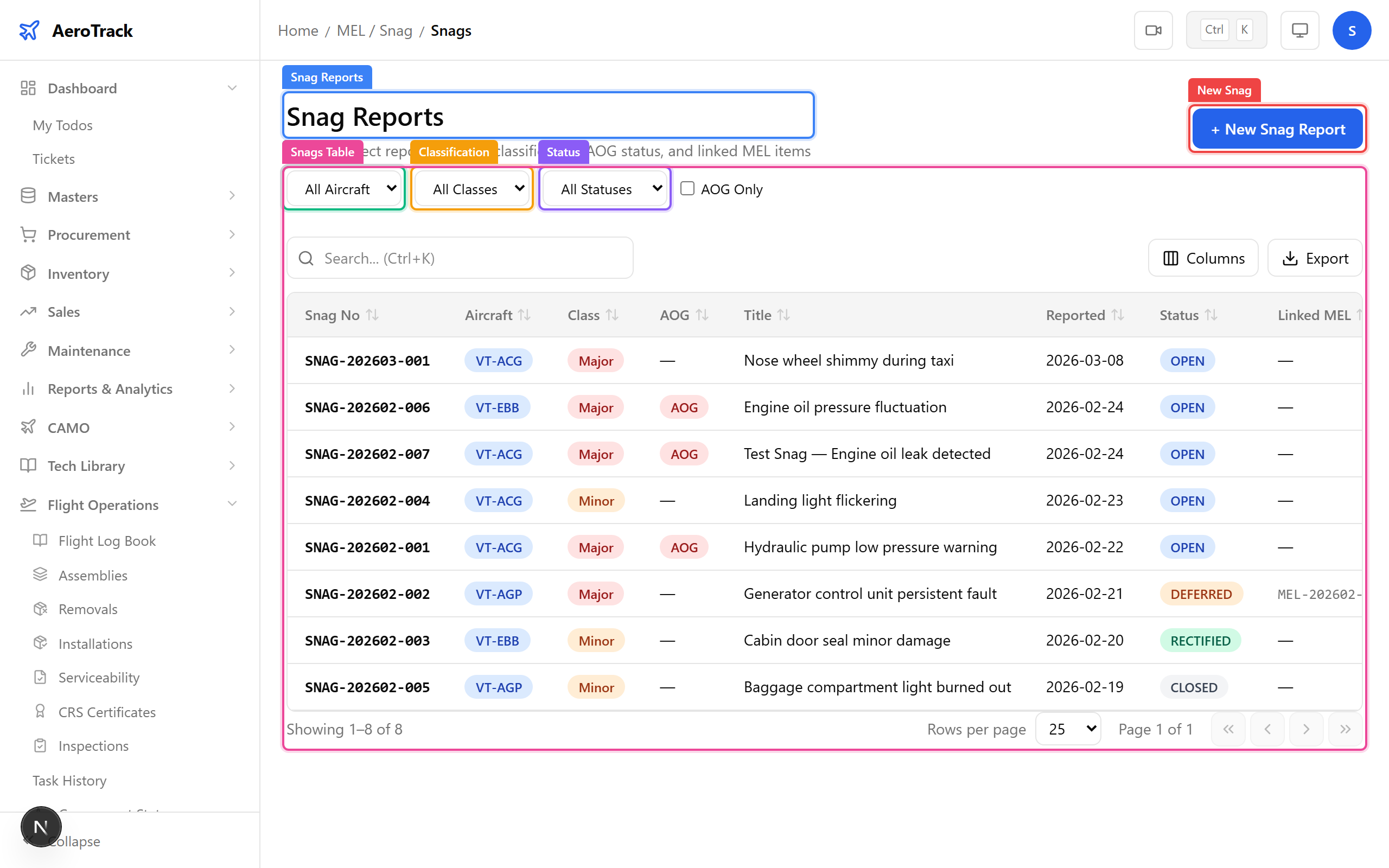
Use the filter dropdowns at the top of the list:
| Filter | Options |
|---|---|
| Aircraft | Filter by aircraft registration number. |
| Classification | Major (safety/airworthiness) or Minor (cosmetic/non-critical). |
| Status | Open, Investigating, Corrective Action, Resolved. |
| AOG Only | Checkbox to show only Aircraft-on-Ground defects. |
Create a Defect Report
Click + New Snag at the top-right of the snags list.
The form opens at /mel-snag/snags/new.
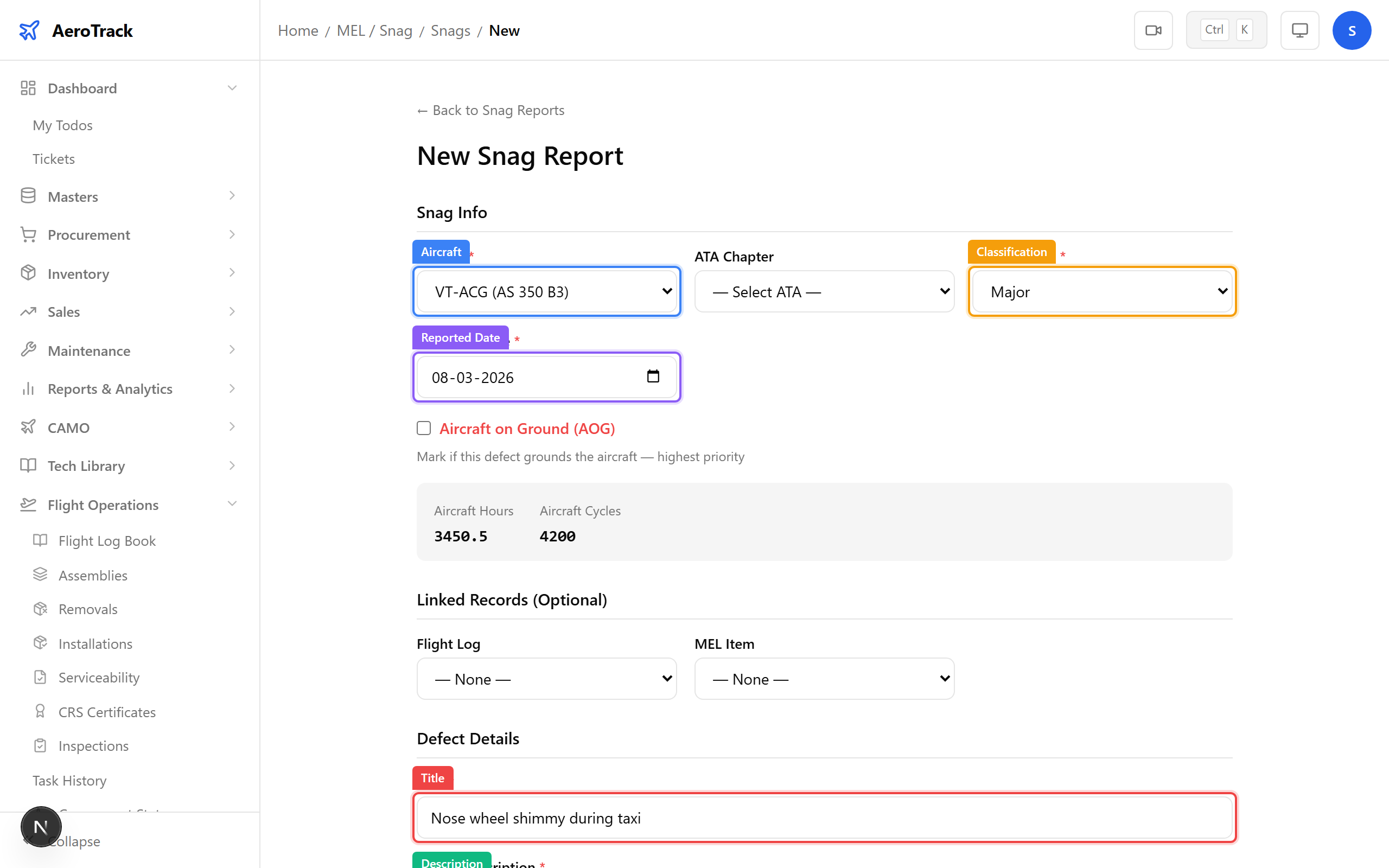
Complete the defect information:
| Field | Required | Notes |
|---|---|---|
| Aircraft * | Yes | Select the affected aircraft. |
| Title * | Yes | Short name of the defect (e.g. “Nose wheel shimmy during taxi”). |
| Description * | Yes | Detailed description of the defect observed. |
| Classification * | Yes | Major or Minor. |
| Reported Date * | Yes | Date the defect was discovered. Defaults to today. |
| ATA Chapter | No | Related ATA chapter for categorisation. |
| AOG | No | Check if the aircraft is grounded due to this defect. |
| Reported By | No | Name of the person who discovered the defect. |
| Remarks | No | Additional notes (max 500 chars). |
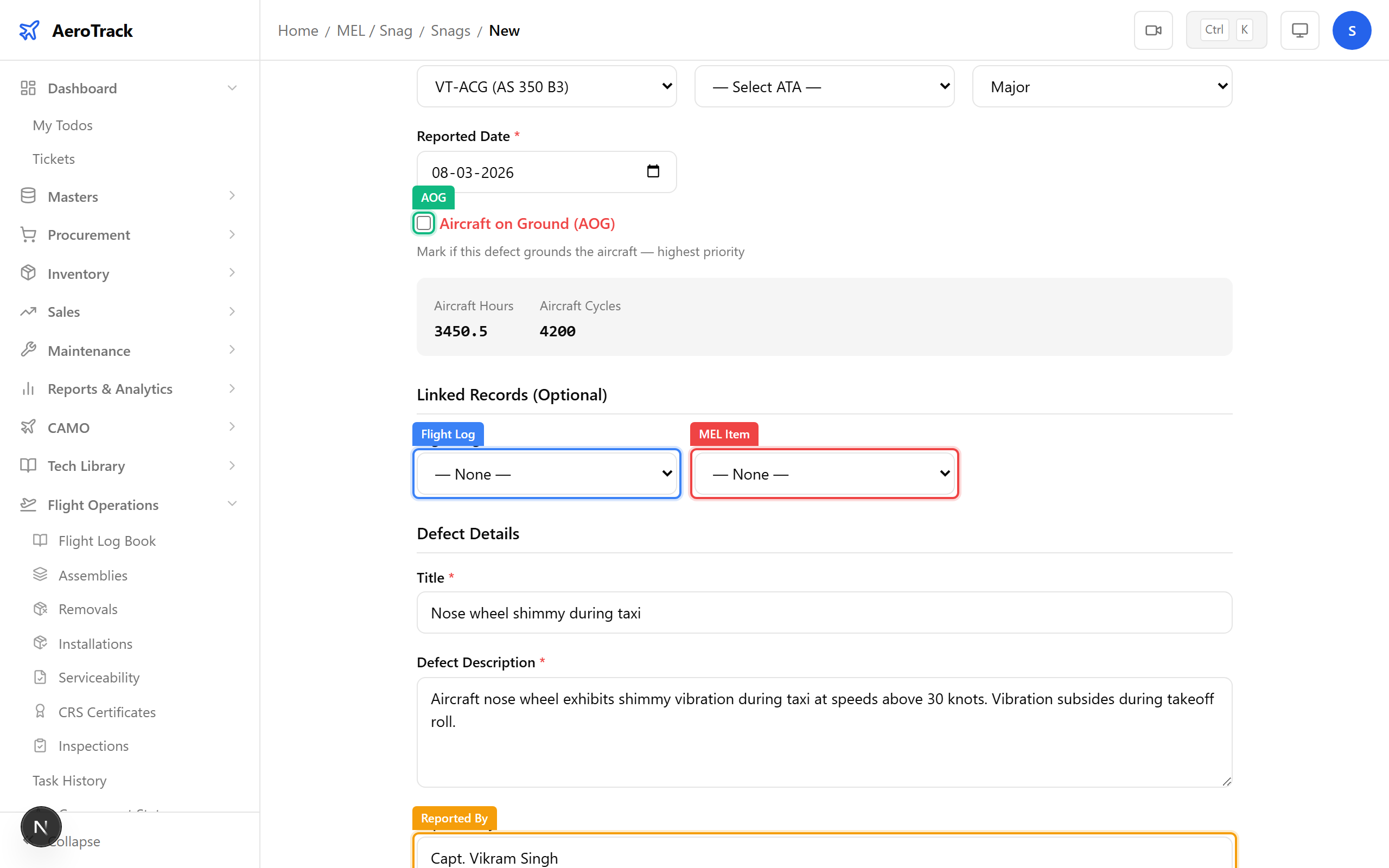
Optionally link the defect to related records:
| Field | Notes |
|---|---|
| Flight Log | Select the flight during which the defect was discovered. Dropdown shows approved logs for the selected aircraft. |
| MEL Item | Link to an existing MEL deferral item if the defect was previously deferred under the Minimum Equipment List. |
Click Create Snag. The system generates a snag number
(e.g. SNH-202603-001) and sets the status to
OPEN.
A success toast appears and you are redirected to the snags list.
Investigation Workflow
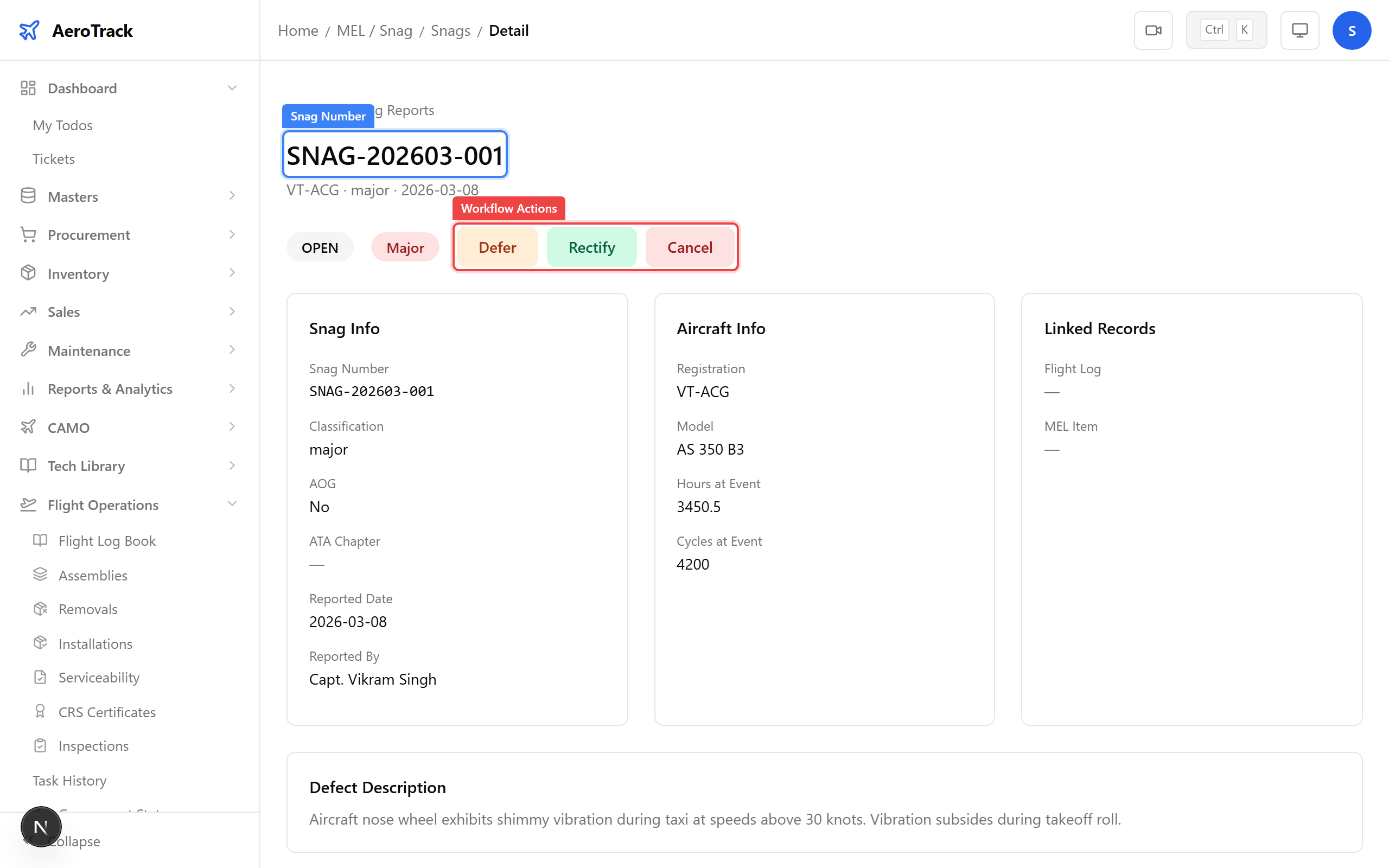
Click a snag row to open its detail page. Use the workflow buttons to progress the investigation:
| Current | Actions |
|---|---|
| OPEN | Start Investigation |
| INVESTIGATING | Start Corrective Action or Reopen |
| CORRECTIVE ACTION | Resolve or Reopen |
| RESOLVED | Reopen (if issue recurs) |
The typical defect lifecycle:
- A defect is reported (status: OPEN).
- An engineer begins investigation to determine root cause.
- Once the cause is identified, a corrective action is initiated (may involve creating a work order).
- After the corrective action is completed and verified, the defect is resolved.
At any stage, the defect can be reopened if the issue recurs or additional investigation is needed.