Closure Prerequisites
AeroTrack enforces mandatory gates before a work order can be closed. These gates are checked automatically — the Close button is disabled until all gates pass.
- All non-deferred jobs must be in SIGNED_OFF status
- No open defects remain (all must be RESOLVED or DEFERRED)
- WO must be in COMPLETED status (for CAMO) or SIGN_OFF → COMPLETED (for 145)
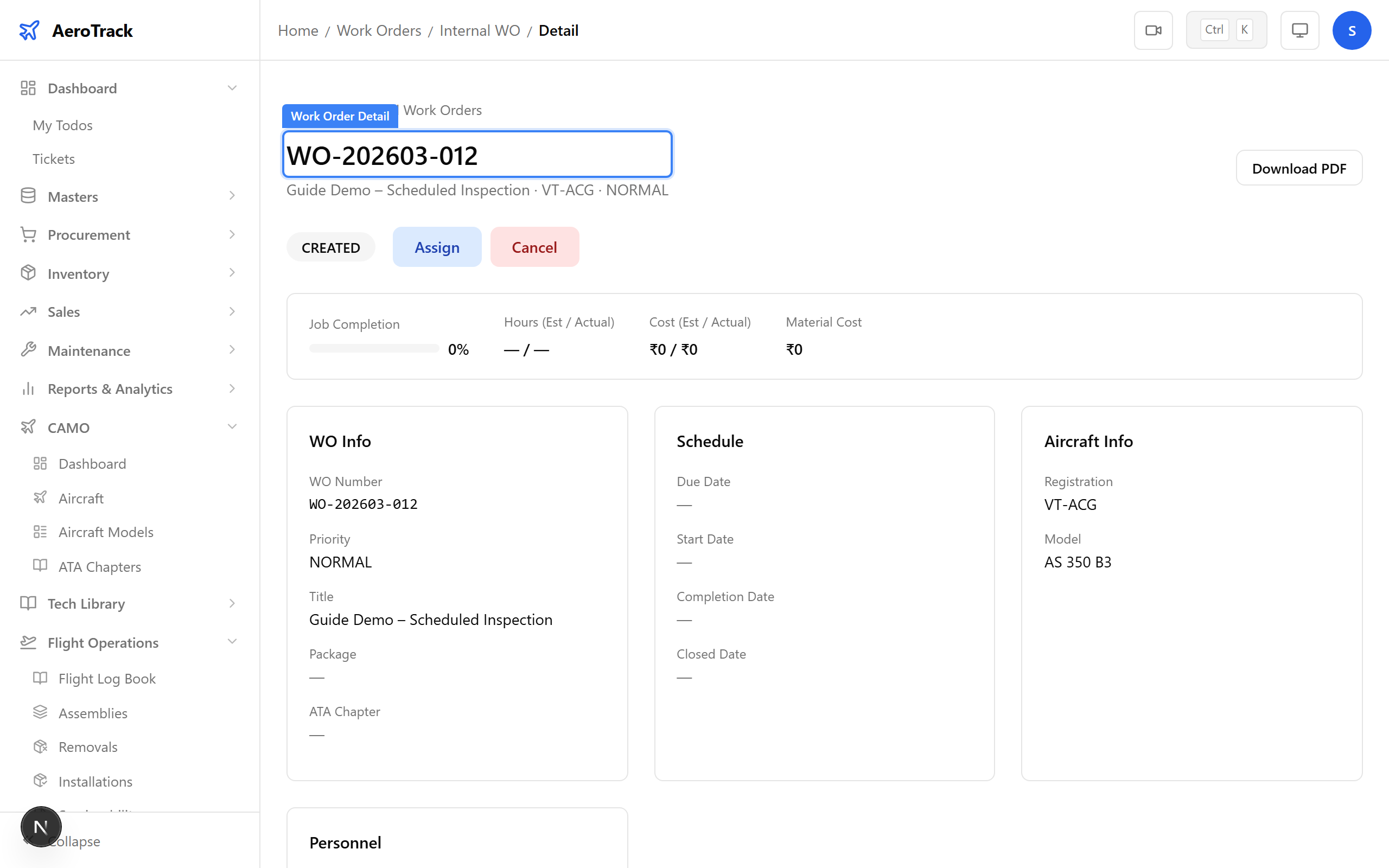
On the WO detail page, the progress bar shows job completion percentage. Below it, the WO Progress section shows:
| Metric | Meaning |
|---|---|
| Total Jobs | All jobs in the WO. |
| Completed | Jobs in COMPLETED or SIGNED_OFF status. |
| Signed Off | Jobs that have been signed off with licence reference. |
| Deferred | Jobs deferred to future work. |
| Open Defects | Defects still in OPEN status. Must be 0 to close. |
| Can Close | Yes or No — the system's verdict. |
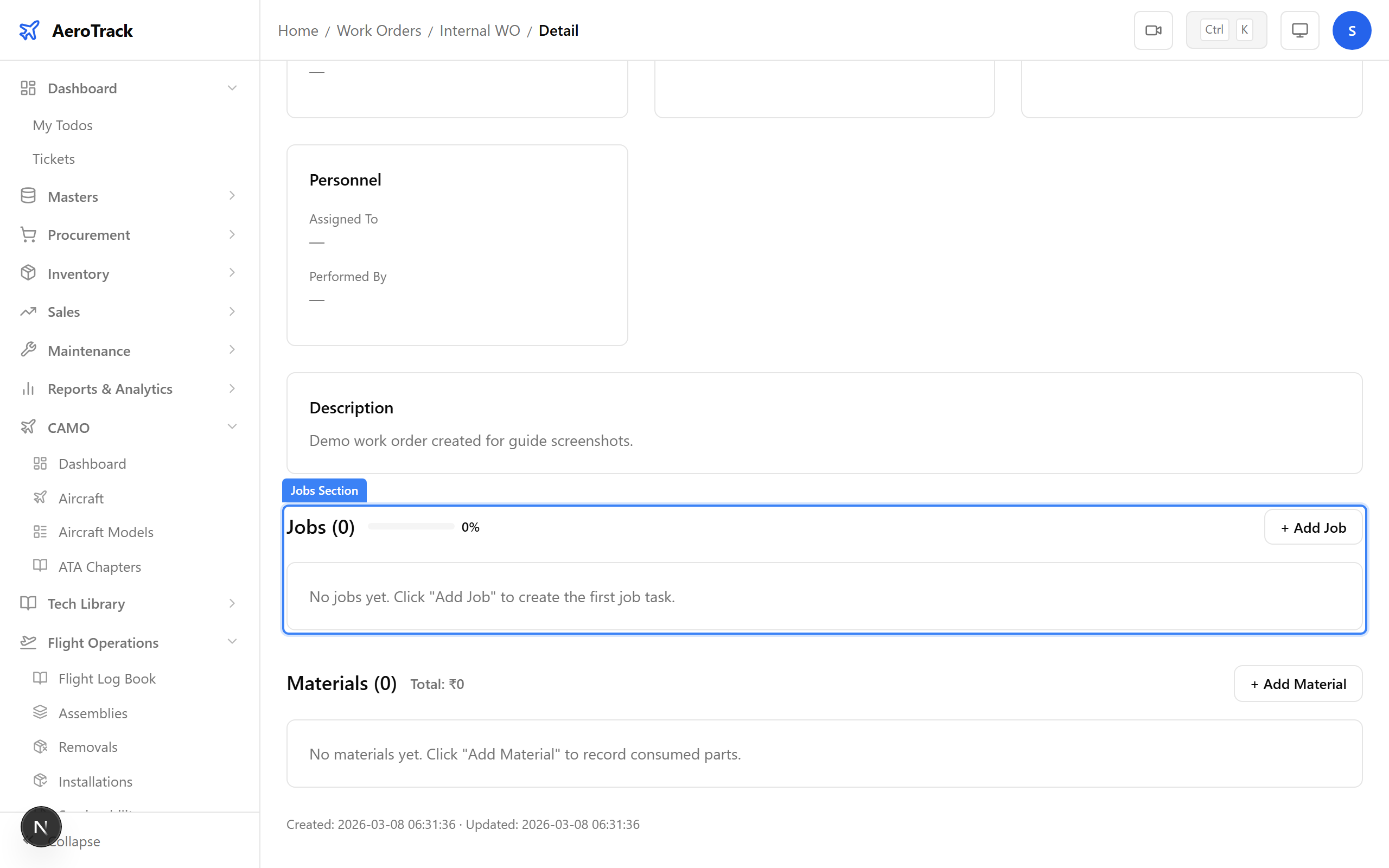
If there are open defects, navigate to the Defects section on the WO detail page. For each open defect, click Resolve and enter a resolution description. Defects can also be deferred if they will be addressed in a future work order.
Close a CAMO Internal WO
On the WO detail page, use the Workflow Actions buttons
to advance the status through the chain:
IN_PROGRESS → QA_CHECK → COMPLETED.
The COMPLETED transition records the completionDate.
The Close WO button only appears once the status reaches COMPLETED and all closure gates pass.
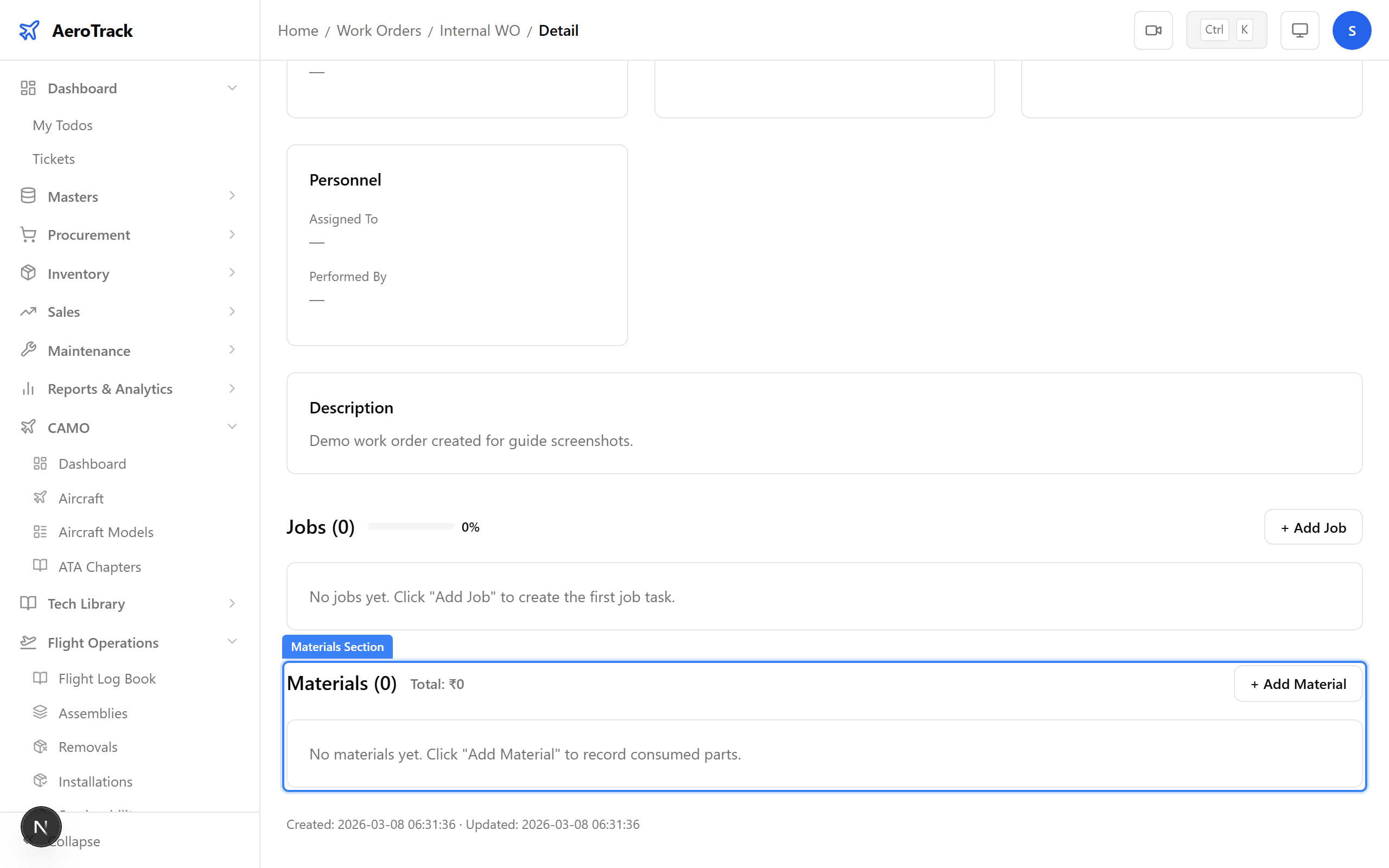
Click Close Work Order. Optionally add closure remarks.
The system records the closedDate and archives the work order.
It no longer appears in active WO lists but remains accessible in reports
and registers.
Close a 145 MRO WO mro_engineer
Each job in the 145 WO must progress through: PENDING → IN_PROGRESS → COMPLETED → SIGNED_OFF.
To sign off a completed job, click Sign Off and enter
your AME licence reference (e.g. AME-B-98765). The system
records the signer, licence reference, and timestamp.
Once all non-deferred jobs are signed off and no open defects remain, the WO auto-transitions to SIGN_OFF status.
Signed-off jobs can be countersigned by a supervisor. On the
Sign-Off page (/mro145/sign-off), the
supervisor reviews each signed job and clicks Countersign.
The system records the supervisor ID and countersign timestamp.
Once the WO is in SIGN_OFF status:
- Click Mark Complete to transition to COMPLETED.
- The Close Work Order button appears.
- Click it to open the closure dialog.
The closure dialog includes:
| Field | Required | Notes |
|---|---|---|
| Closure Notes | No | Summary of work performed (max 500 characters). |
| Work Package URL | No | Link to the scanned work package document (uploaded to external storage). |
Click Close to finalise. The system:
- Sets the WO status to CLOSED and records
closedDate. - Updates the linked CAMO work order status.
- Creates task history entries for linked inspections.
- Recalculates
nextDuevalues on affected inspection schedules.
A closure card appears on the WO detail page showing the notes and timestamp.
After Closure
After a 145 WO is closed, verify the sync by checking:
- CAMO Work Orders → Internal — the linked WO should reflect the closed status.
- Flight Ops → Task History — new entries should appear for each inspection covered by the WO.
- Flight Ops → Inspections — the affected inspection schedules should show recalculated
nextDuevalues based on the closure date and aircraft hours/cycles at completion.