View the Due Report
Navigate to CAMO Reports in the sidebar and click
Inspection Due, or go directly to
/camo/reports/inspection-due. The report loads all active
inspection schedules across the fleet and computes due status for each.
Four summary cards appear at the top of the report:
| Card | Meaning |
|---|---|
| Total | All inspections matching the current horizon filter. |
| Overdue | Past due in at least one dimension (hours, cycles, or calendar date). |
| Coming Due | Within the lookahead window but not yet overdue. |
| OK | Not due within the current horizon. |
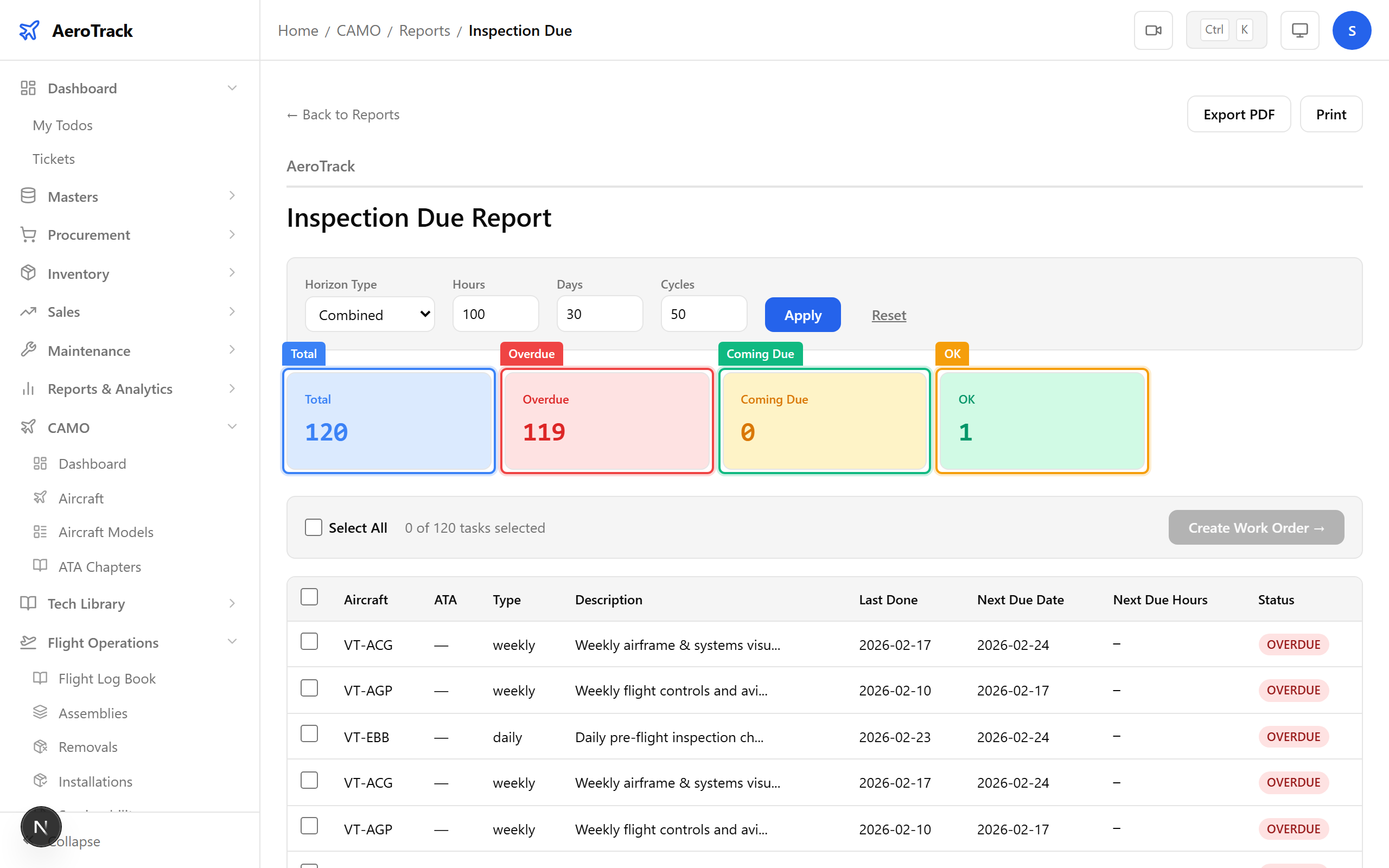
Each row in the report table has a Status badge:
- OVERDUE — the inspection deadline has passed. Immediate action required.
- COMING DUE — the inspection falls within the lookahead horizon. Plan it now.
- OK — not due within the current window.
- NOT STARTED — no baseline has been set (last-done values are blank).
Configure the Horizon
The filter box at the top has a Type dropdown with four options:
| Type | Behaviour |
|---|---|
| Combined (default) | Shows inspections due within any dimension — hours OR days OR cycles. This is the broadest and safest view. |
| Hours | Only considers flight-hour remaining. Useful when planning around flying hours. |
| Days | Only considers calendar days remaining. Useful for calendar-based checks. |
| Cycles | Only considers landing cycles remaining. |
Depending on the type selected, one or more numeric inputs appear:
| Input | Default | Meaning |
|---|---|---|
| Hours | 100 | Show inspections due within the next 100 flight hours. |
| Days | 30 | Show inspections due within the next 30 calendar days. |
| Cycles | 50 | Show inspections due within the next 50 landing cycles. |
Adjust these values to widen or narrow the lookahead window. For example, set Hours to 200 and Days to 60 to plan further ahead.
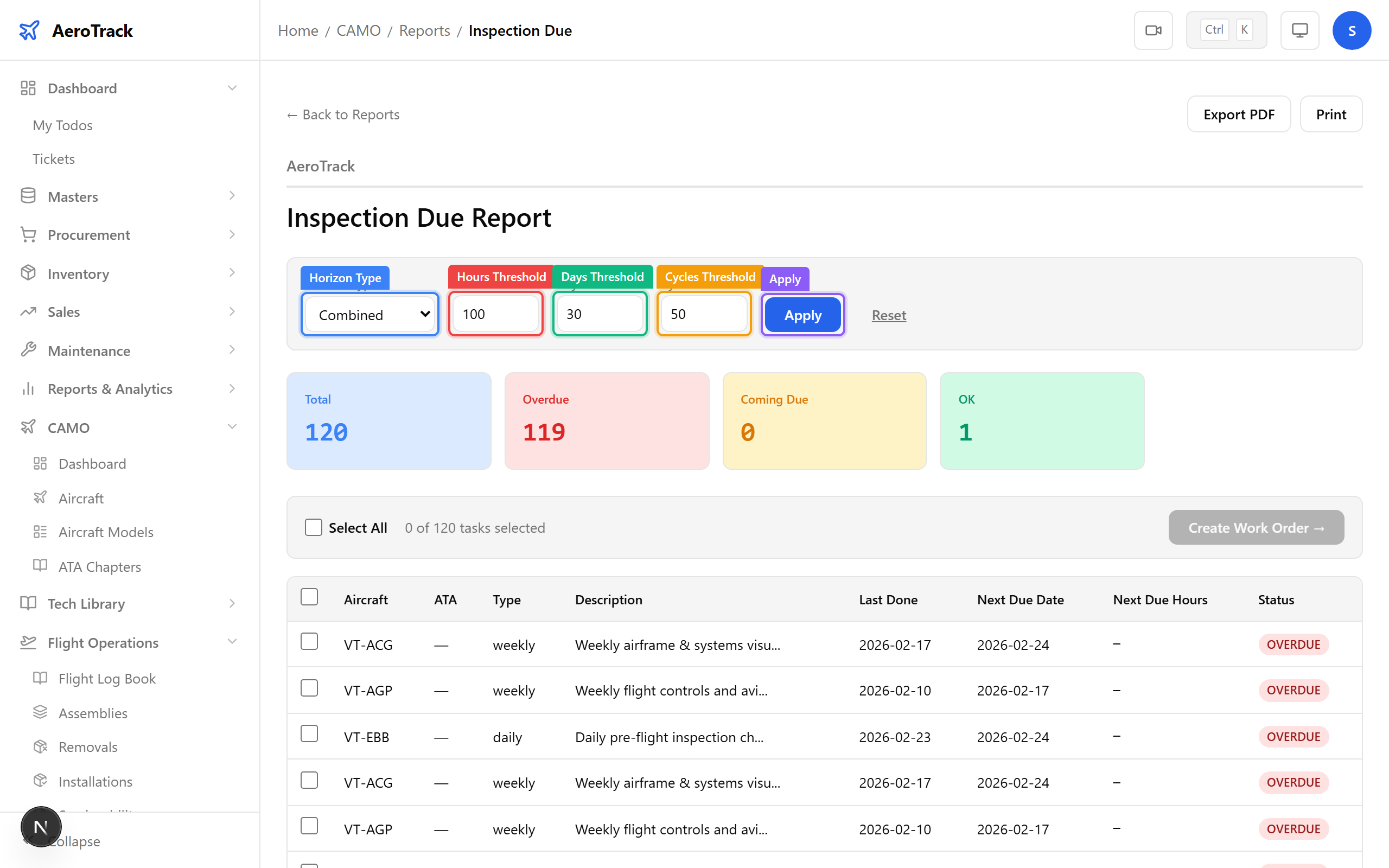
Click Apply to refresh the report with the new horizon. The KPI cards and table update immediately. Click Reset to return to the default values (Combined: 100h / 30d / 50c).
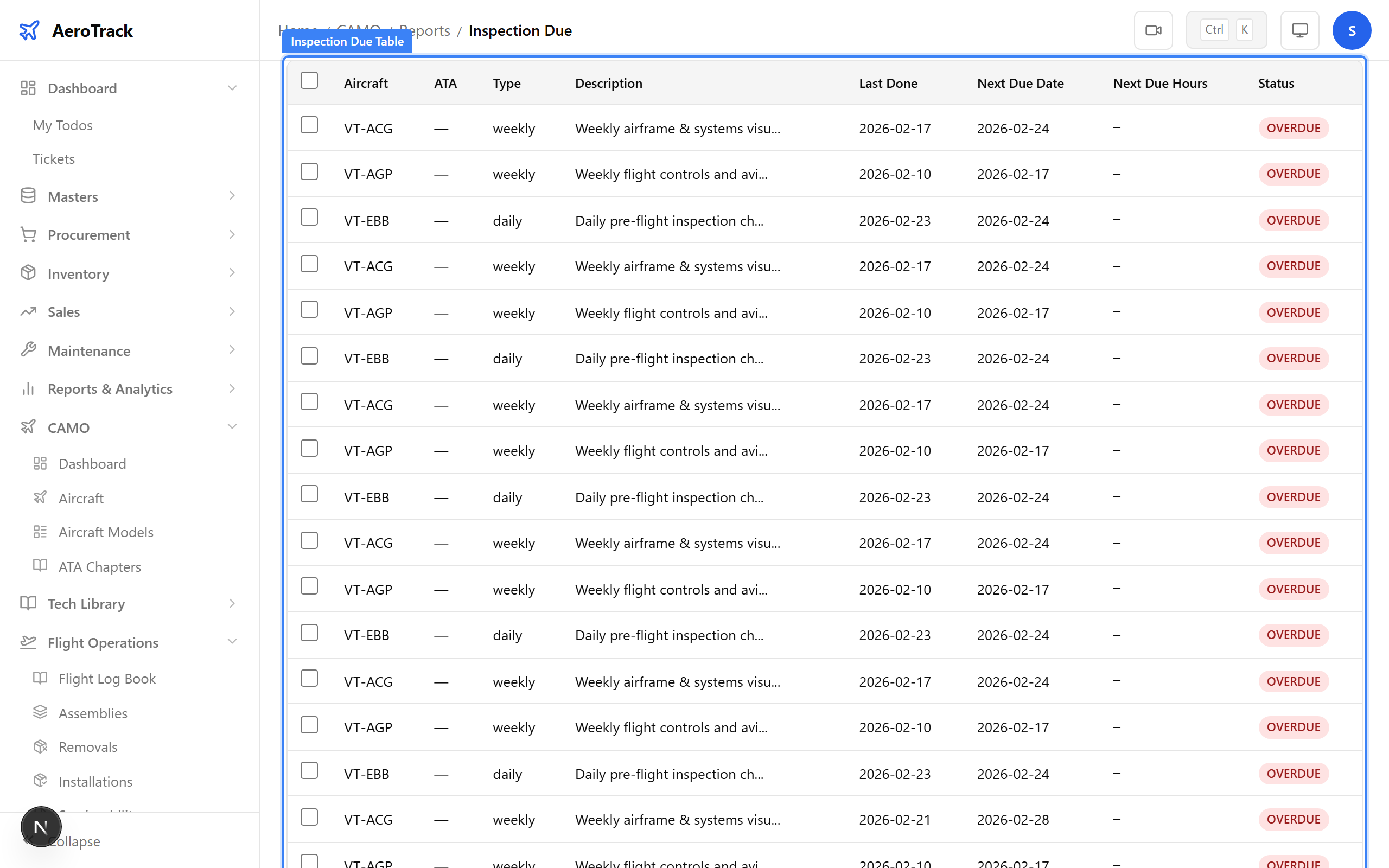
Raise a Work Order
Use the checkboxes in the leftmost column to select the inspections you want to bundle into a single work order. You can also use the Select All checkbox in the header.
A selection bar appears showing the count of selected tasks. If you select inspections from different aircraft, an error hint appears: "Selected tasks span multiple aircraft". Deselect until all tasks belong to the same aircraft.
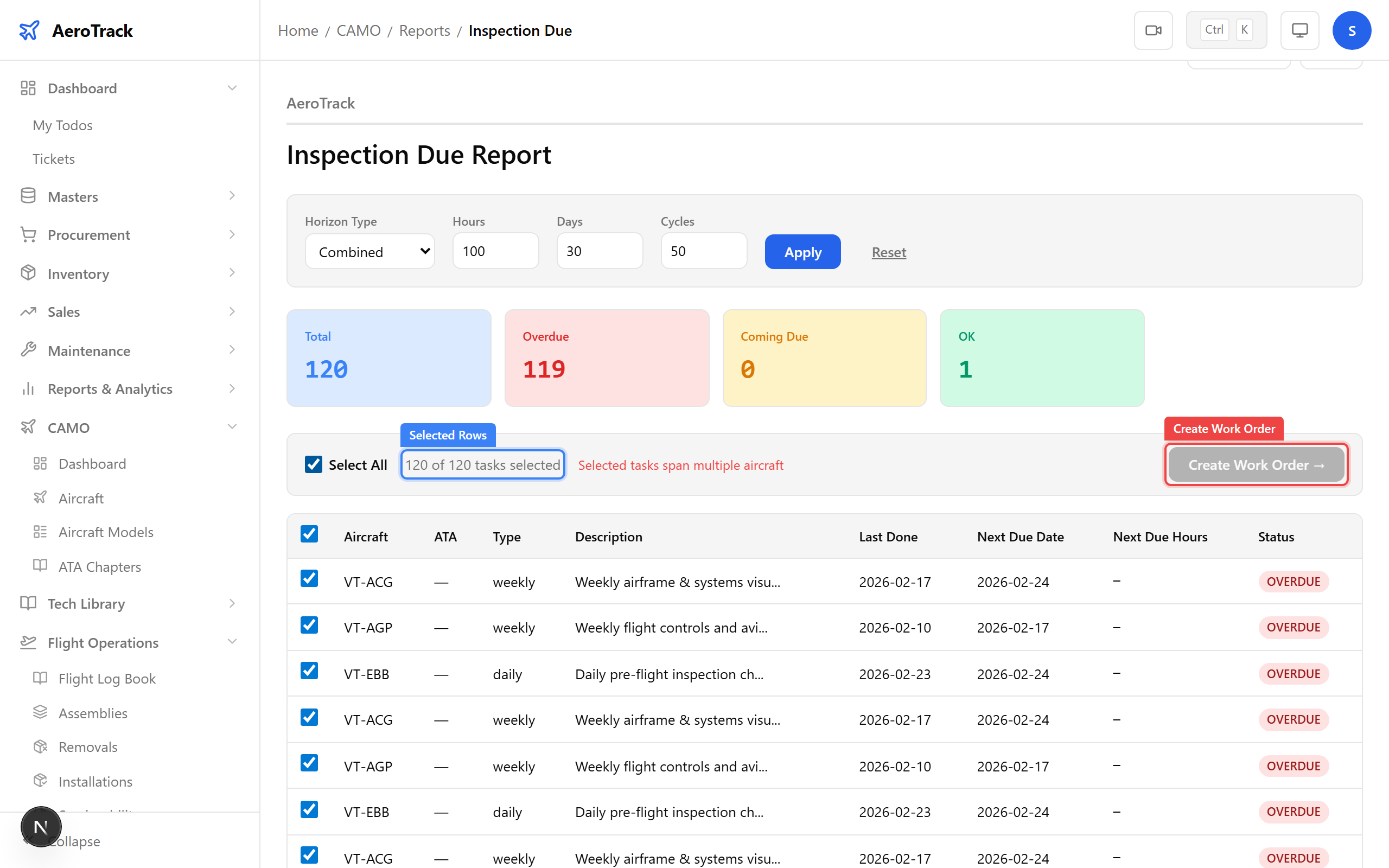
Once your selection is valid (single aircraft), click the Create Work Order → button. You are redirected to the internal work order form with these fields pre-filled:
| Field | Auto-filled Value |
|---|---|
| Aircraft | The aircraft from the selected inspections. |
| Title | Inspection Due Tasks — VT-XXX |
| Description | Bullet list of selected inspection types and ATA chapters. |
| Due Date | Earliest nextDueDate among the selection. |
| Priority | Urgent if any selected row is OVERDUE, otherwise Normal. |
Review the pre-filled form, make any adjustments, and submit. See the Work Order Creation guide for the full form walkthrough.