View Notifications
Navigate to Tech Library → AD/SB → Notifications
tab. The notifications page loads at
/tech-library/ad-sb/notifications, showing URL change alerts
for all monitored directives.
By default, only unacknowledged (open) notifications are displayed.
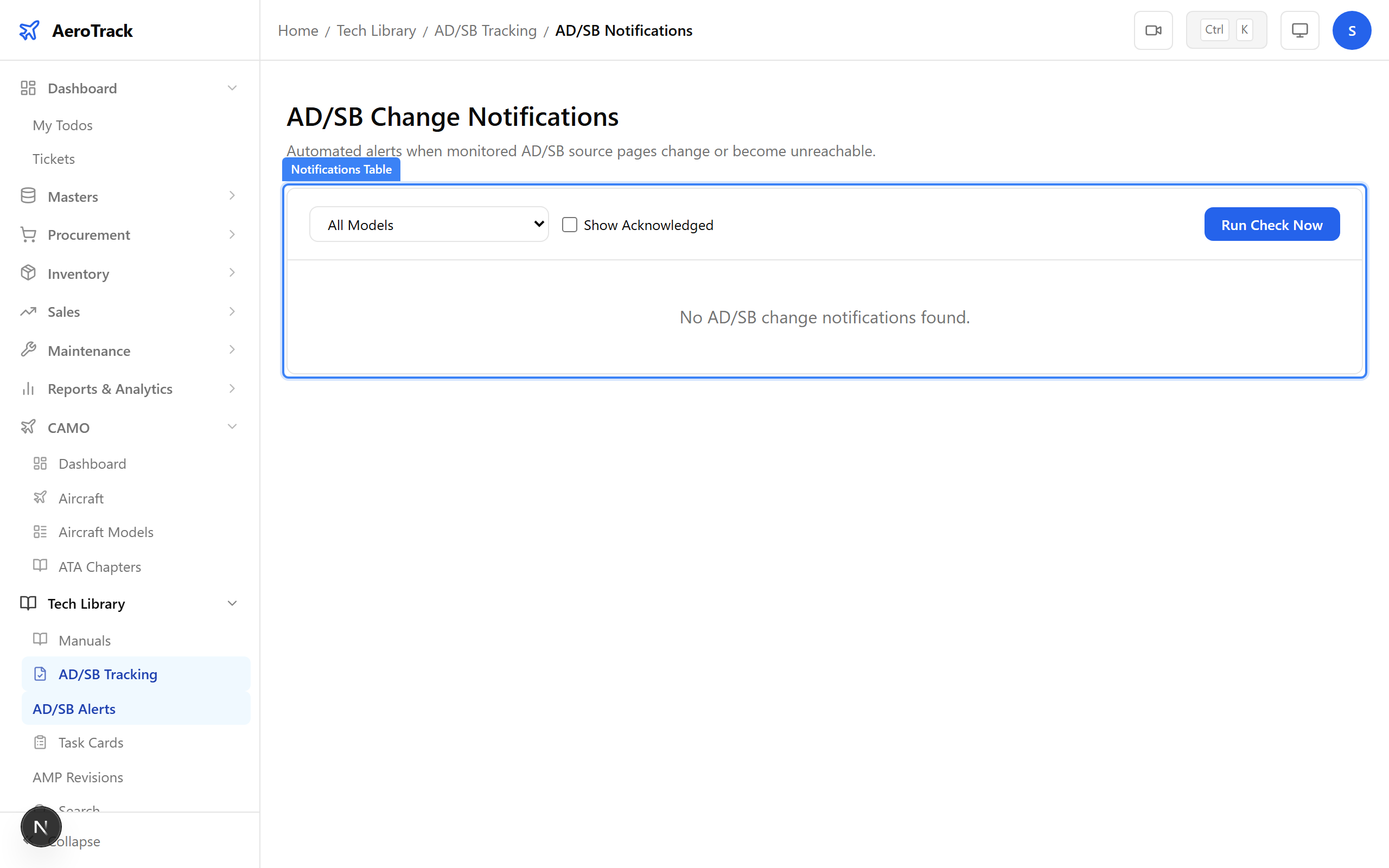
The notification table has the following columns:
| Column | Meaning |
|---|---|
| AD Number | The directive’s identifier (monospace, bold). Links to the AD detail page. |
| Title | Short description of the directive. |
| Message | Description of what changed (e.g. “Content at source URL has changed since last check”). |
| Severity |
CRITICAL — urgent action required. WARNING — review recommended. |
| Date | When the notification was created. |
| Status | Open or Acknowledged. |
| Actions | Acknowledge button (for open notifications only). |
Use the Model dropdown at the top of the page to filter notifications by aircraft model. Select All Models to see notifications across the entire fleet, or choose a specific model to narrow the list.
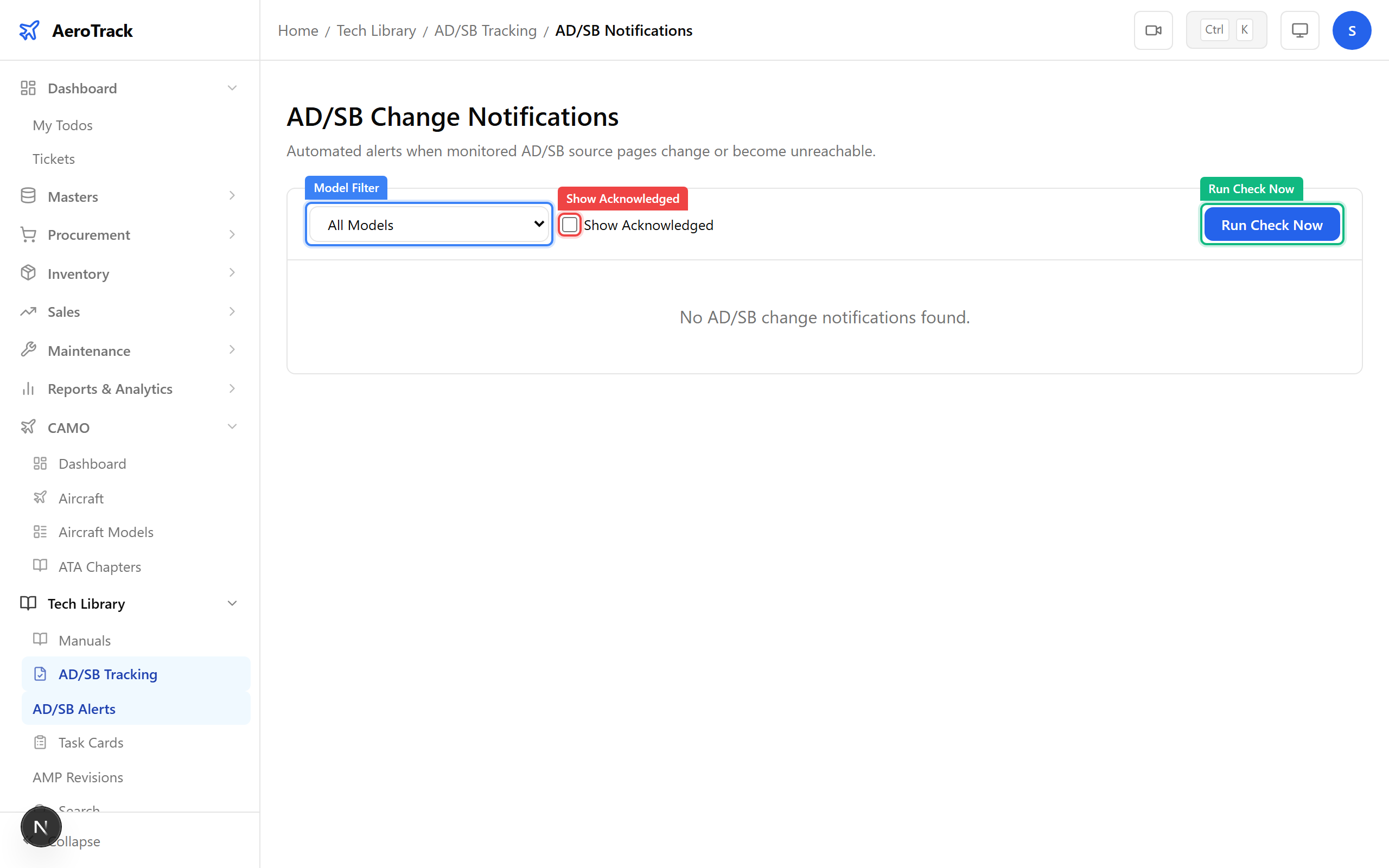
By default, acknowledged notifications are hidden. Check the Show Acknowledged checkbox to include them in the list. Acknowledged notifications show a green “Acknowledged” status and have no action button.
Take Action
For each open notification, click the Acknowledge button in the Actions column. This marks the notification as reviewed.
A toast appears: “Notification acknowledged”. The status changes to “Acknowledged” and the row is hidden unless the “Show Acknowledged” filter is active.
Click the Run Check Now button at the top of the page. The system immediately checks all monitored AD/SB source URLs for content changes.
On completion, a toast shows the results:
| Metric | Meaning |
|---|---|
| Checked | Total number of monitored URLs checked. |
| Changed | URLs where content has changed — new notifications are created for these. |
| Failed | URLs that could not be reached (network error, 404, etc.). |
| Unchanged | URLs with no content change since last check. |
New notifications for changed URLs appear in the table immediately after the check completes.
When a notification reports a content change:
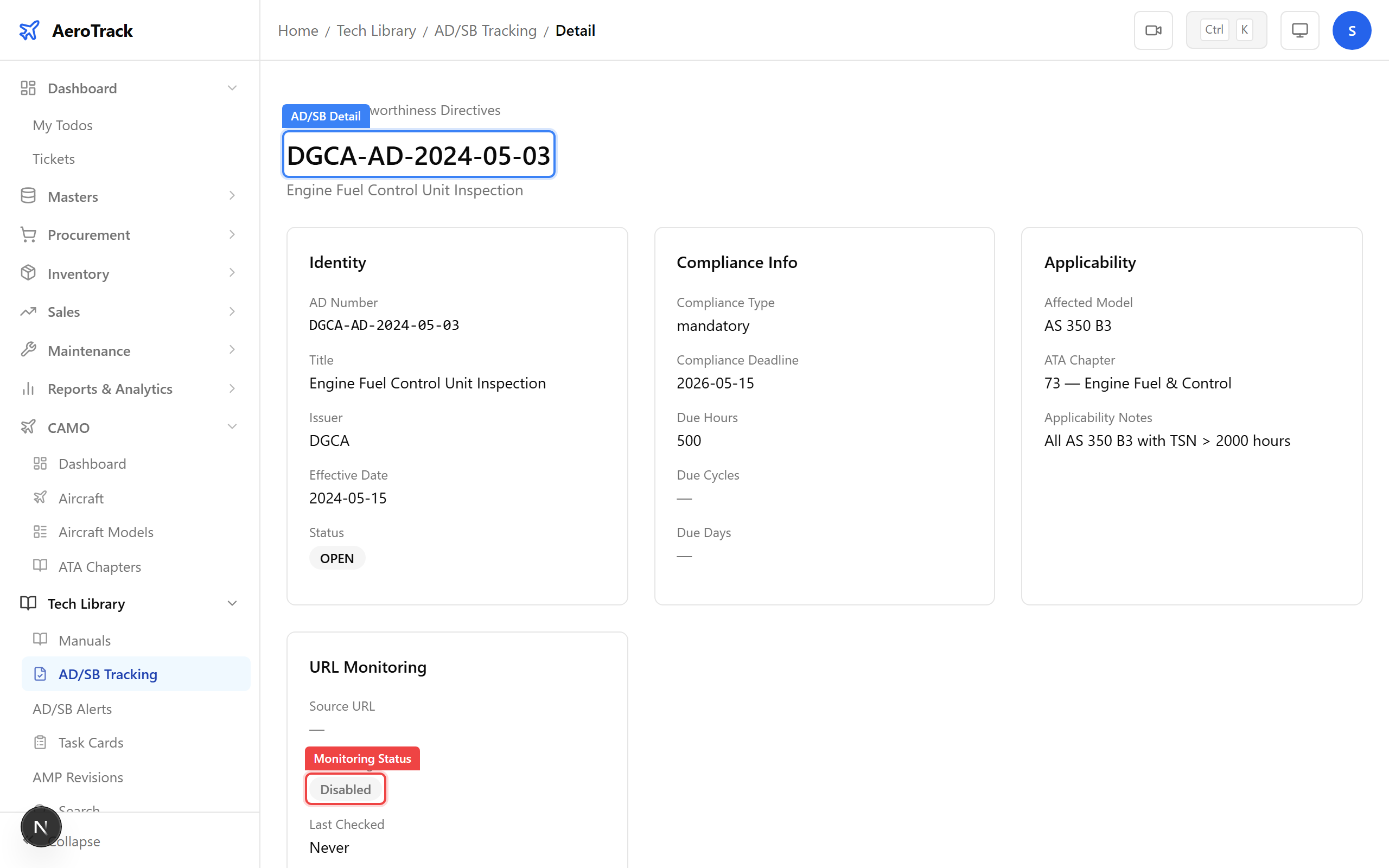
- Click the AD Number link to open the directive detail page.
- Review the Source URL in the URL Monitoring section — click it to open the original document.
- Compare the current document with the previous version to identify amendments.
- Update the AD/SB record in AeroTrack if compliance requirements have changed (status, deadline, due hours/cycles/days).
- Return to the notifications page and Acknowledge the notification.