Browse AD/SB Records
Navigate to Tech Library → AD/SB in the sidebar.
The list loads at /tech-library/ad-sb showing all active
Airworthiness Directives and Service Bulletins.
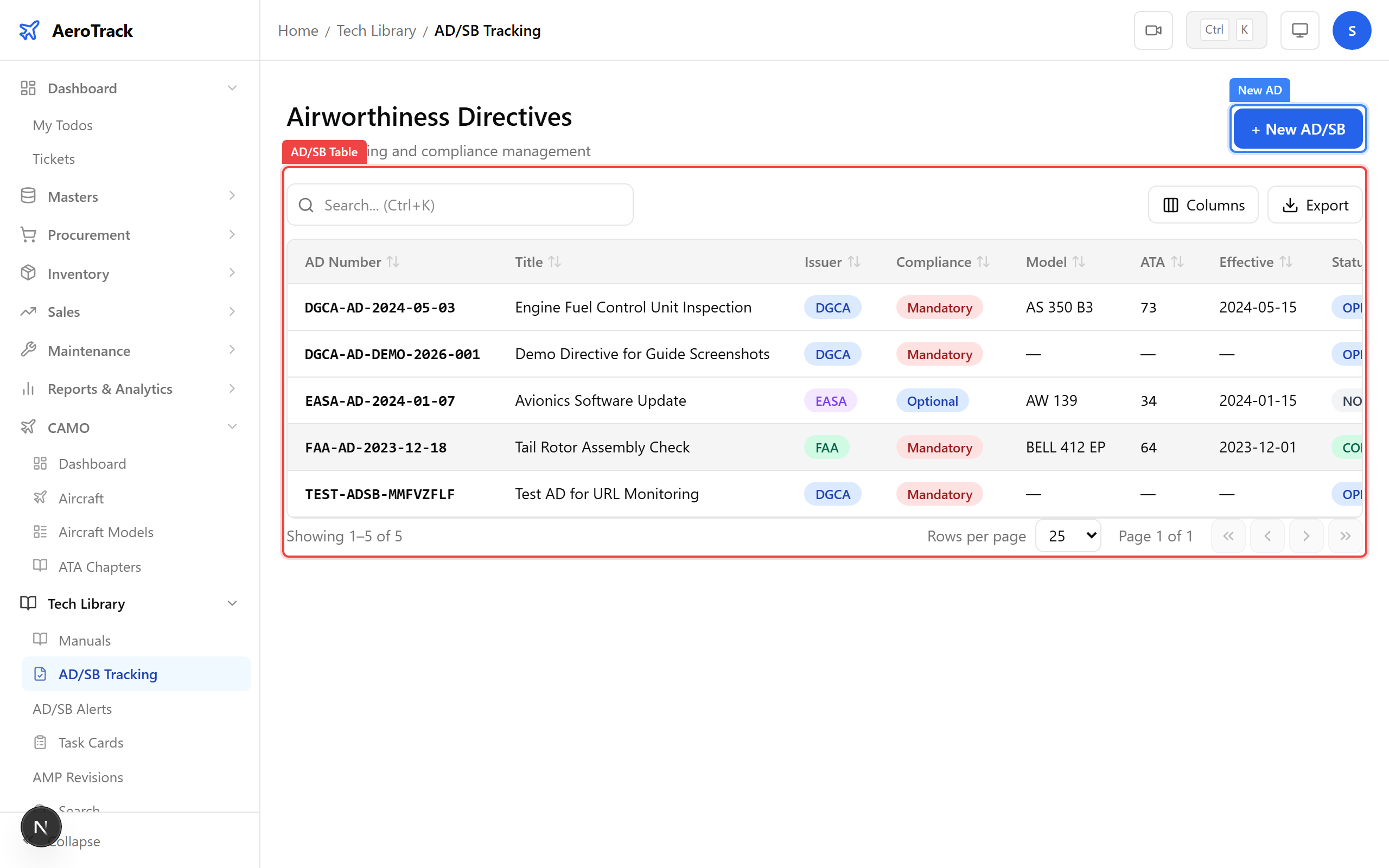
The table columns are:
| Column | Meaning |
|---|---|
| AD Number | Unique directive identifier (e.g. DGCA-AD-2024-05-03). |
| Title | Short description of the directive. |
| Issuer | Badge: DGCA (blue), FAA (green), EASA (purple), OEM (gray). |
| Compliance Type | Badge: mandatory (red) or optional (blue). |
| Model | Affected aircraft model, or “—” if applicable to all. |
| ATA | Related ATA chapter number. |
| Effective Date | When the directive takes effect. |
| Status | OPEN · COMPLIED · NOT APPLICABLE · SUPERSEDED |
Use the search bar to filter by AD number or title. Click any row to open its detail page. Export to CSV using the export button.
Create an AD/SB
Click New AD at the top-right of the AD/SB list.
The creation form opens at /tech-library/ad-sb/new.
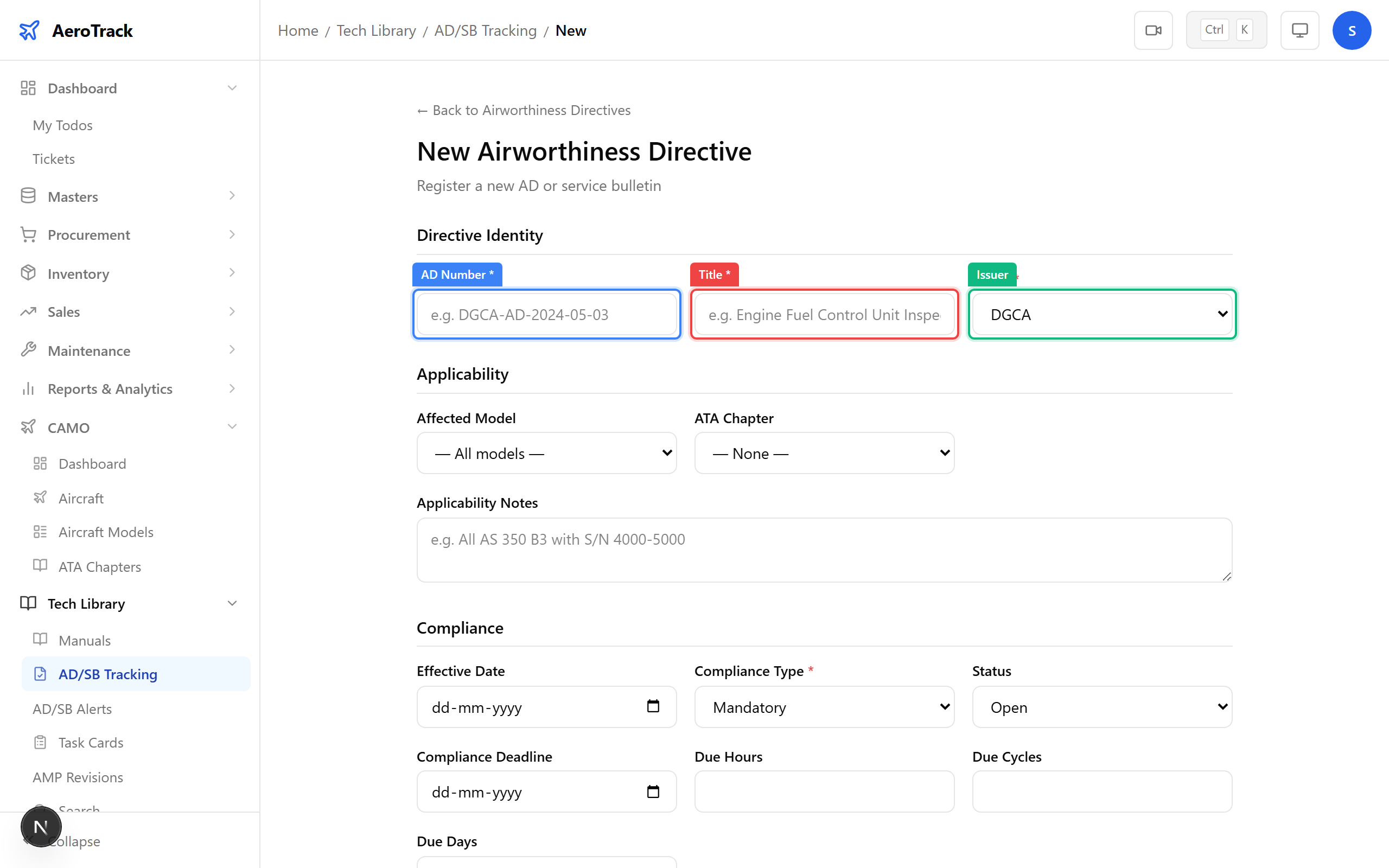
Complete the Directive Identity section:
| Field | Required | Notes |
|---|---|---|
| AD Number * | Yes | Unique identifier, max 50 chars. E.g. DGCA-AD-2024-05-03. Must not already exist in the system. |
| Title * | Yes | Short description, max 200 chars. E.g. Engine Fuel Control Unit Inspection. |
| Issuer | Yes | Dropdown: DGCA (default), FAA, EASA, OEM. |
In the Applicability section:
| Field | Required | Notes |
|---|---|---|
| Affected Model | No | Dropdown of aircraft models. Leave blank if the AD applies to all models. |
| ATA Chapter | No | Dropdown of ATA chapters for categorisation. |
| Applicability Notes | No | Textarea (max 500 chars) for serial number ranges or other details. |
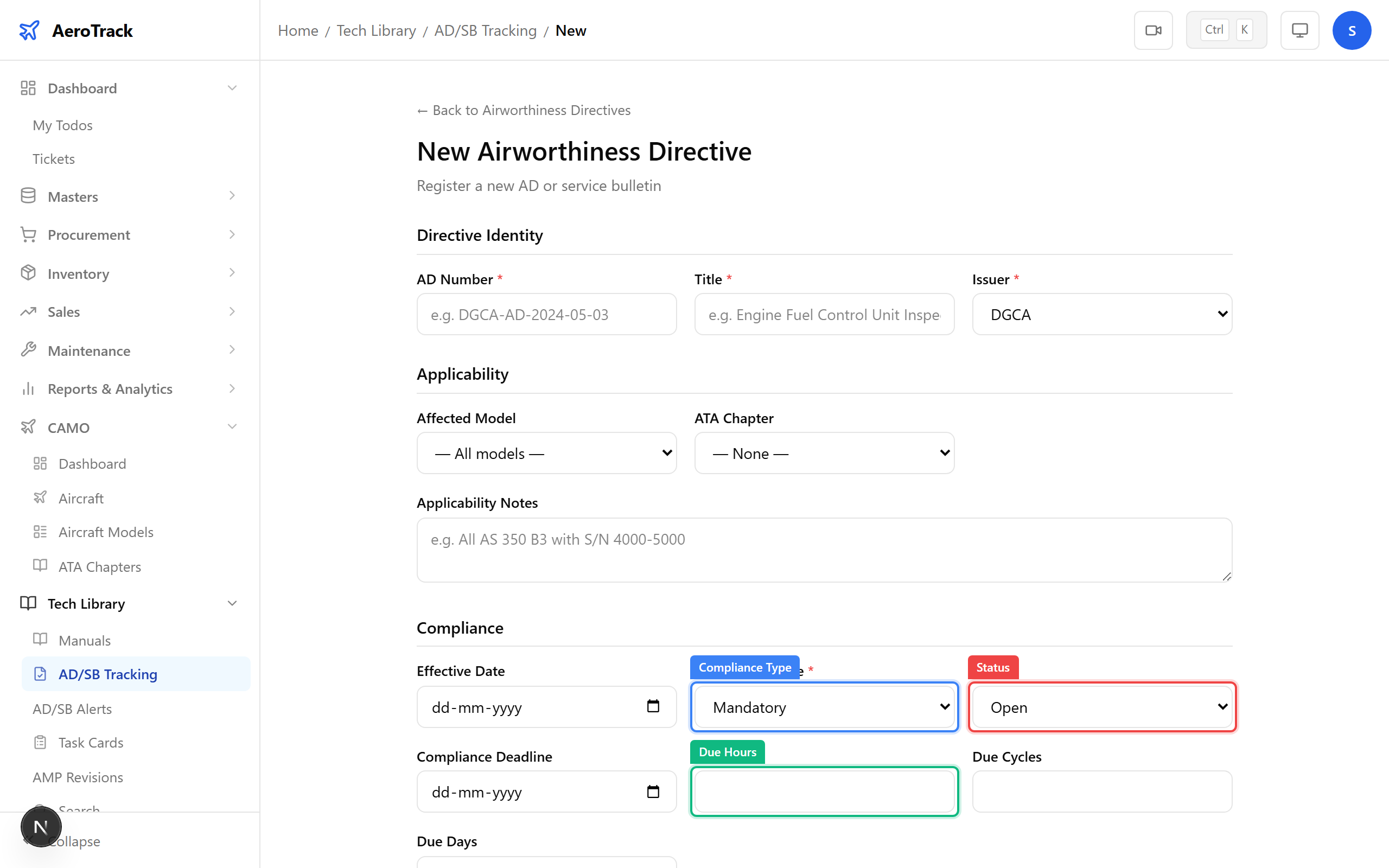
In the Compliance section:
| Field | Required | Notes |
|---|---|---|
| Effective Date | No | When the directive becomes effective. |
| Compliance Type | Yes | mandatory (default) or optional. |
| Status | Yes | OPEN (default), COMPLIED, NOT_APPLICABLE, SUPERSEDED. |
| Compliance Deadline | No | Calendar date by which compliance must be achieved. |
| Due Hours | No | Flight hours remaining until compliance due. |
| Due Cycles | No | Landing cycles remaining. |
| Due Days | No | Calendar days remaining. |
Optionally add Remarks (max 500 characters) in the remarks section below.
The Monitoring section at the bottom of the form allows automatic change detection on the directive’s source document:
| Field | Required | Notes |
|---|---|---|
| Source URL | No | Full URL to the original directive document (e.g. DGCA website). Must be a valid URL. |
| Enable Monitoring | No | Checkbox. When enabled, AeroTrack checks the URL every 15 days for content changes. |
When monitoring detects a change, a notification is created in the AD/SB Notifications page with severity CRITICAL or WARNING.
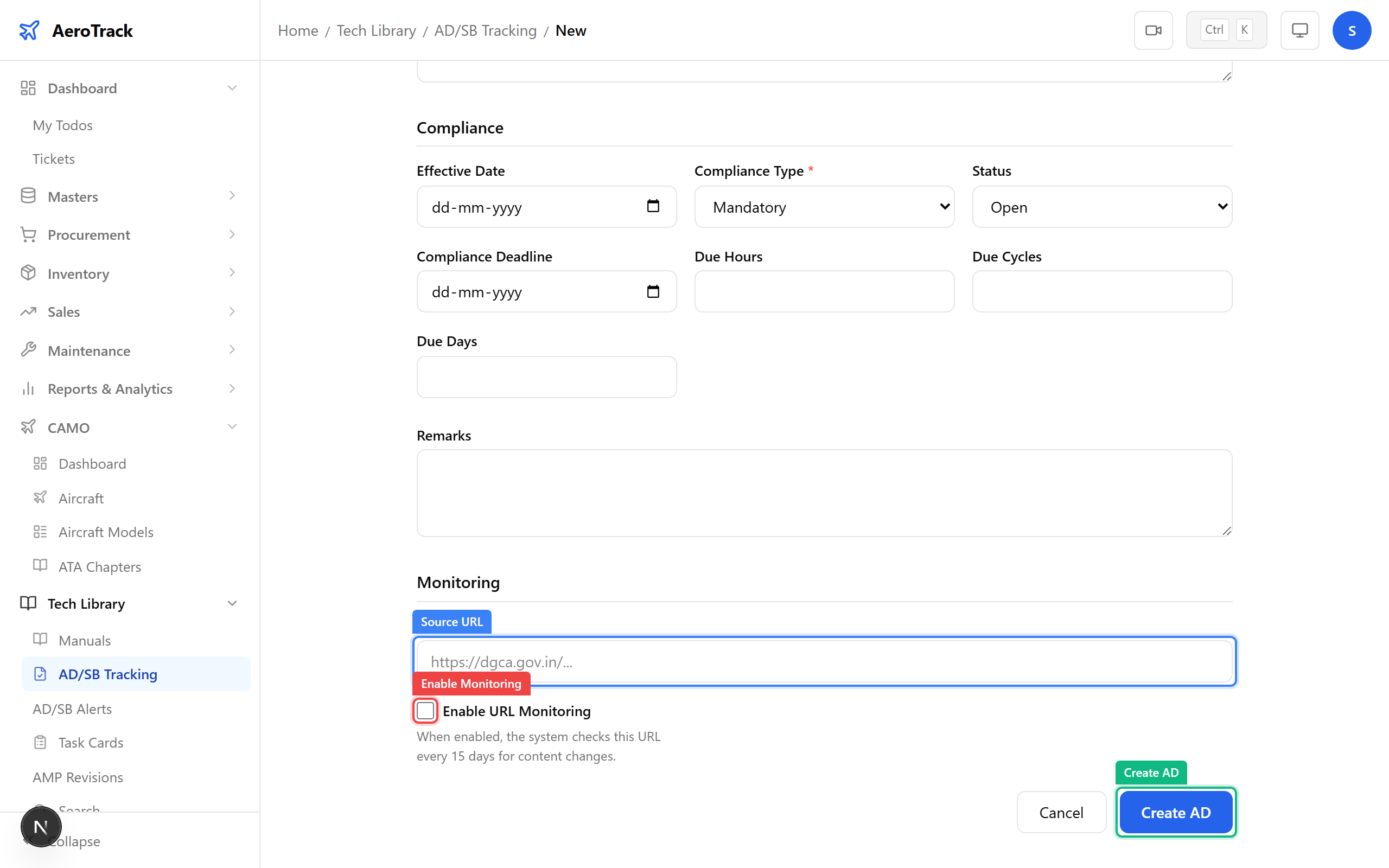
Click Create AD. The system validates for duplicate AD numbers and saves the record. A success toast appears: “AD created successfully”.
You are redirected to the AD/SB list. The new directive appears with its status badge and issuer.
View AD/SB Detail
Click any row in the AD/SB list to open its detail page at
/tech-library/ad-sb/{id}. The page shows four sections:
| Section | Content |
|---|---|
| Identity | AD Number, Title, Issuer, Effective Date, Status badge (OPEN, COMPLIED, NOT APPLICABLE, SUPERSEDED). |
| Compliance Info | Compliance Type, Deadline, Due Hours, Due Cycles, Due Days. |
| Applicability | Affected Model (or “All models”), ATA Chapter (formatted as 01 — Airframe), Applicability Notes. |
| URL Monitoring | Source URL (clickable link), Monitoring Status (Enabled/Disabled badge), Last Checked At, Content Hash (first 12 characters). |
If remarks were entered, they appear in a separate section below. The page footer shows created and last-updated timestamps.