Browse Users
Navigate to Settings → Users or go directly
to /settings/users. This page lists all user accounts
in the system.
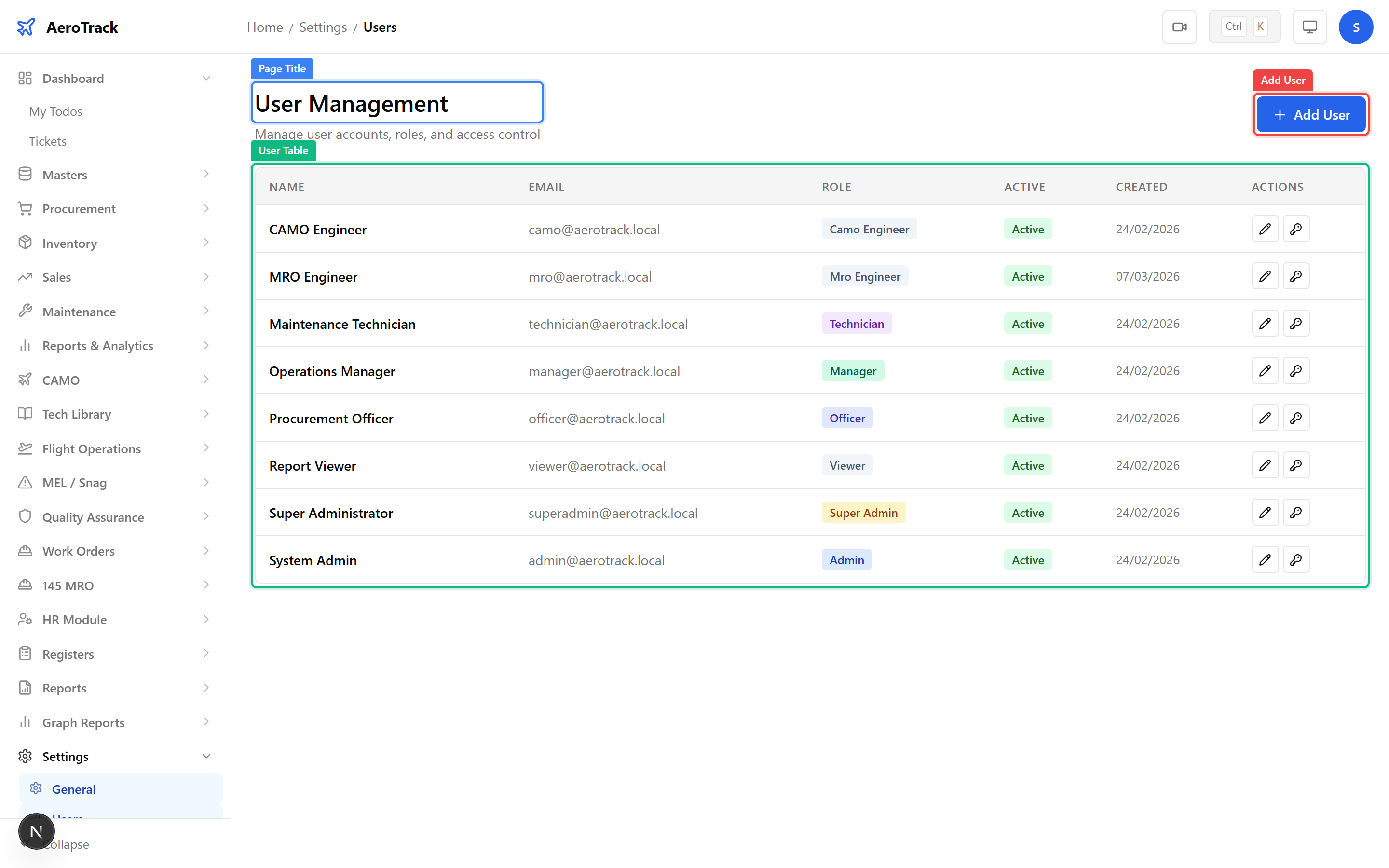
| Column | Description |
|---|---|
| Name | Full name of the user. |
| Login email address (must be unique). | |
| Role | Assigned role determining module access. See Role Permissions. |
| Active | Whether the account is currently active (can log in). |
| Actions | Edit and reset-password buttons. |
Create a User
Click the + Add User button above the table. The form appears inline above the user list.
| Field | Required | Notes |
|---|---|---|
| Name | Yes | Full name displayed throughout the app. |
| Yes | Must be unique. Used as the login credential. | |
| Password | Yes | Initial password. User should change after first login. |
| Role | Yes | Select from the 8 available roles (admin, manager, store_manager, store_keeper, purchase_officer, viewer, camo_engineer, mro_engineer). |
| Active | Yes | Toggle on to allow immediate login. Default: active. |
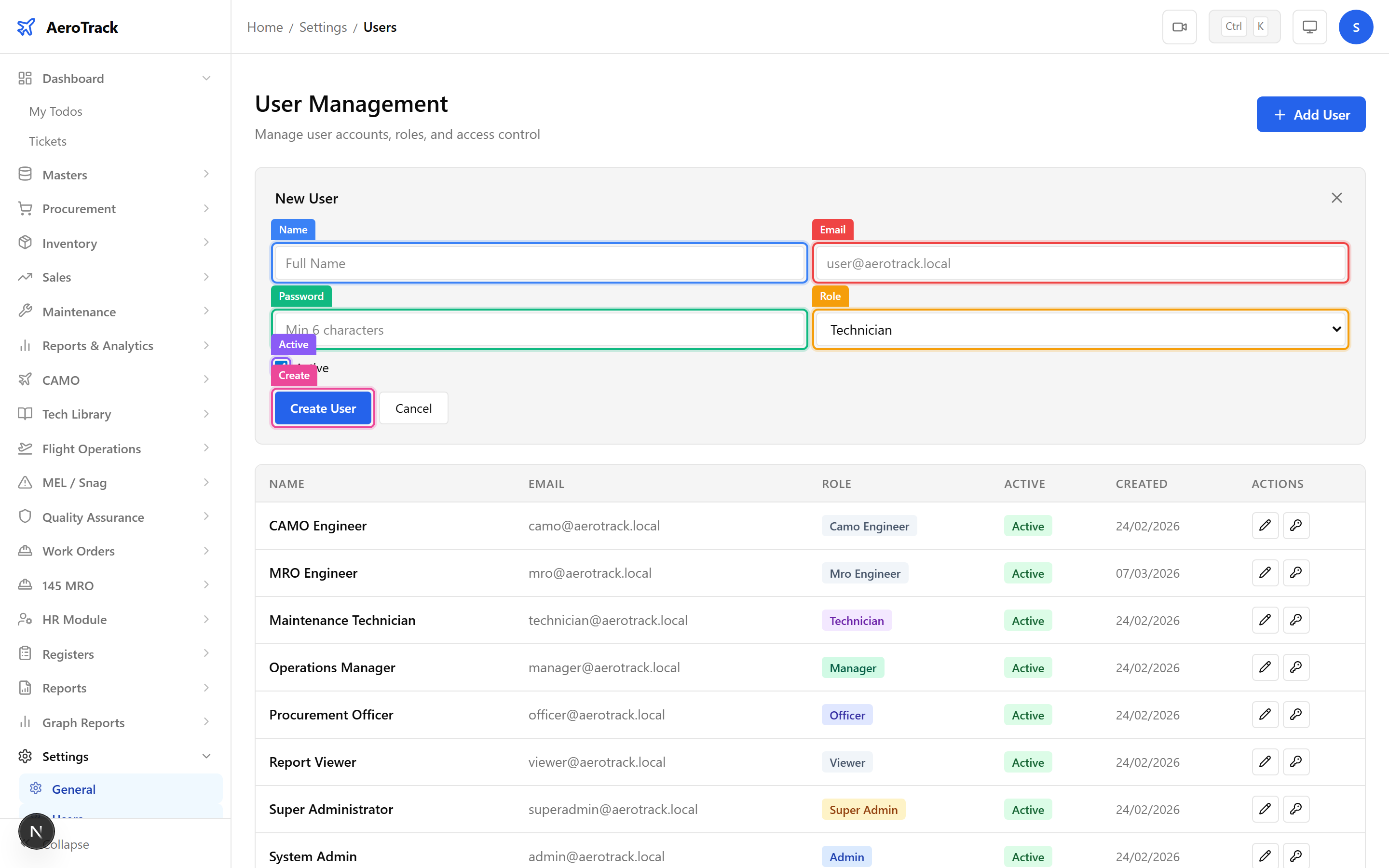
Click Create to save. The new user appears in the table and can log in immediately if marked active.
Edit & Deactivate
Click the Edit button on any user row. The row switches to inline edit mode, allowing you to change:
| Field | Editable |
|---|---|
| Name | Yes |
| Yes (must remain unique) | |
| Role | Yes |
| Active | Yes |
Click Save to confirm or Cancel to discard changes.
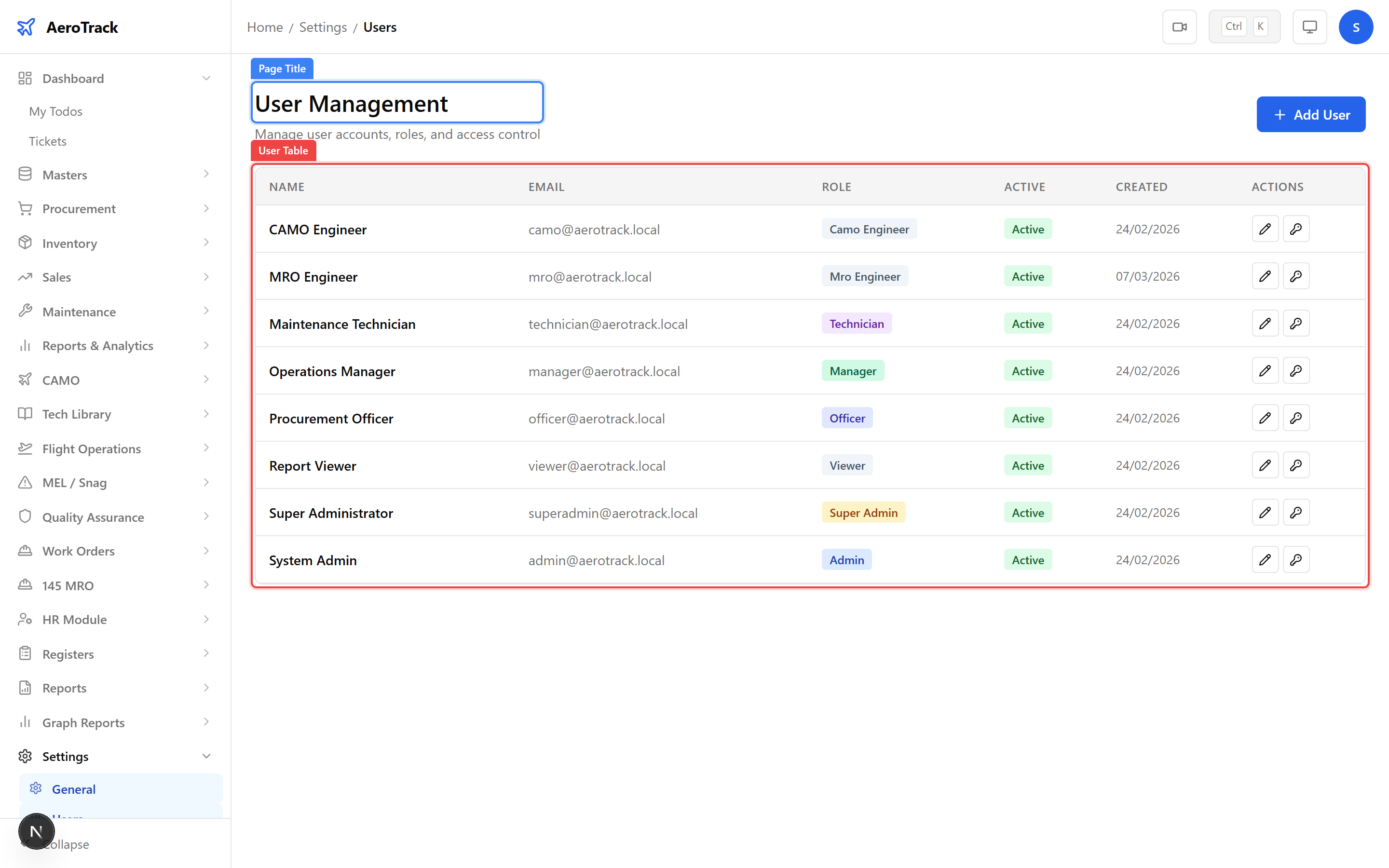
To revoke a user’s access without deleting their account, click Edit on their row and toggle Active off, then Save.
Deactivated users cannot log in but their audit trail, created records, and history are preserved.
Password Reset
Click the Reset Password button on the user’s row. A form appears where you enter the new password.
Click Reset to apply. The user’s password changes immediately — they will need to use the new password on their next login.